Body
Top Hat offers a wide range of interactive question types designed to increase student engagement and support active learning. This guide provides an overview of all Top Hat question types, including multiple choice, word answer, click-on-target, long answer, and more. It also introduces third-party question types for chemistry, math, graphs, and calculations.
Learn how to create questions, embed them into slide decks, present them live in class, or assign them as homework or review to students. Whether you're teaching STEM, humanities, or social sciences, this article will help you deliver an interactive classroom experience.
Table of Contents
- Top Hat Question Types
- Third Party Question Types
- Presenting / Assigning a Question
- Stand Alone Question (in the Content Tree)
- Embedded in a Slide Presentation
- Independent of a Slide Presentation
- Assigning Outside the Classroom
Top Hat Question Types
There are currently 11 Top Hat Question types to choose from. These question types and their features are built and managed by Top Hat.
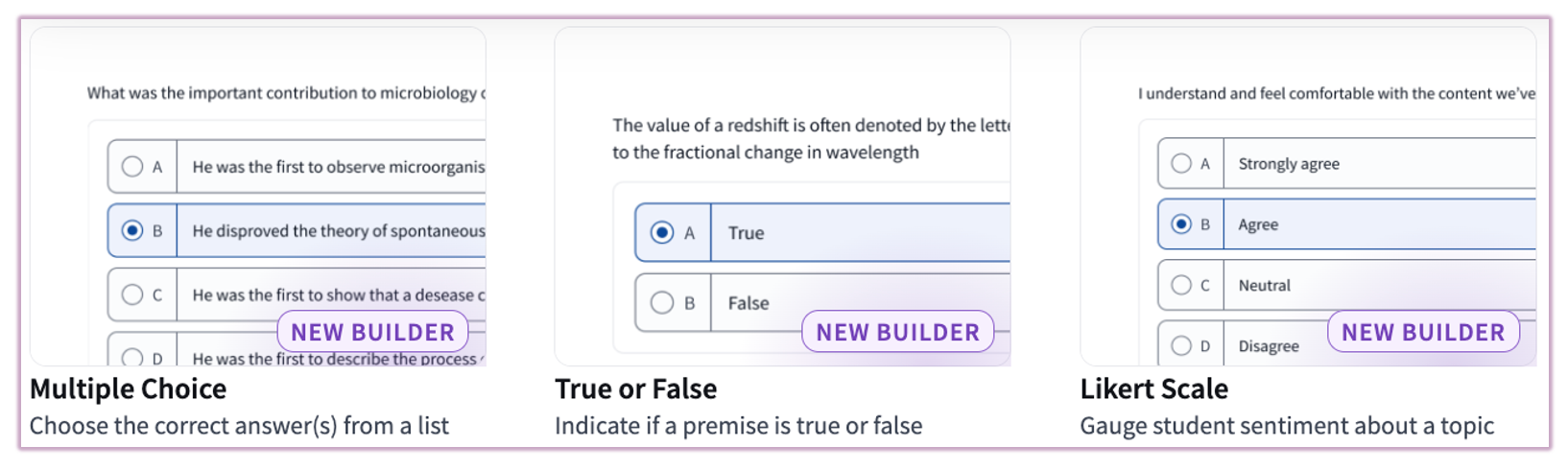 Image: Top Hat Question Types using our new "Question Builder"
Click the name of each question type below for instructions on creating the question and best practices:
Below is an example of the question builder for a Multiple Choice question:
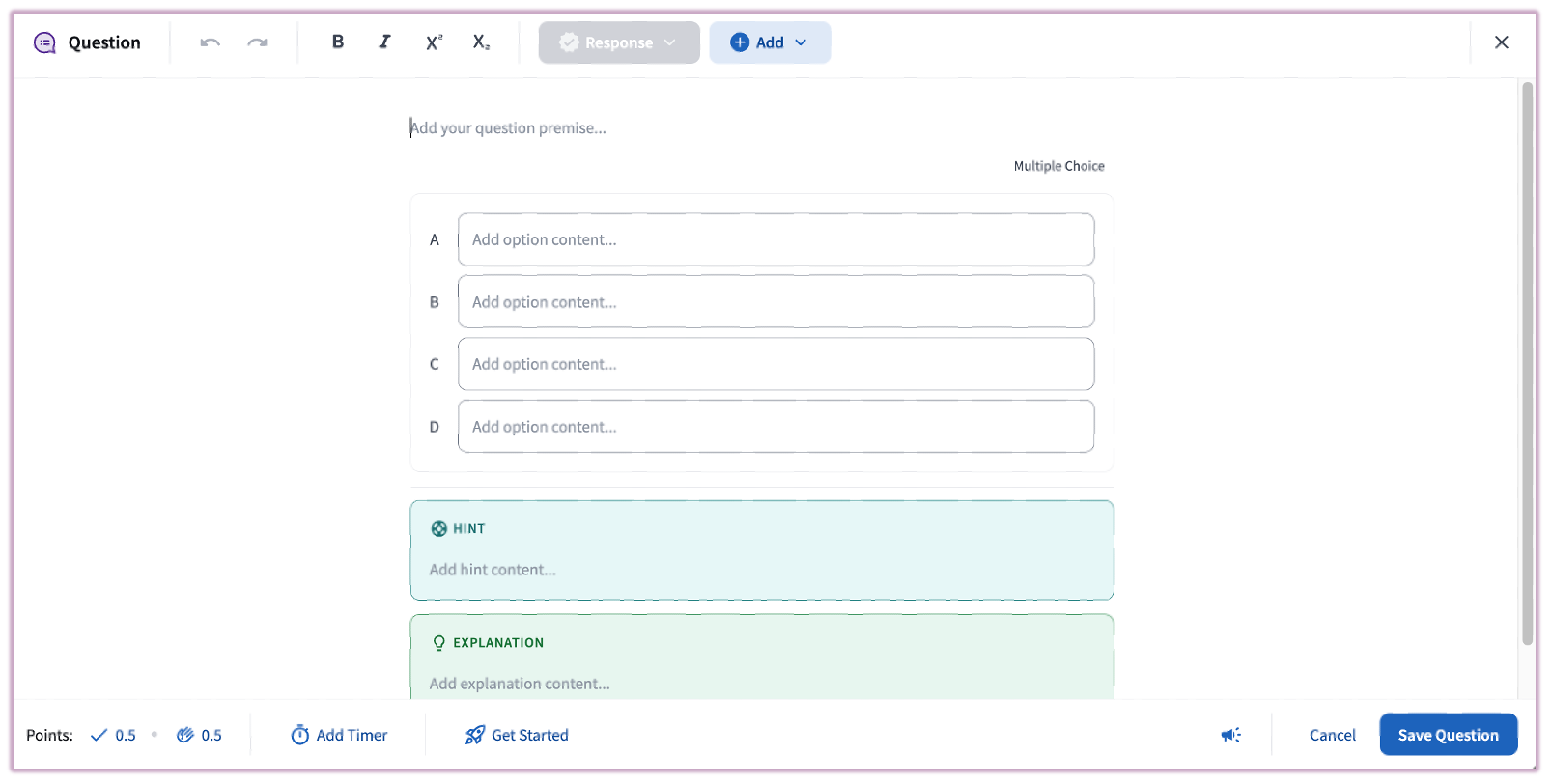 Image: New Question "Builder" in Top Hat
Third Party Question Types
In addition to native question types, Top Hat partners with third-party providers to introduce advanced question formats, particularly for STEM courses.
Note: Top Hat is unable to control aspects of third-party question types such as features, functionality, and design.
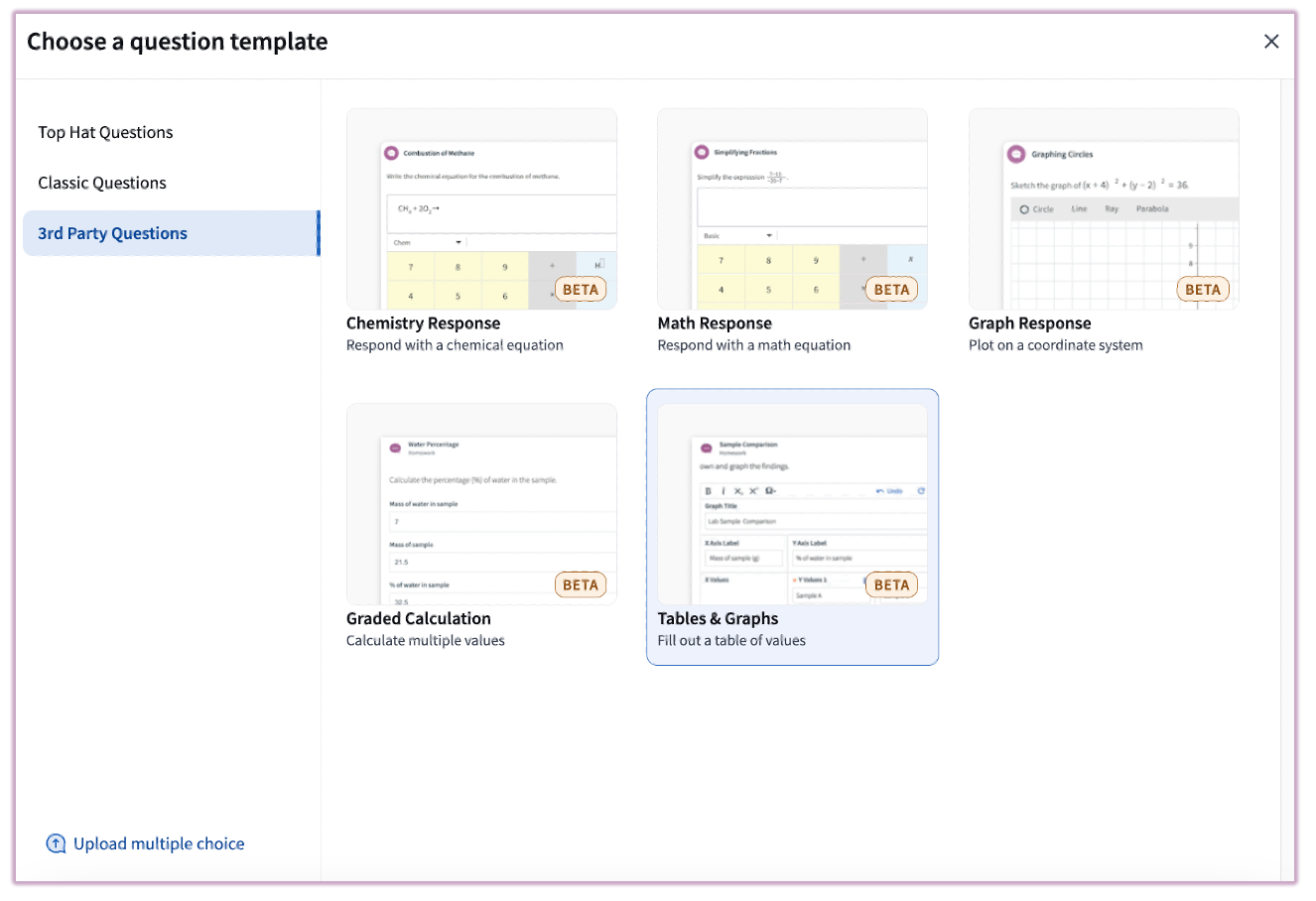 Image: Third Party Question Types in Top Hat
Click the name of each question type below for instructions on creating the question and best practices:
Presenting / Assigning a Question
There are several ways to present questions: as a Stand Alone Question, Embedded in a Slide Deck, or Assigned in either Homework or Review Mode. You control the question stages: Open → Closed → Student Responses → Correct Answers.
Stand Alone Question (in the Content Tree)
Access questions from your Content Tree and press "Present" to activate. You can also configure options like Presenter View and Join Code visibility.
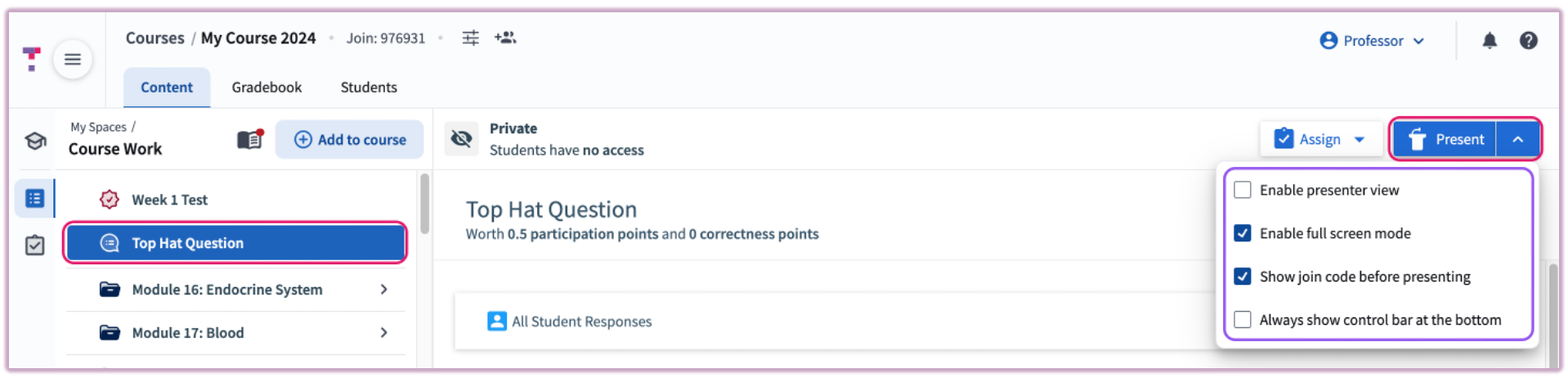 Image: Question selected in the content tree and the present button highlighted
Embedded in a Slide Presentation
Embedding a question directly into your slide deck ensures it appears at the right moment. Simply drag and drop the question from the content tree into your slide deck.
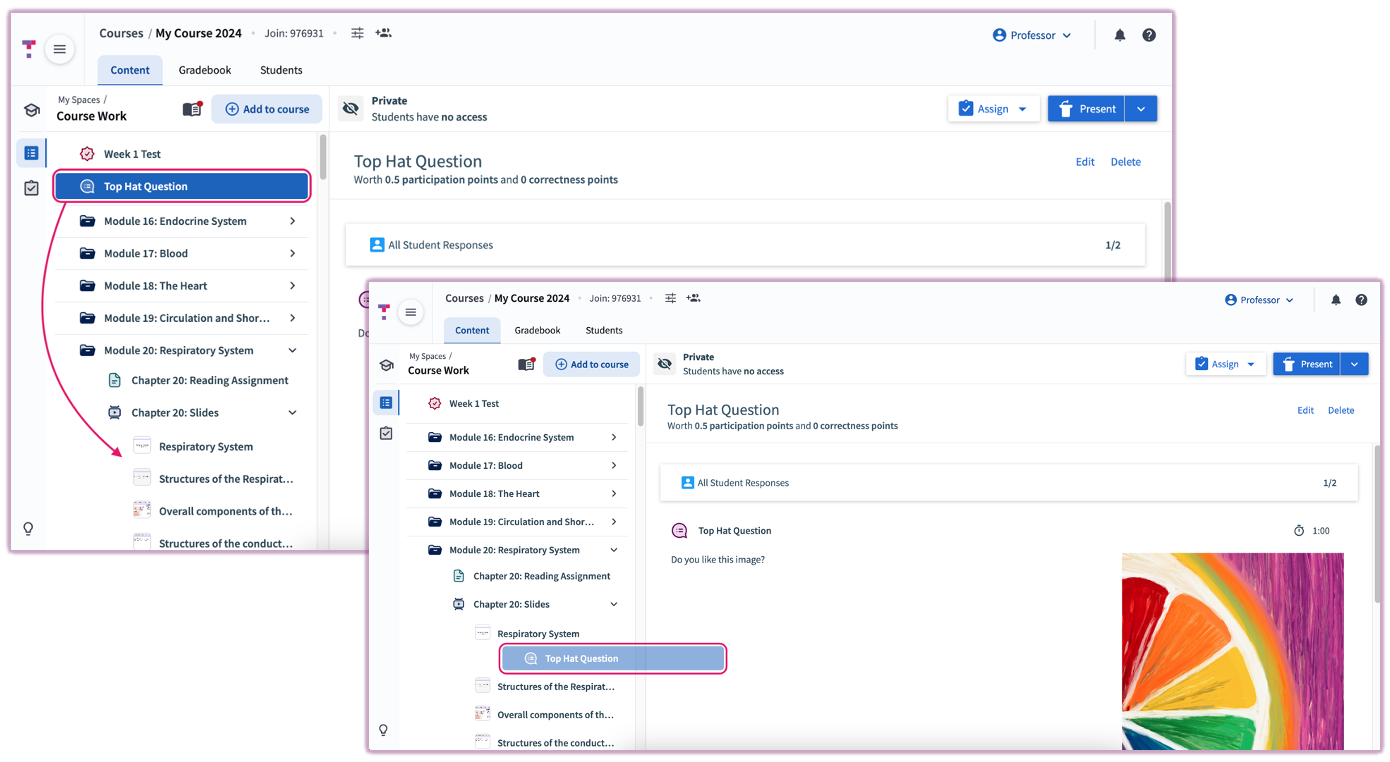 Image: Question being dragged into a slide deck
By default, a Question Introduction screen appears during the lecture. When ready, select "Start Question" to activate it for students.
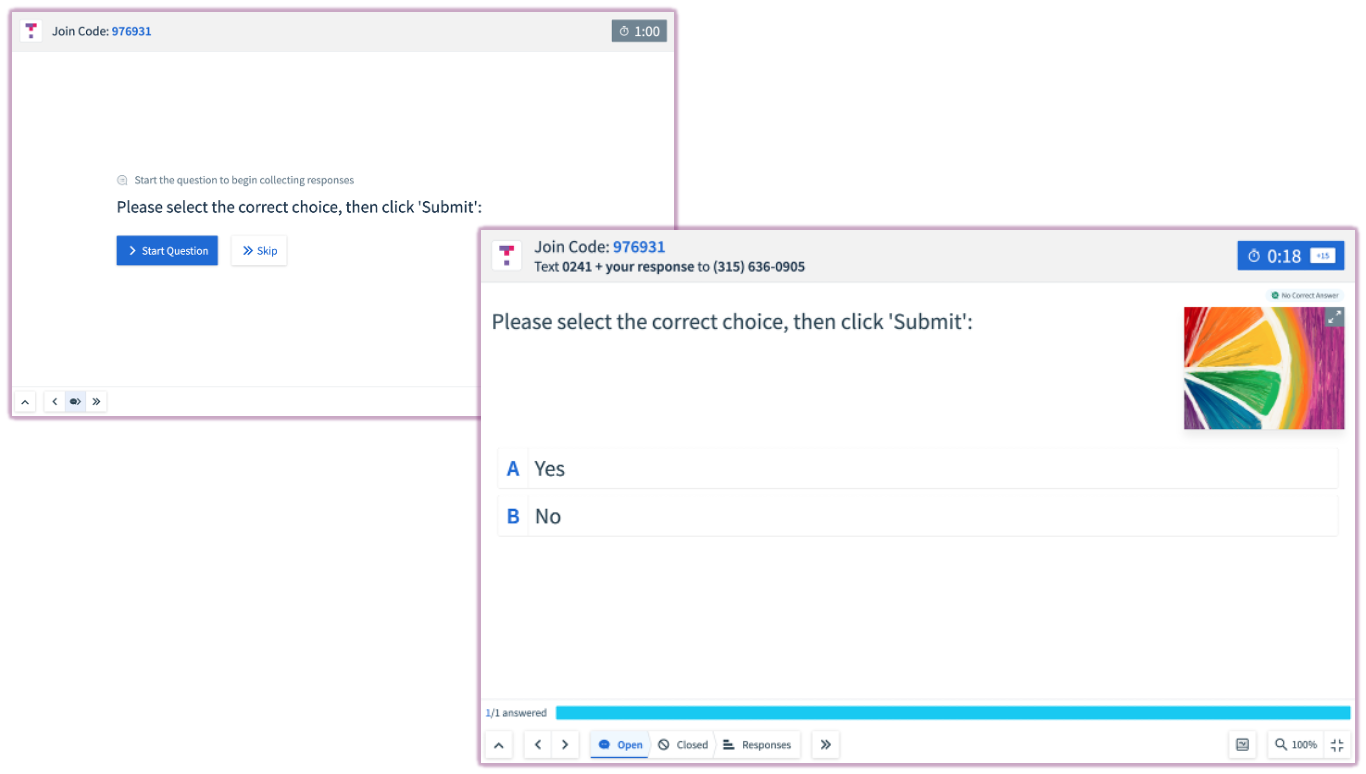 Image: Question presented on-screen in class
Independent of a Slide Presentation
You can activate and present a Top Hat question (or several items at once) directly from your course content list without needing an associated slide deck. To begin, select the item(s) in your content tree and click the blue "Present" button. This method is ideal for quick polls, impromptu knowledge checks, or dedicated discussion sessions.
Once the presentation starts, you can control student submissions and review responses in real-time. Additional options available at this stage include:
- Enable presenter view: View your notes and upcoming items on a separate screen.
- Enable full screen mode: Maximizes the question for better classroom visibility.
- Show Join Code before presenting: Ensures students can easily enter the course.
- Always show control bar: Keeps submission controls visible at the bottom of the screen.
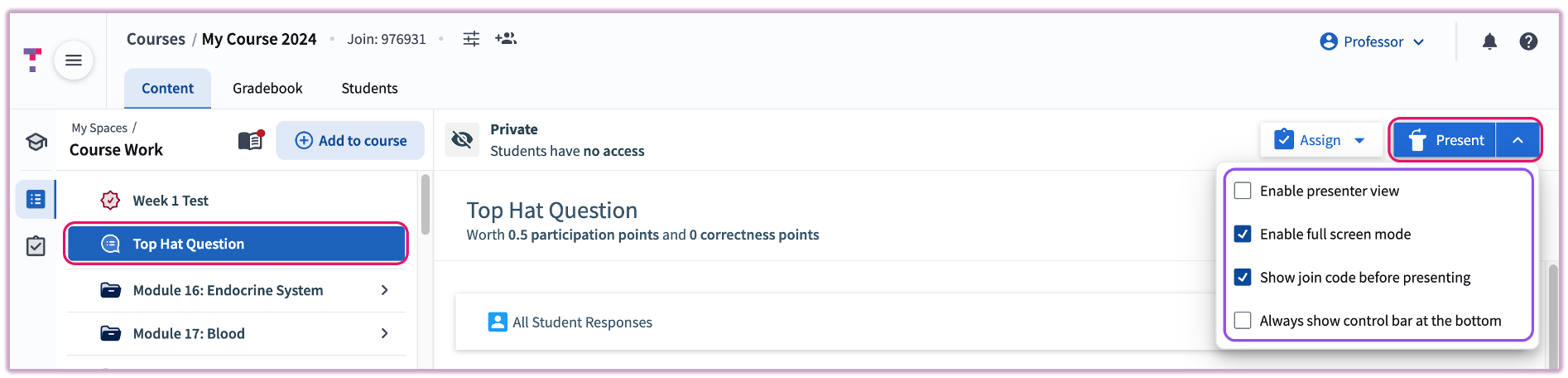 Image: Present button highlighted for selected Question
Assigning Outside the Classroom
Assign questions by selecting the item and clicking "Assign."
- Homework: Submissions are graded and recorded in the Gradebook.
- Review: Submissions are not saved; used for student revision.
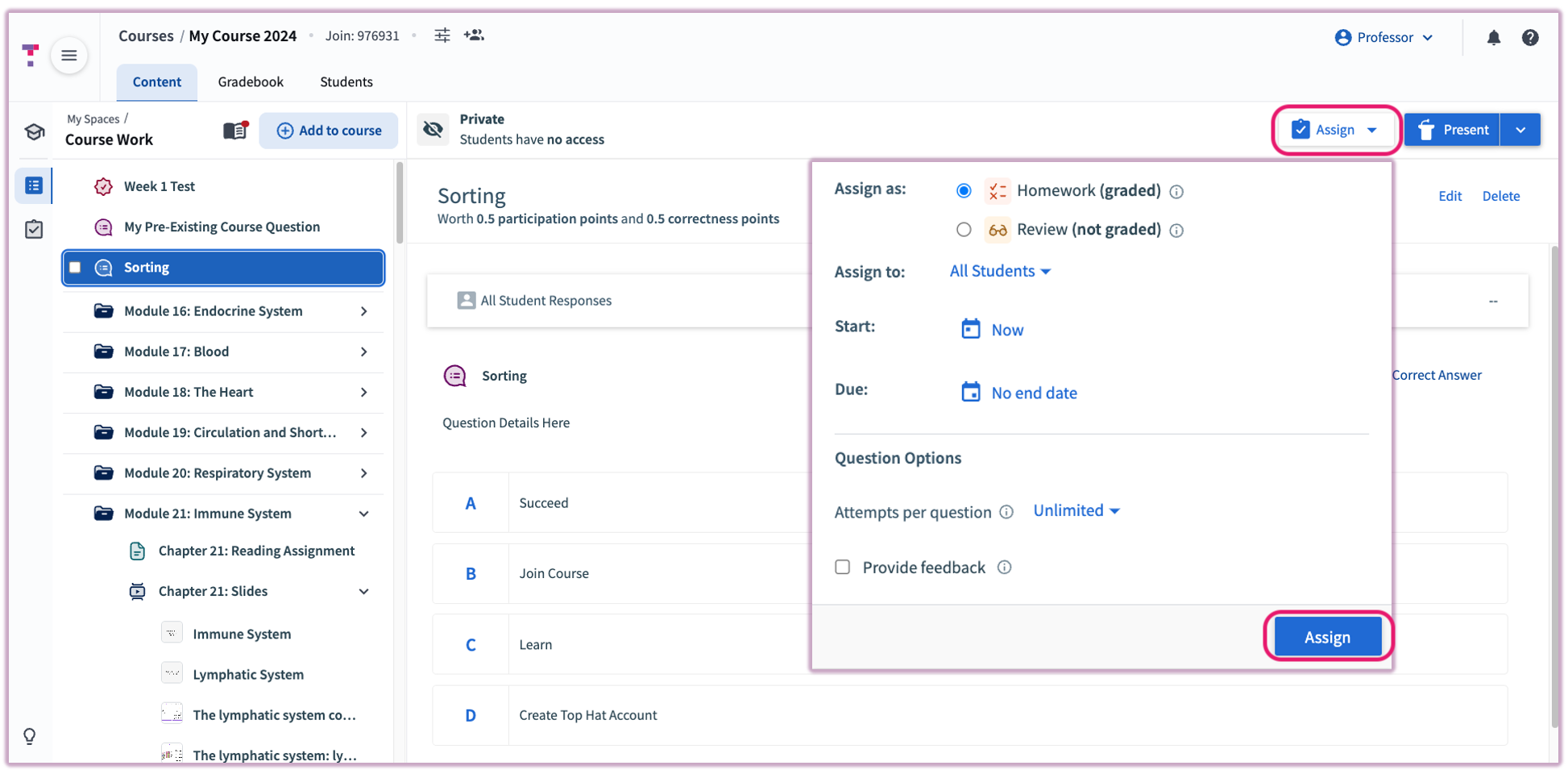 Image: Question assign options in Top Hat
Support Articles: