Body
This guide explains how to enable anonymous course access in Top Hat, allowing guest participants to join and respond to live content without creating a Top Hat account.
Ideal for faculty presentations, workshops, or non-student audiences, anonymous access allows users to join from laptops or mobile browsers using a course URL. Responses are recorded anonymously in the Gradebook and no account login is required. Follow the steps below to enable anonymous access and share your course link effectively.
Table of Contents
- Anonymous Course Access
- Enabling Guest Access
- Guest Access with a Laptop
- Guest Access with a Mobile device
- Troubleshooting
Anonymous Course Access
Top Hat anonymous access courses are most frequently used when educators or university administrators are presenting to their colleagues and do not want them to have to create student accounts.
Enabling Anonymous Access
In order to allow anonymous access to a course, you will need to email your Top Hat representative or Top Hat Support, providing them with the course's 6-digit join code and requesting that anonymous access be enabled.
Note: Regardless of the device used, you must provide participants with the course's unique URL (e.g., https://app.tophat.com/e/123456).

Image: Locating the Course Join Code in the URL
As a best practice, we recommend providing this URL to users in advance of your session. Participants' responses will be recorded anonymously in the Top Hat gradebook, meaning you will not have a record of which specific participants responded or what individual answers were provided.
Anonymous Access from a Laptop
Laptop users simply need to click on the course URL link or type it into a browser's address bar. They will be taken to a page asking them to login with an existing account or to select "Enter as a Guest."
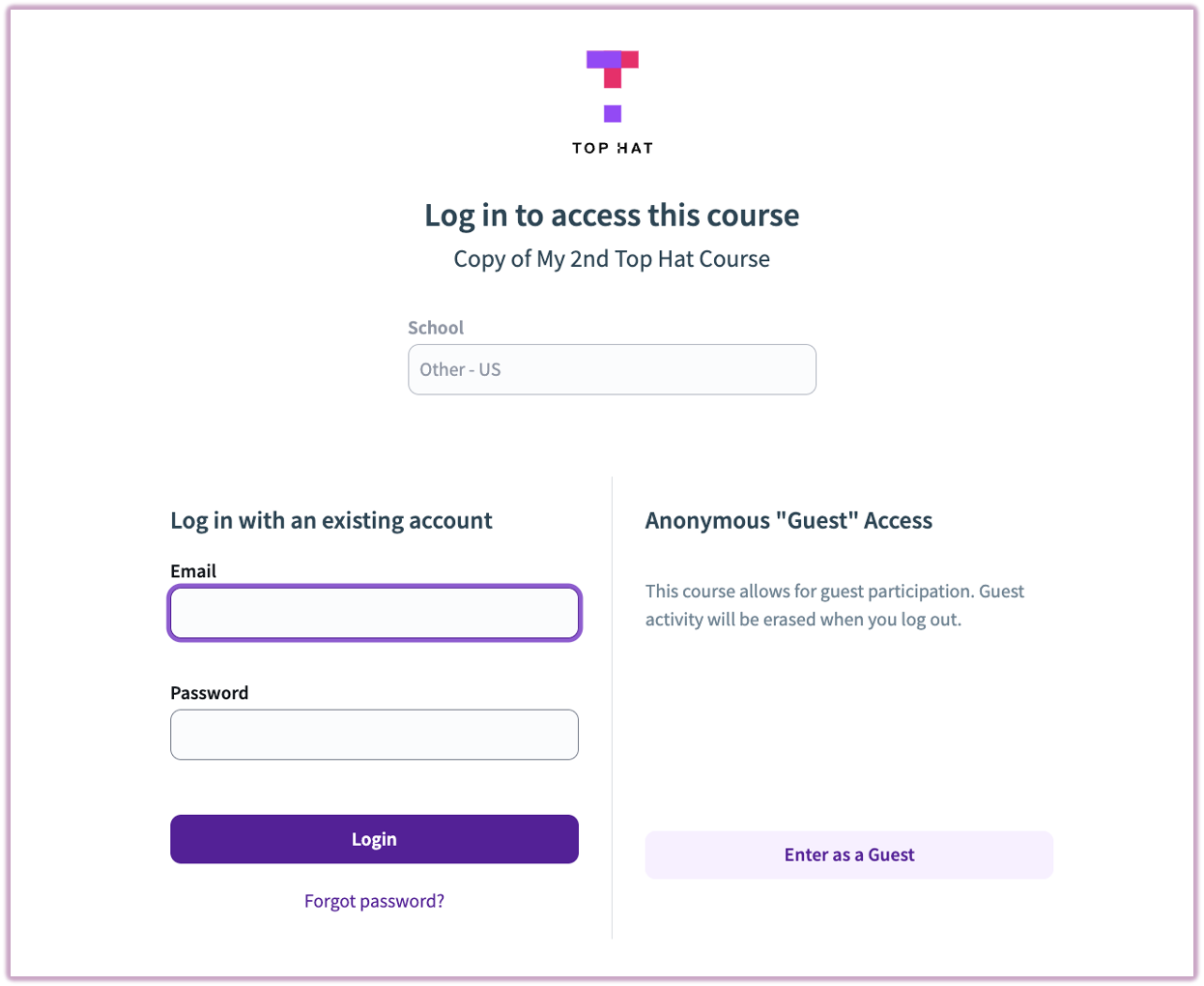
Image: Arrow pointing to Guest Access button at Login screen
Anonymous Access from a Mobile Device
Mobile users must access the course using a mobile web browser (e.g., Safari, Chrome); they will not be able to participate using the Top Hat mobile app for anonymous sessions.
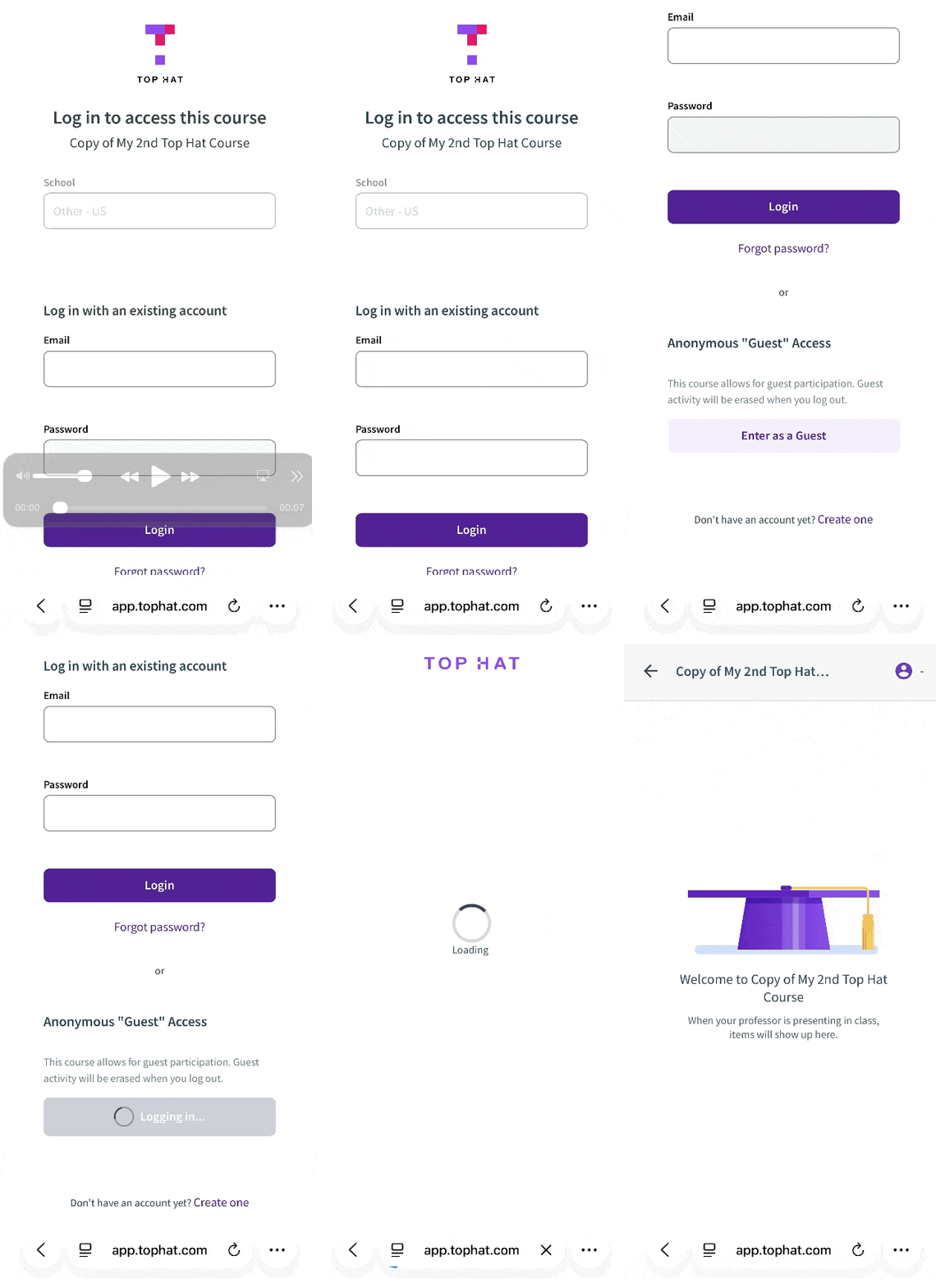
GIF: Accessing Top Hat with Anonymous Access
Troubleshooting
If a participant receives an error message stating "You don't have permission to access this course," it is likely because they are currently logged in with an existing Top Hat account.
Solution: Participants should log out of their account first. If the error persists, they should use a private or incognito browser window to join as a guest.