Body
Learn how to access and customize your Top Hat course settings, including grading, attendance, timers, roles, and advanced classroom options. This article walks you through each setting available from the Course Lobby or within the course itself.
Whether you're managing student roles, setting up the Gradebook, enabling secure attendance, or adjusting default question behavior, this guide will help you configure your course to match your teaching style. You’ll also find visuals for customizing permissions, enabling Class Threads and ACE, and applying accessibility or hybrid classroom options.
Table of Contents
- Accessing Course Settings
- General Settings
- People & Roles
- Grading
- Timers
- Attendance
- Advanced / Miscellaneous
Accessing Course Settings
The course settings can be accessed through your course lobby or directly within the course itself.
- Course Lobby: Select the settings icon, located next to the Enter button on the course card.
- In Course: Select the settings icon located next to the Join Code in the top header.
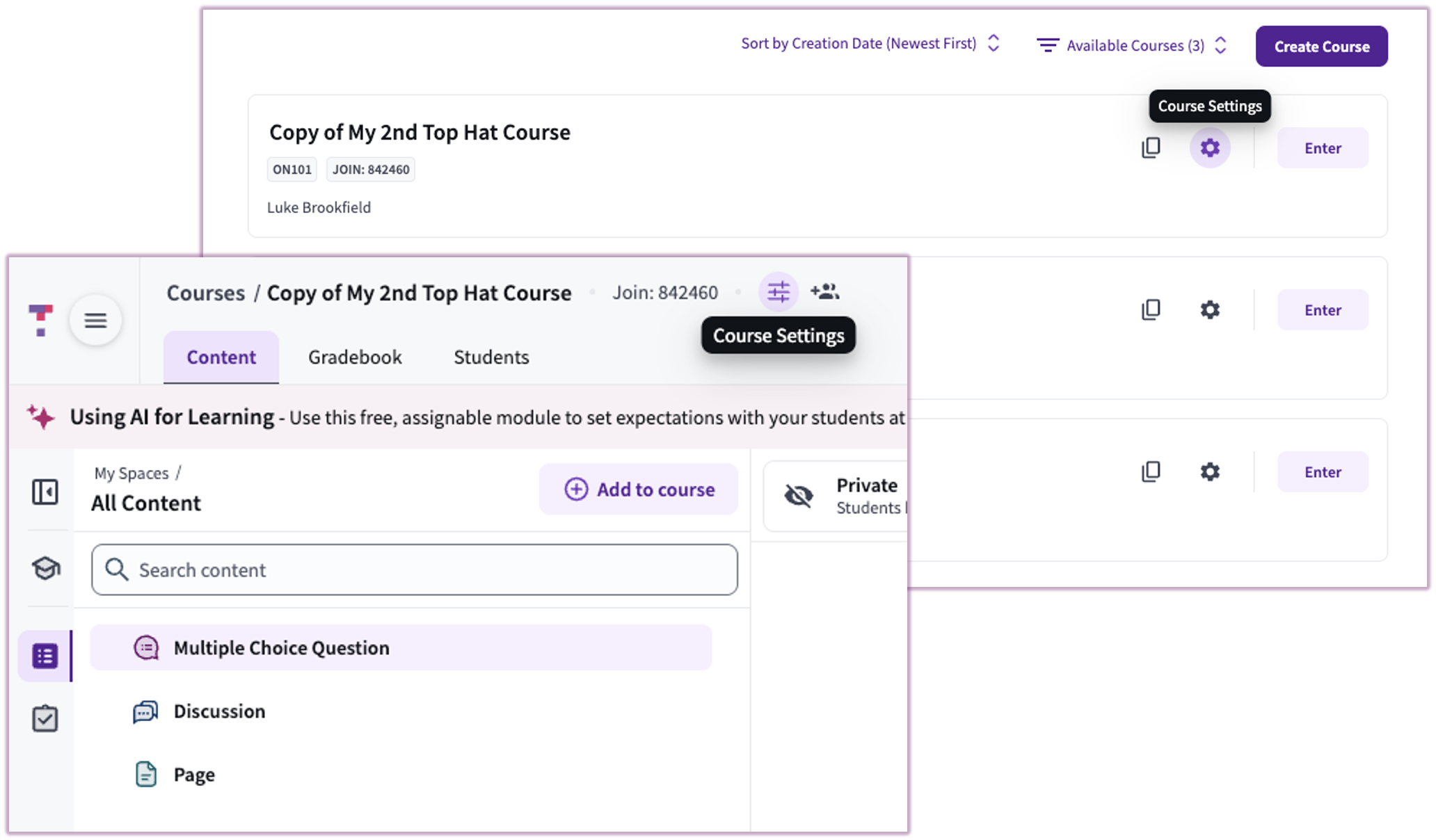 Image: Course Settings Access Points
General Settings
Within General Settings, the following information can be managed: Course Name, Subject, Course Code, and Course Start/End Dates.
Course Availability
- Open: Students can search for the course in the "Join Course" menu.
- Private: Students will need the direct URL.
- Unavailable: Will not appear in course searches or be accessible to students.
Course Password: Students will need this to enroll into the course (One time only).
Copy Course: Create a clone of the course.
Delete Course: Permanently remove the course.
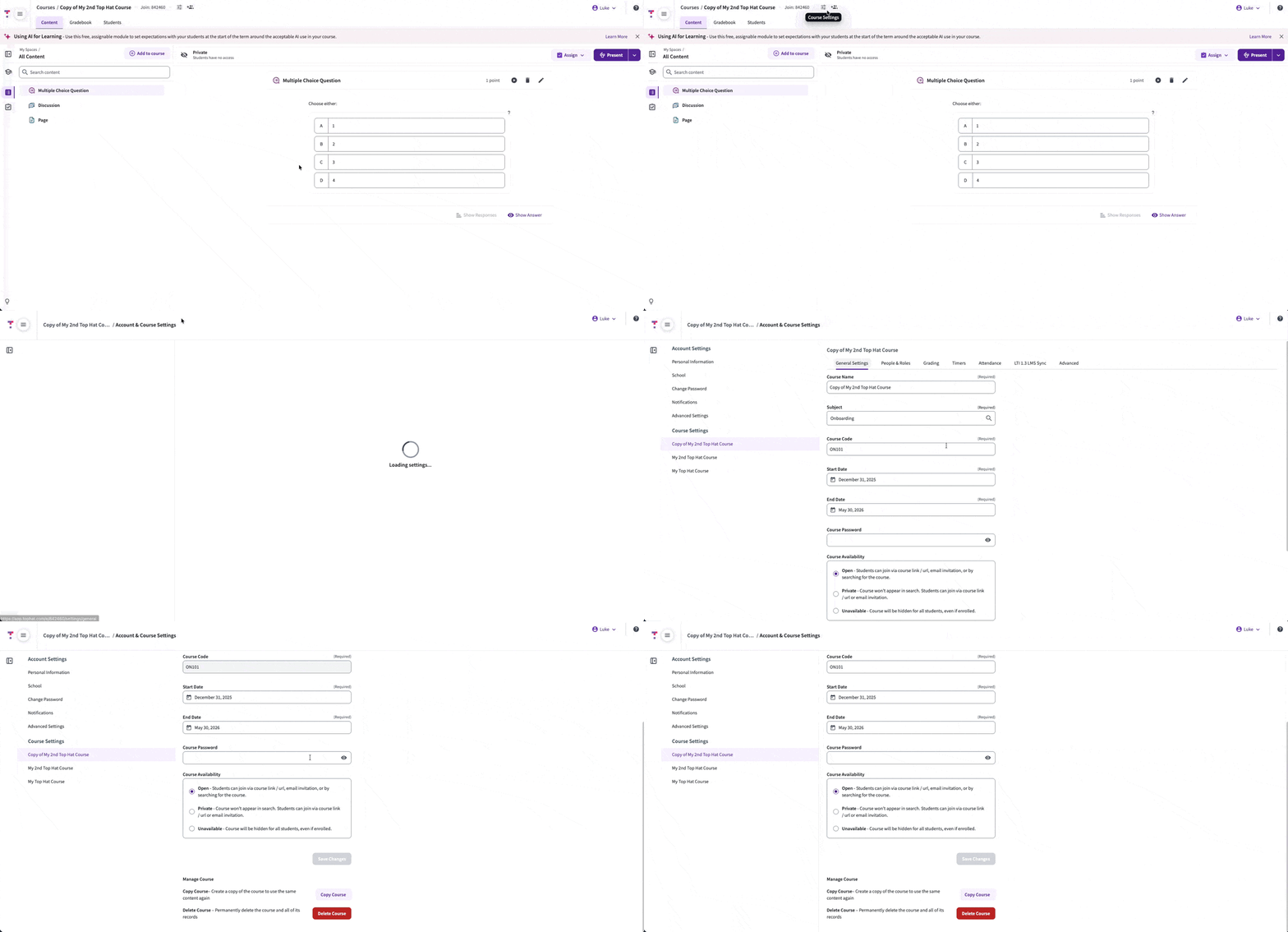 GIF: Course Settings - Availability
People & Roles
Select the People & Roles tab within the course settings menu and choose the User Role you would like to assign. Or create a new role using any of the existing pre-set profiles available:
- Grading Teaching Assistant
- Professor
- Teaching Assistant
Inviting a user will send them an email either inviting them to create a Top Hat account to be added to the course (if no user exists in the system), or will provide an email confirmation letting them know they were added to the course (existing users).
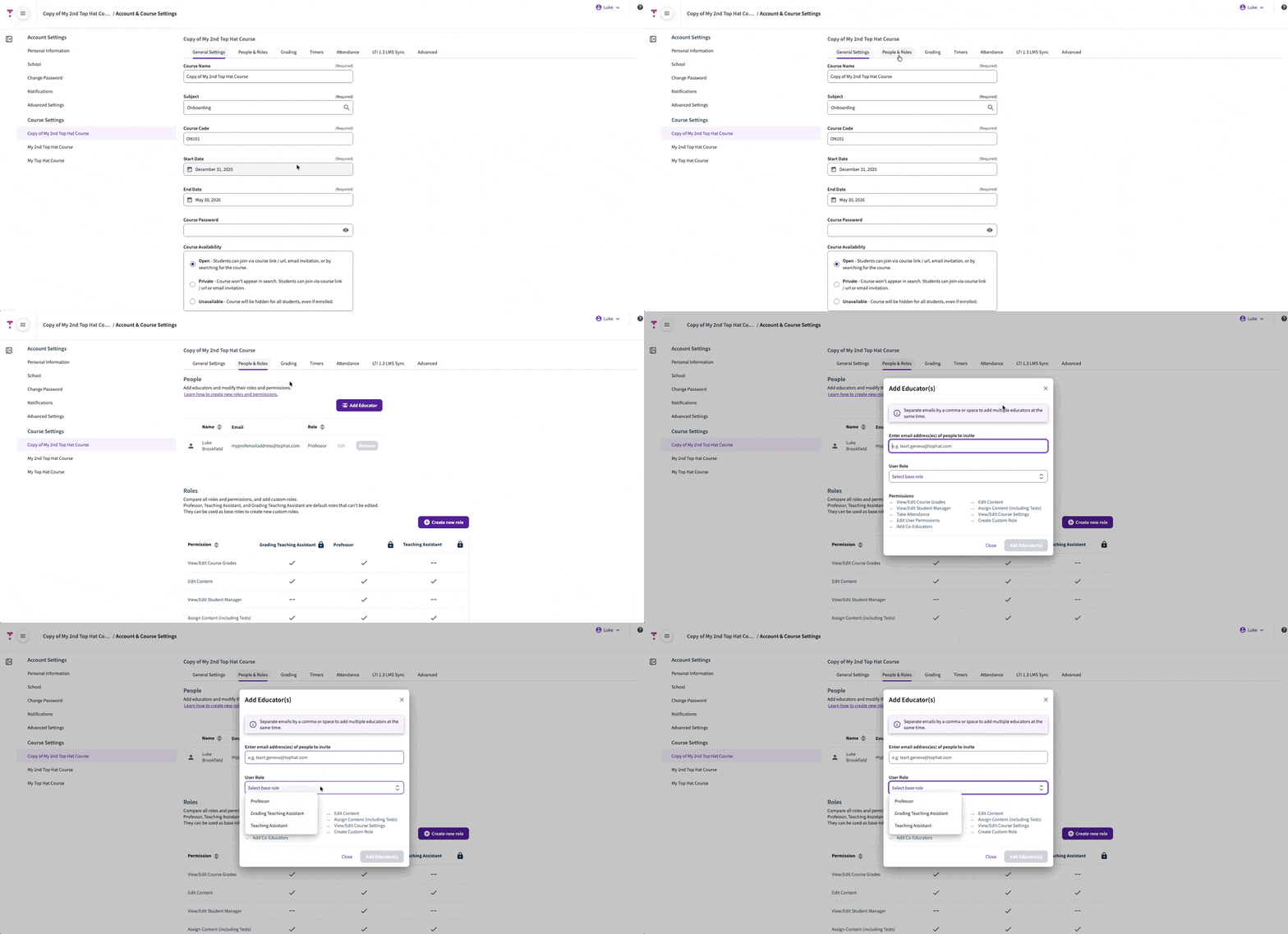 GIF: People & Roles menu within course settings
Comparison of permissions by role
| Permission |
Grading TA |
Professor |
Teaching Assistant |
| View/Edit Course Grades |
✔ |
✔ |
— |
| Edit Content |
✔ |
✔ |
✔ |
| View/Edit Student Manager |
— |
✔ |
— |
| Assign Content |
✔ |
✔ |
✔ |
| Take Attendance |
✔ |
✔ |
✔ |
Note: Teaching Assistants must have a Student account to be added with this Top Hat role. If they do not have the correct account type, they must reach out to Top Hat Support to request an account deletion.
Grading
Configure how students view their performance and set default point values for new questions.
Gradebook Availability
- Enable gradebook for students.
- Hide Top Hat Test details from students in the Gradebook (e.g. questions and answers).
Grade Display Options
- Only display grades of items for which the due date has passed or are not currently being presented.
- Display grades for all items (including those with a future due date and those being presented).
Default Question/Discussion Options: Set default correctness and participation points for new items (will not update existing questions).
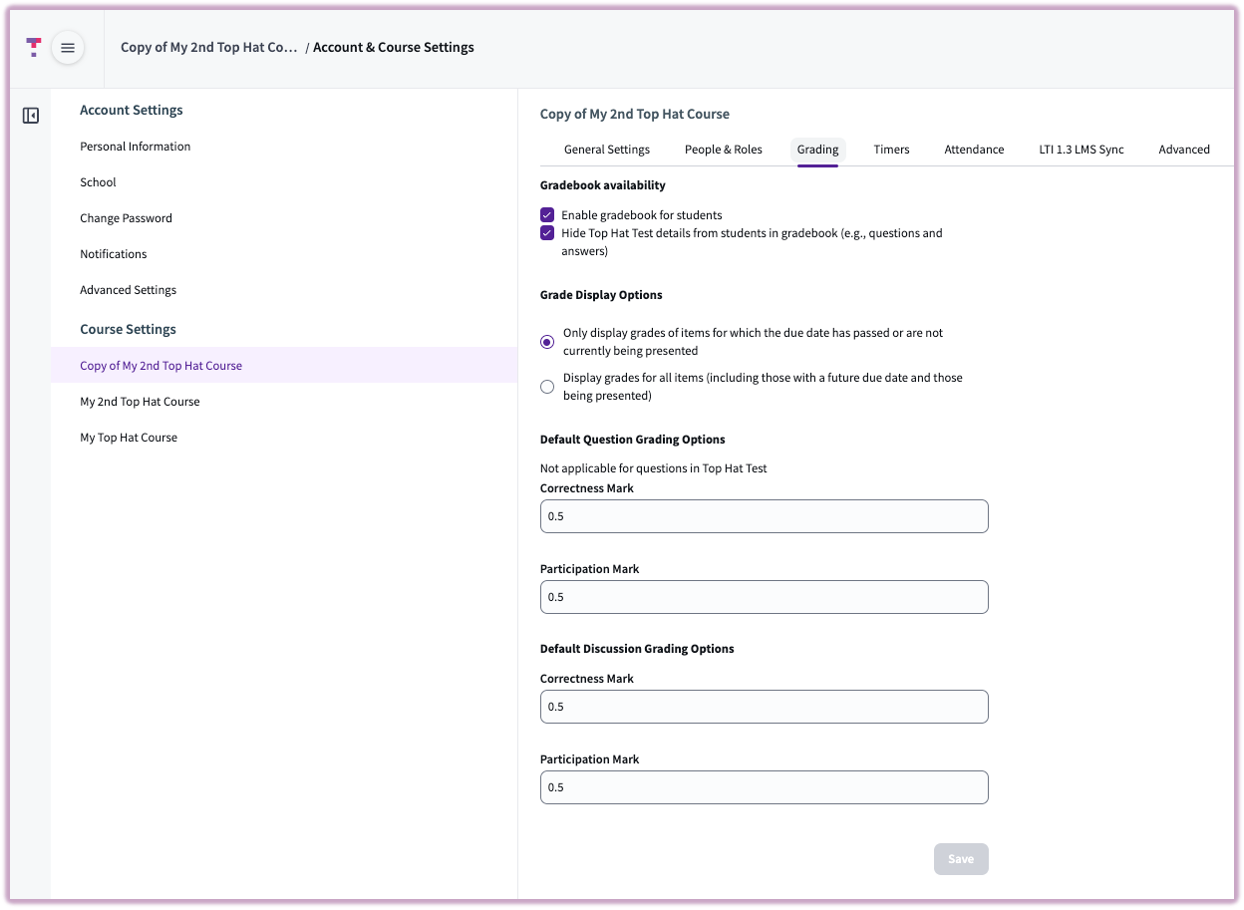 Image: Grading options within settings
Timers
Enable a default countdown timer for in-class questions. Standard duration is 60 seconds.
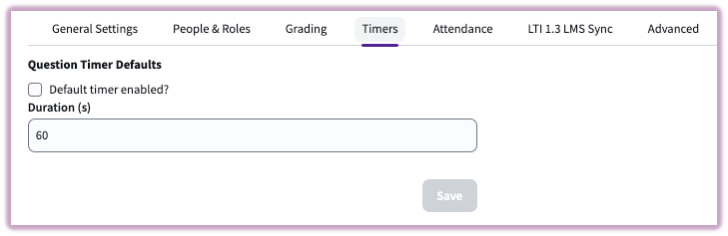 Image: Question timers default duration
Attendance
Toggle between Secure Location-based attendance or Hybrid reporting for remote students.
- Use "secure" location-based attendance: Uses GPS and Bluetooth to place students within the classroom.
- Configure attendance for hybrid classes: Students select either "In-Person" or "Remote" when joining.
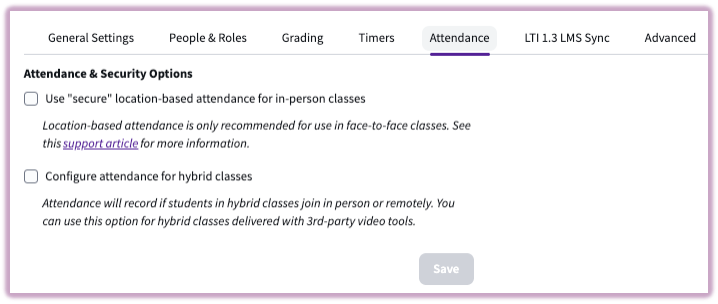 Image: Attendance settings
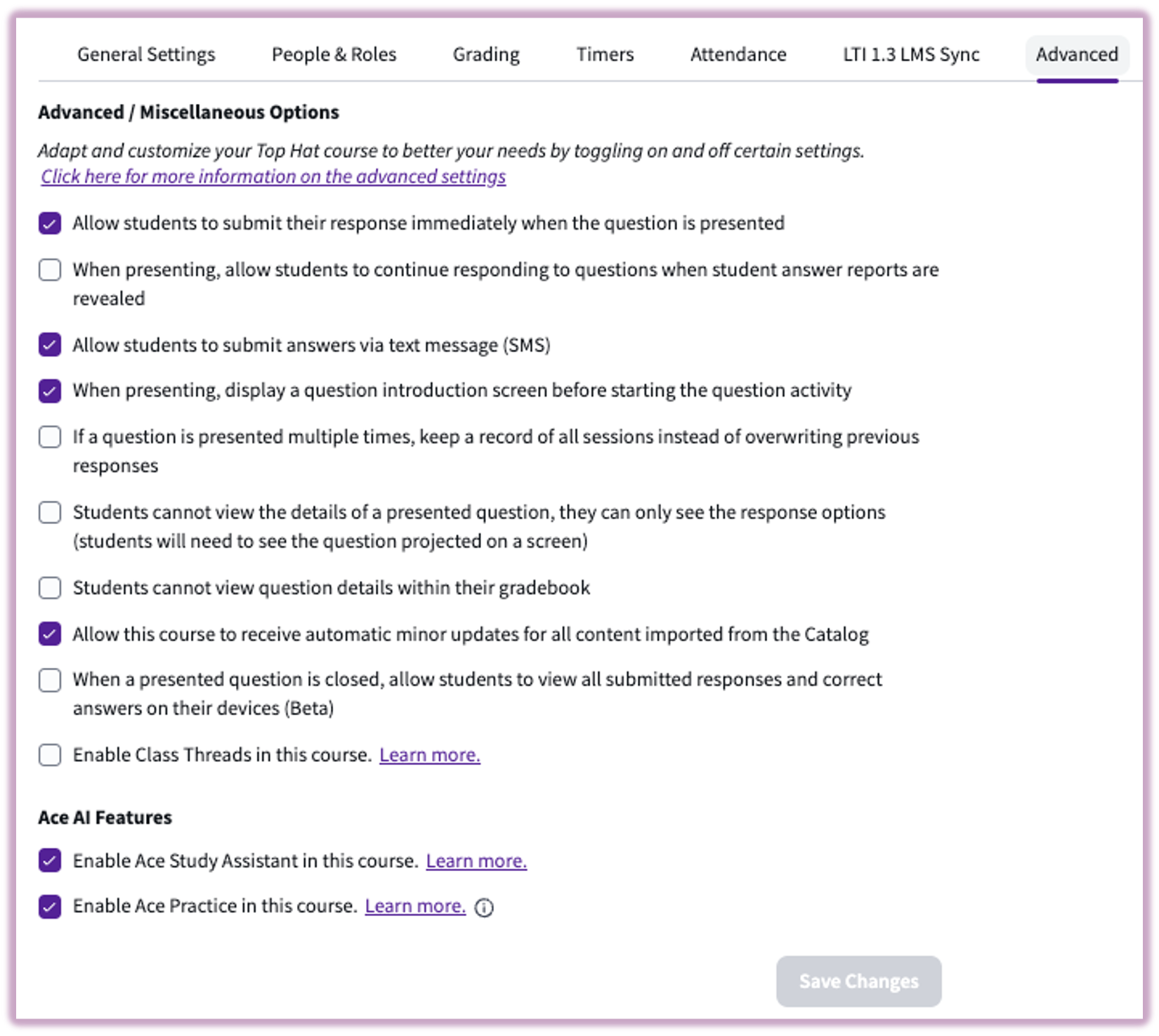
Advanced / Miscellaneous Options
Manage classroom behavior, SMS backup submissions, and AI tools like ACE.