Body
Copying an entire course is available for most instructor-created content. Courses containing certain paid Marketplace content may have cloning restrictions.
Copying a Course from the Course Lobby
- Select the copy icon on the course tile you want to duplicate.
- Review and update the course name, subject, and Course ID.
- Set the new course start and end dates.
- Select Copy Course to confirm.
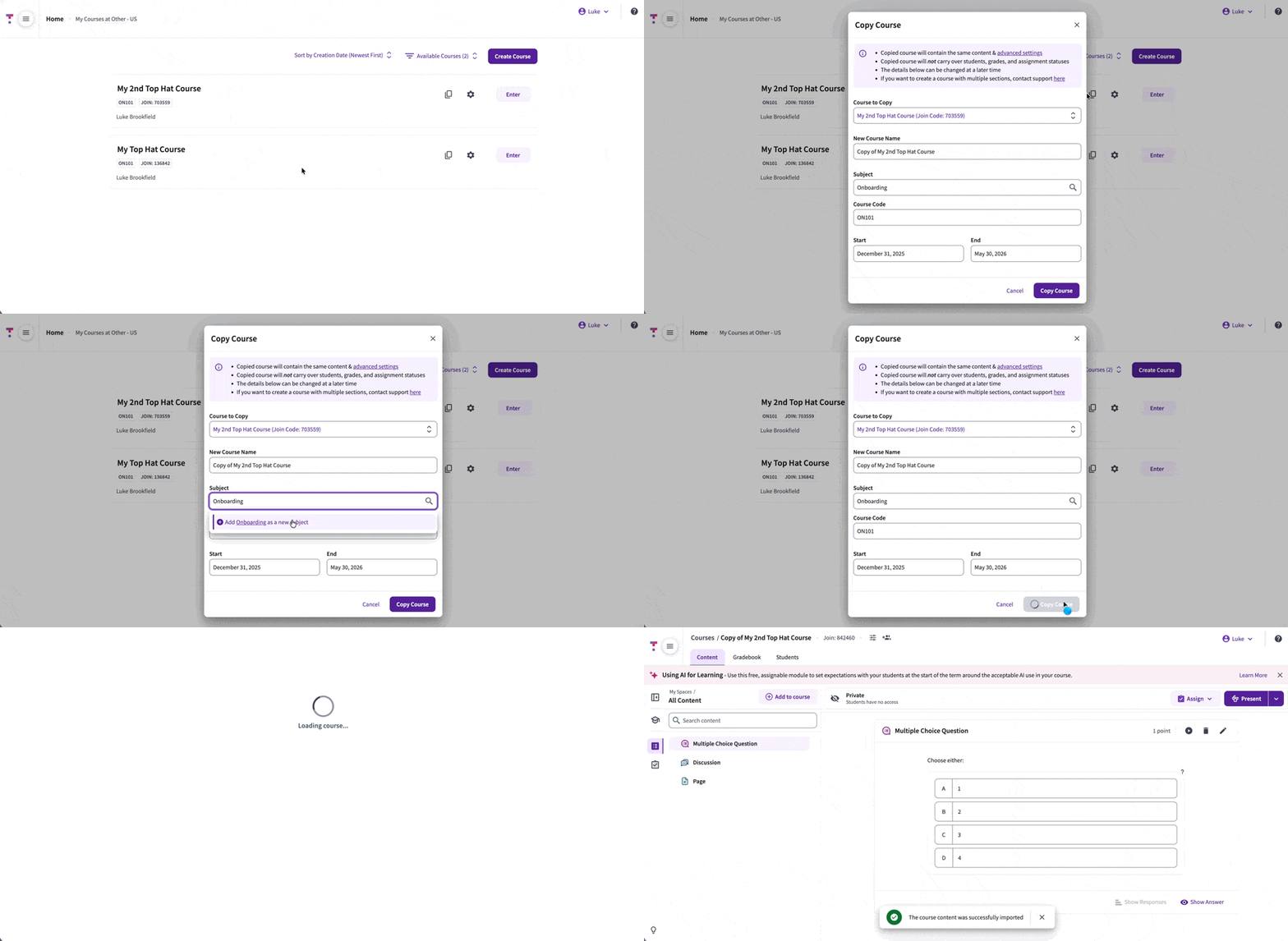 GIF: Cloning Existing Course from the course lobby
Copying a Course from Course Settings
- Open the course and go to Course Settings > General Settings.
- Scroll down to Manage Course and select Copy Course.
- Confirm the details and select Go to New Course once finished.
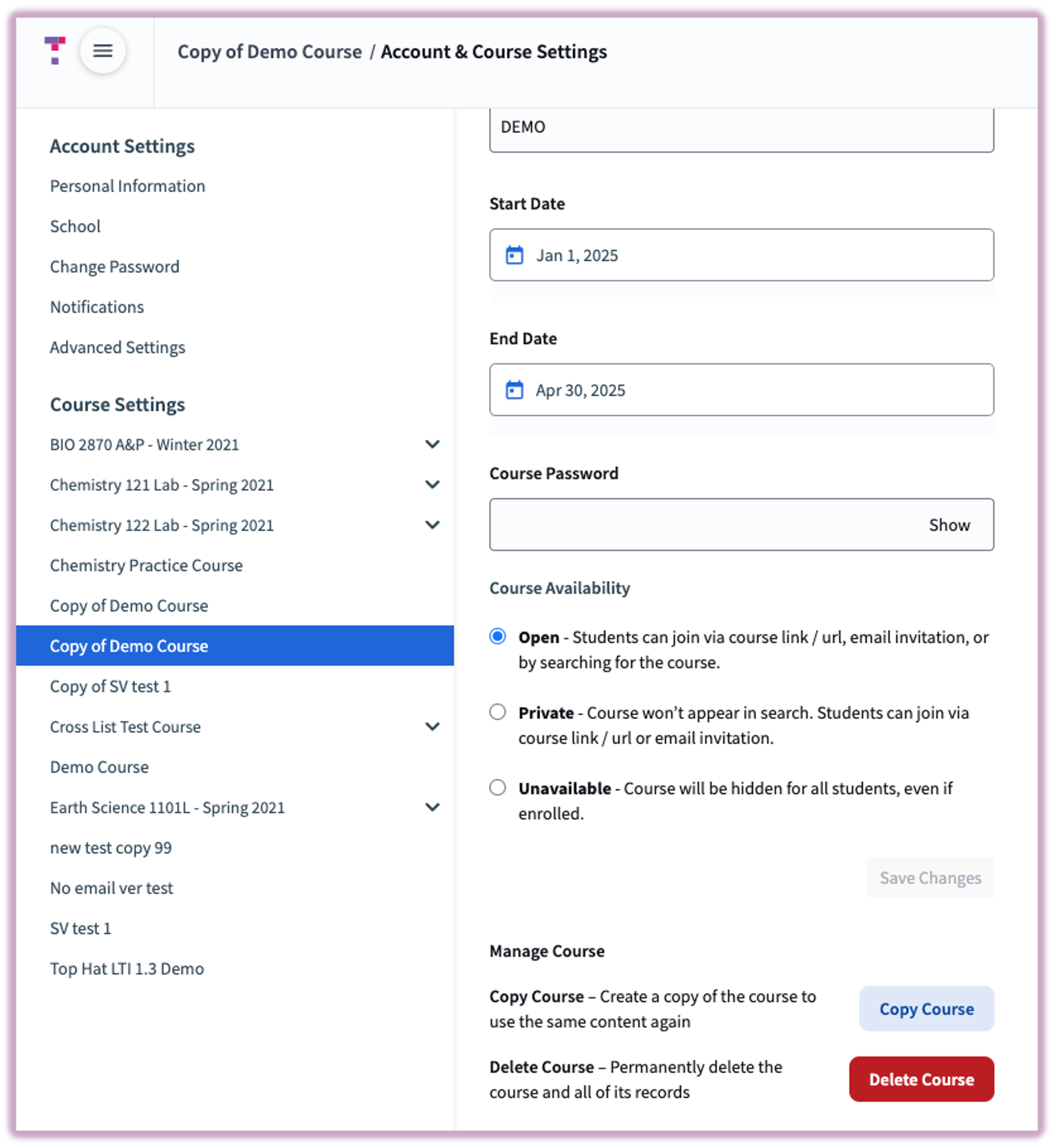 Image: Copy course from within Course Settings Menu
Limitations
Multi-section managed (MSM) courses cannot be cloned using the standard copy button. If you need to duplicate an MSM course for a new semester, please contact Top Hat Support for assistance.