Body
The iPad Edition of "LockDown Browser" available from the Apple App Store enables a student to use an iPad to take exams that require LockDown Browser. For exams using only LockDown Browser (not Respondus Monitor) the iPad setting is automatically enabled.
However, for exams that also require the use of a webcam (Respondus Monitor) the instructor must enable an optional iPad setting.
Additionally, your school's learning management system must be compatible. The LockDown Browser iPad app is not compatible with Sakai LMS servers. All Sakai users will need to use a computer with a compatible operating system. More details can be seen here.
A student should follow these steps to take an exam with the iPad Edition of LockDown Browser.
1. Download and install the "LockDown Browser" app from the Apple App Store to the iPad. (Requires iPadOS 15 or higher.)
2. Follow the instructions for your institution's learning system below.
For Brightspace and ALEKS users:
Open your mobile browser (Safari, Chrome, etc.), log into your learning system, and navigate to the quiz. Start the quiz; the LockDown Browser app will automatically launch.
IMPORTANT: LockDown Browser for iPad is *not* compatible with the Canvas "Student" iPad app. The only iPad apps that are compatible with LockDown Browser for iPad are the Schoology iPad app and the D2L Brightspace "Pulse" app.
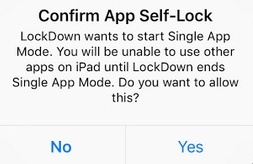
3. When you start a quiz that requires LockDown Browser, you should see the following message. You must click "Yes" to open the LockDown Browser app.
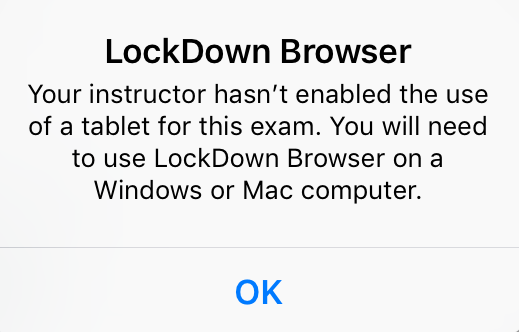
If you do not see the above confirmation message, but rather see a message that says your instructor has not enabled the use of a tablet for your exam, you will need to use LockDown Browser on a Windows or Mac computer.
4. Once you click "Yes" to confirm "app self-lock,", you will see a message confirming that your iPad is now locked to LockDown Browser.
5. After you submit the exam, you'll see confirmation that your iPad is no longer locked to LockDown Browser.
6. You can now either take another exam, or exit the LockDown Browser app.
It's important that you don't start Apple's Guided Access feature (by triple clicking the home button) and then enter LockDown Browser. If you do, you'll see this warning message at the top of LockDown Browser.

You should immediately triple click the home button and exit Guided Access before proceeding with your exam. If you do not, you'll see this error message when trying to start your exam:
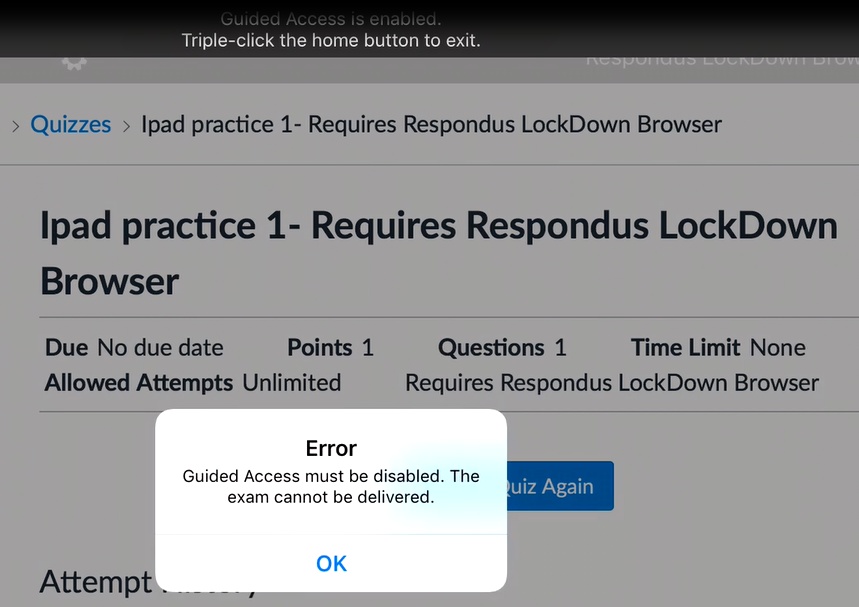
You can permanently disable Guided Access on your iPad by going to "settings" "general" "accessibility" "guided access"