Body
For instructors who want greater control over the level of security during an exam, Respondus Monitor supports a second camera, adding an additional video angle. The extra visibility helps deter the use of unapproved resources.
How it Works
Exam Setup
- Select either Webcam Only or Webcam + Screen from the Respondus Monitor settings.
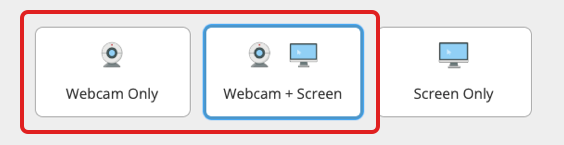
- Locate the Second Camera option and select “Require students to use a second camera in addition to the webcam.” Instructions for students can be edited.

Post-exam Review
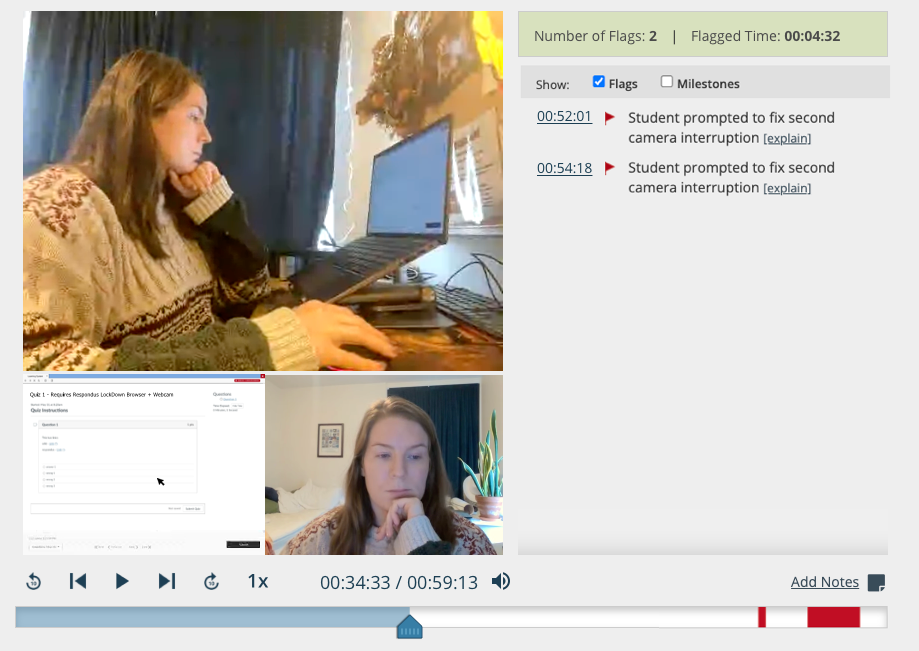
Instructors can view up to three videos synchronously with the proctoring results: frontal webcam, second camera, and screen recording. Click on a video to make it play in the larger window.
FAQs
What devices work as a second camera?
Students need a second device that can scan QR codes. Most iOS and Android mobile devices are supported. Some computers may also work if the browser, camera, and QR reader are compatible. You can test your device at www.respondus.com/camera2
Is an app required on the second device?
No. An app does not need to be installed on the second device.
Can a USB webcam connected to the primary computer be used as a second camera?
No. The second camera must run on a separate device, not the same computer.
Is there an added cost to use a second camera?
No. This is a core feature of Respondus Monitor.
Learn about the student experience: Setting Up a Second Camera for a Respondus Monitor Exam