Body
Respondus Monitor supports switching to Microsoft Excel or Word during an online exam.
- Only the Windows and Mac desktop apps for Excel and Word are supported (the web versions are not).
- Students using a Chromebook or iPad will be unable to access an exam that has the Excel or Word setting enabled for Respondus Monitor.
- For Excel: If the online exam previously used the built-in spreadsheet tool for LockDown Browser, follow these instructions to change it to using Excel.
- A practice test that uses this setting is highly recommended.
Enabling Excel or Word for an Exam
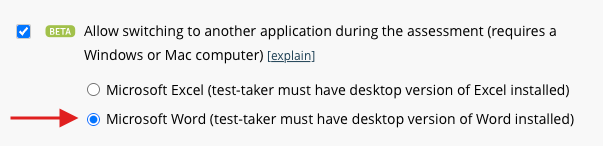
From the LockDown Browser Dashboard, select either the Webcam + Screen or Screen Only option for Respondus Monitor. Then select Allow switching to another application during the assessment, and then Microsoft Excel or Microsoft Word.
Test-taking Experience
- If the Excel or Word setting is enabled, a student is denied access to the exam if their computer does not have the desktop app for Excel or Word installed (Windows or Mac only).
- If a pre-populated Excel or Word document is uploaded by the instructor – and a link to the file is included in the exam – a student can open it by clicking the link. An icon for accessing Word or Excel will also appear on the LockDown Browser toolbar.
- To return to the exam, minimize the Excel/Word application or click the LockDown Browser icon on the taskbar (Windows) or dock (Mac).
- Students should periodically save their work in Excel or Word during the exam; the file should be saved again when work is complete.
- The instructor may provide directions for uploading a saved file during the exam session.
Note for Mac Users
Students taking a test with LockDown Browser for Mac will prompted for permission to access the Documents folder. This permission is necessary so Excel/Word files can be downloaded and saved to the computer. The prompt will appear the first time an exam on that computer uses Excel or Word with LockDown Browser.
Linking to an existing file
If providing a pre-populated Excel or Word file, upload it to an appropriate location (often a content area for the course) and include a link to it within the exam. The application will automatically open when the test taker initiates a download of the file. Students can also access Excel or Word from an icon on the LockDown Browser toolbar.
Having Students Upload a file
To require students to upload their Word or Excel file during the exam session, use a question type and/or file upload setting that enables this. The following question types allow students to upload a file:
- Canvas (New Quizzes): Use the File Upload or Essay question type.
- Canvas (Classic Quizzes): Use the File Upload or Essay question type. (Note: Classic Quizzes has an intermittent bug with its File Upload tool. Canvas New Quizzes is recommended as an alternative.)
- Brightspace: Use the Long Answer question type and select “allow learners to insert images and add attachments”.
- Moodle: Use an Essay question, and select “Allow attachments” under “Response Options”
- Blackboard Original: Use a File Response question type.
- Blackboard Ultra: At the current time file uploads are not possible in LockDown Browser, and any files would need to be uploaded after an exam using a process of the instructor’s choosing.
- Schoology "Assessment": Use a file upload question type.
Student Instructions for Uploading a file
Instructors should provide clear instructions on how files are to be uploaded by students. Ideally, the instructions should appear within the question that enables the file upload. Here is a starting point for those instructions:
“Be sure to save your work in Excel/Word! The default location for that file is your Documents folder. When ready to upload the file, [add instructions appropriate for the uploading step; see previous section]."
Proctoring Results
The proctoring results for Respondus Monitor include a “milestone” each time the student switches from LockDown Browser to an external program. A screen recording of what the student did while outside of LockDown Browser is also available.