Body
The Read&Write Chrome Extension first needs to be installed on the Chromebook device. It can be downloaded from here:
https://chromewebstore.google.com/detail/readwrite-for-google-chro/inoeonmfapjbbkmdafoankkfajkcphgd
Normally the Read&Write Chromebook extension icon needs to be pressed to bring forward the Read&Write toolbar on the page:
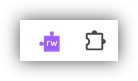
But since the LockDown Browser Chromebook extension does not make available the small Read&Write icon, a Keyboard Shortcut needs to be configured so that the Read&Write extension can be opened on a webpage.
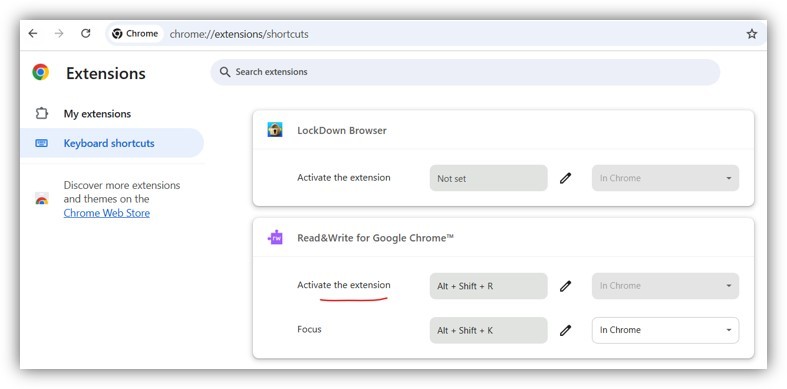
The chrome://extensions/shortcuts URL brings up a page that allows you to define the keyboard shortcut used to “Active the extension”. This should bring forward the Read&Write toolbar even when LockDown Browser for Chromebook is being used.