Body
About
Refreshing your Media Gallery by removing outdated playlists helps keep your content up-to-date and engaging.
These instructions are for non-Theming users. For Theming users, please see our article 'Delete a playlist - Theming'.
Access the edit playlist page
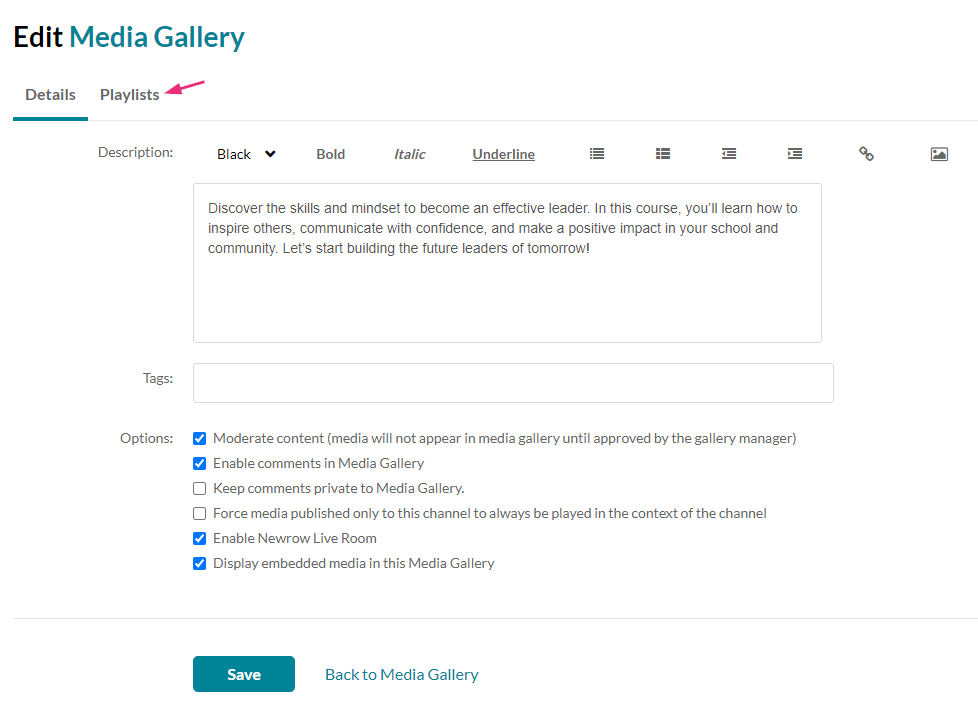
The Edit Media Gallery page displays.
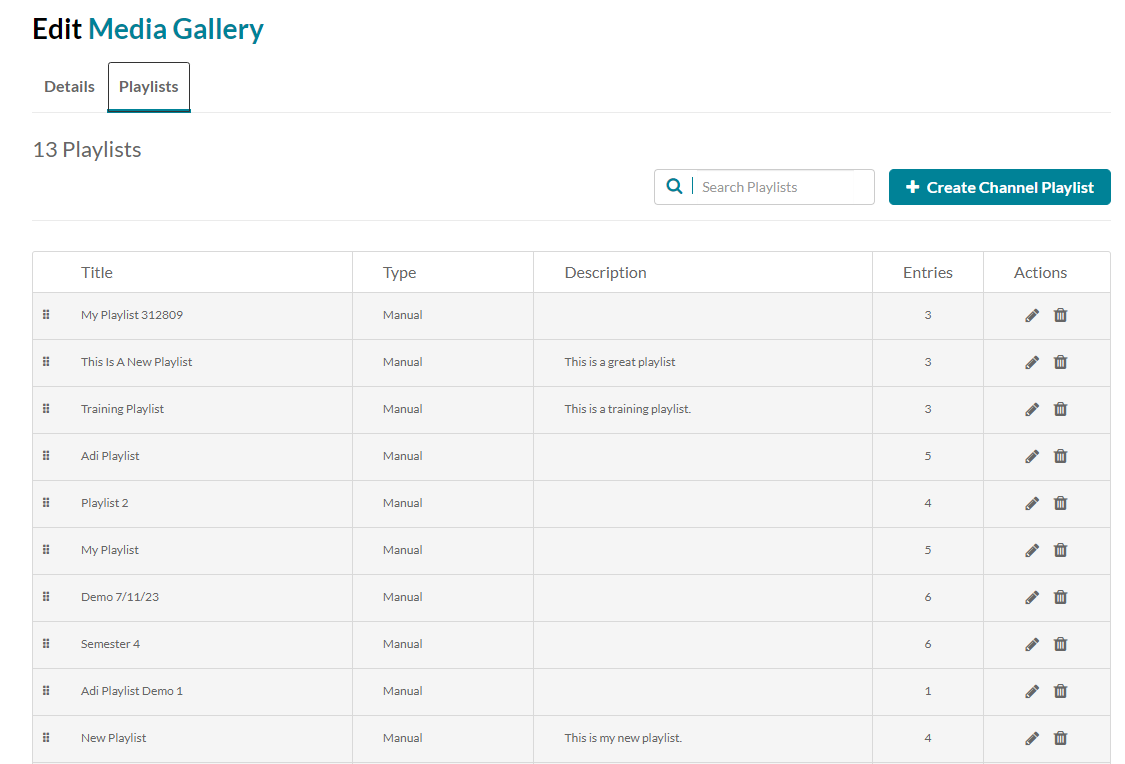
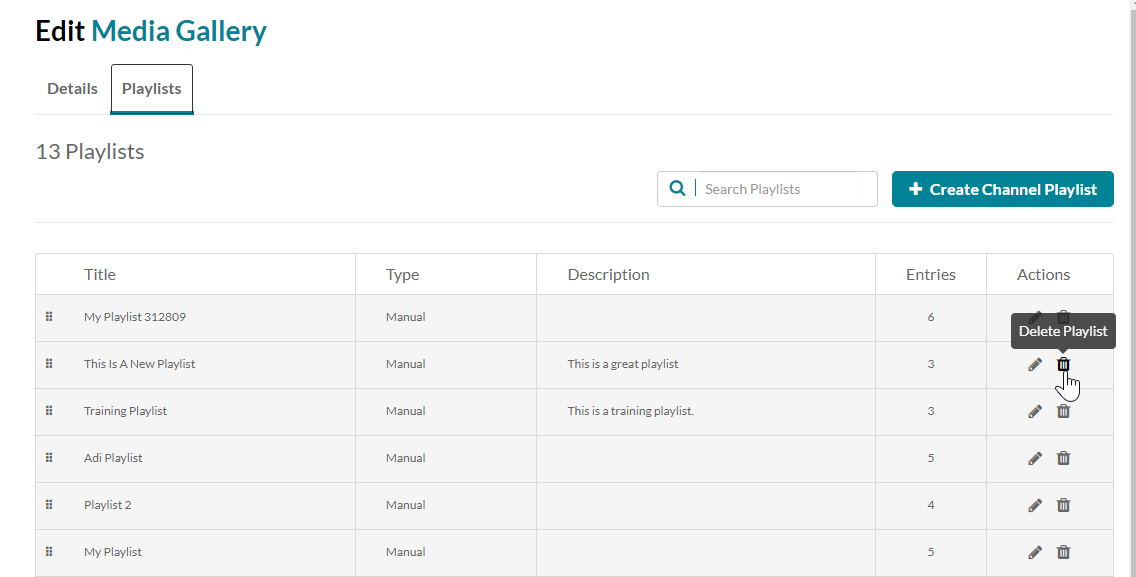
The playlists in your Media Gallery display.
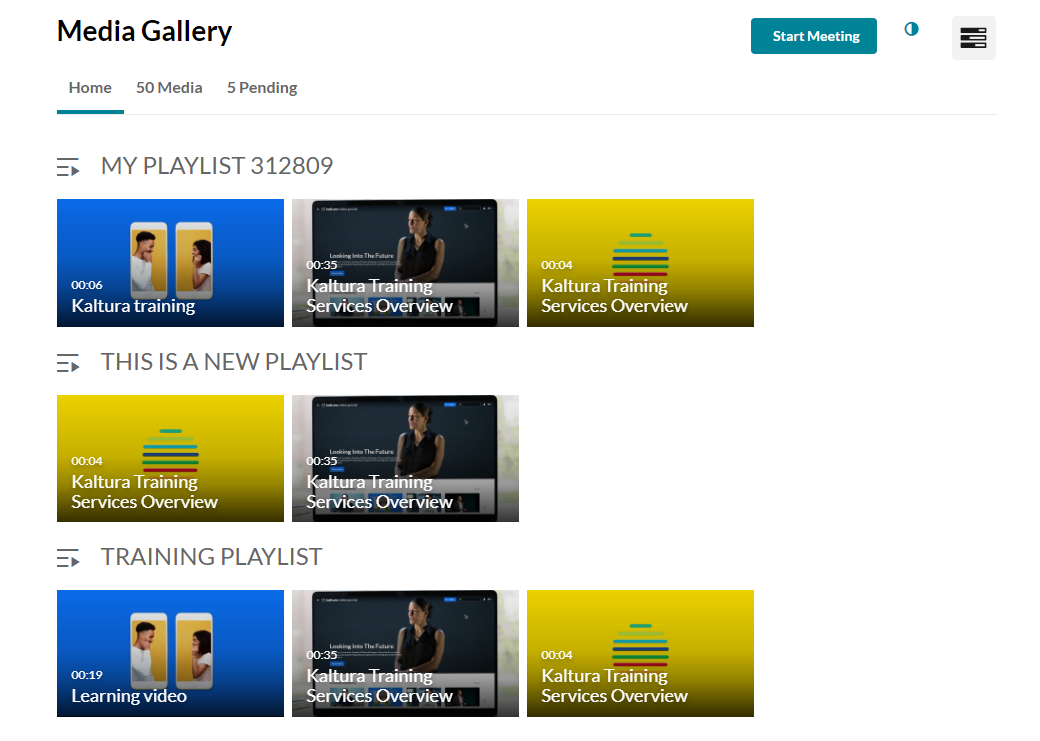
- Access the Media Gallery.
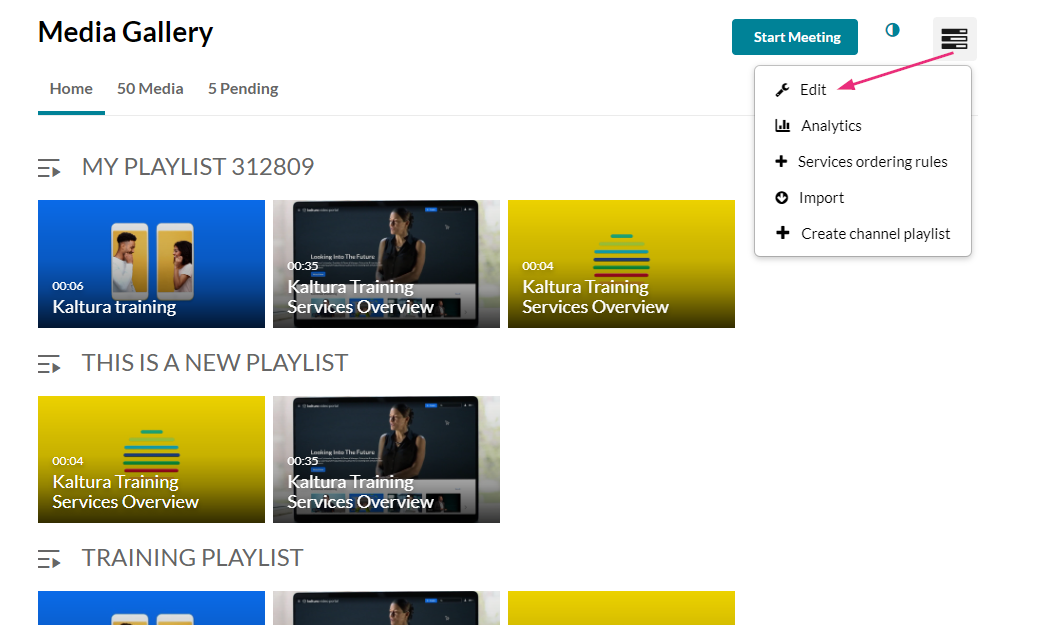
- At the top right of the Media Gallery, click the hamburger menu and select Edit.
- Click the Playlists tab.
Delete a playlist
A warning message displays: Are you sure you want to delete the playlist [name]?
A success message displays: The playlist [name] was deleted successfully.
- Locate the desired playlist and click the trash icon at the far right.
- Click Delete.