Body
About
Kaltura automatically generates a default thumbnail for each video, capturing a frame at the three-second mark. If you need a different default offset, reach out to your Customer Success Manager.
Additionally, you have the flexibility to set and manage your own thumbnails. This article will guide you through the process.
Editing thumbnails is not applicable to YouTube entries.
Access the thumbnail settings
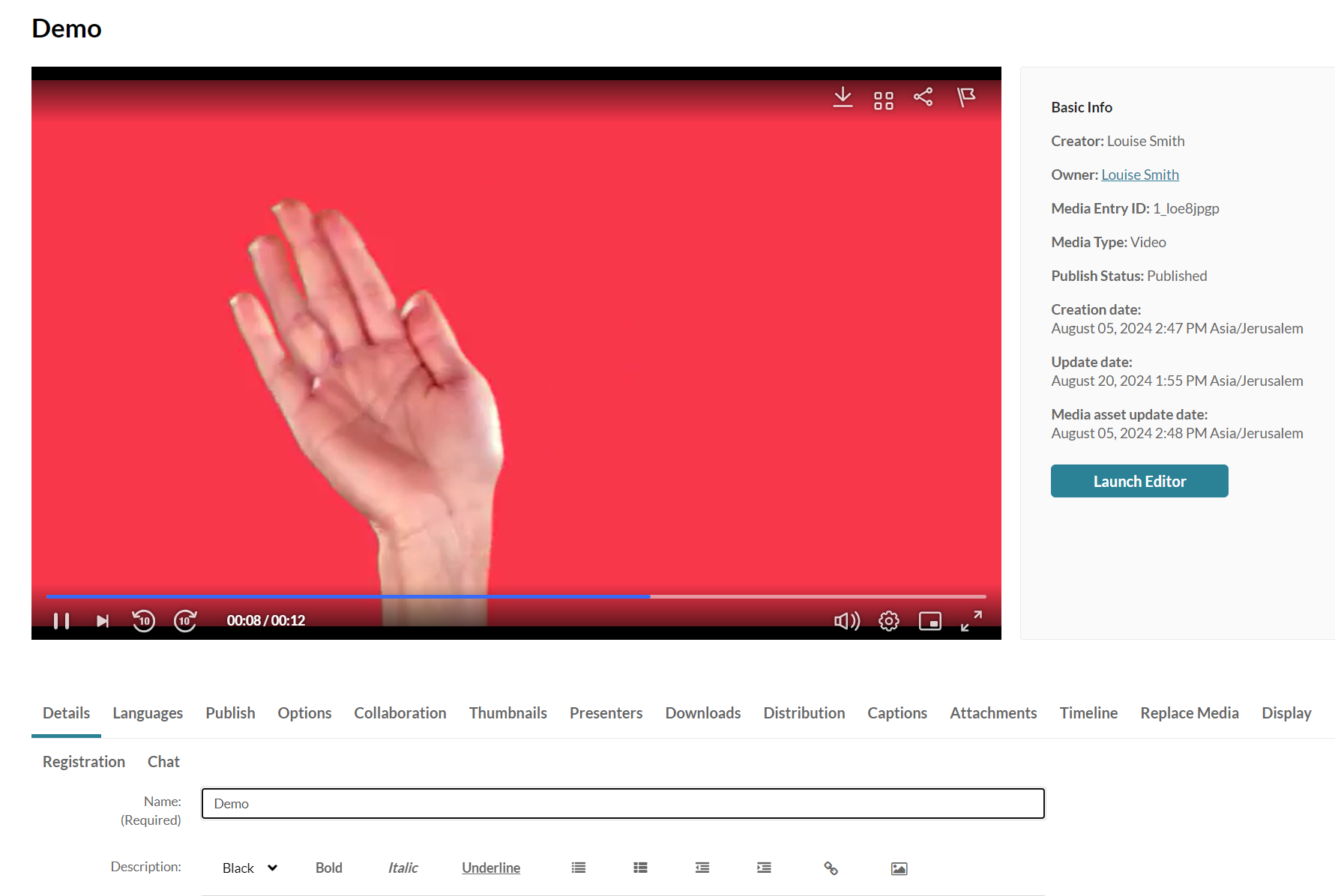
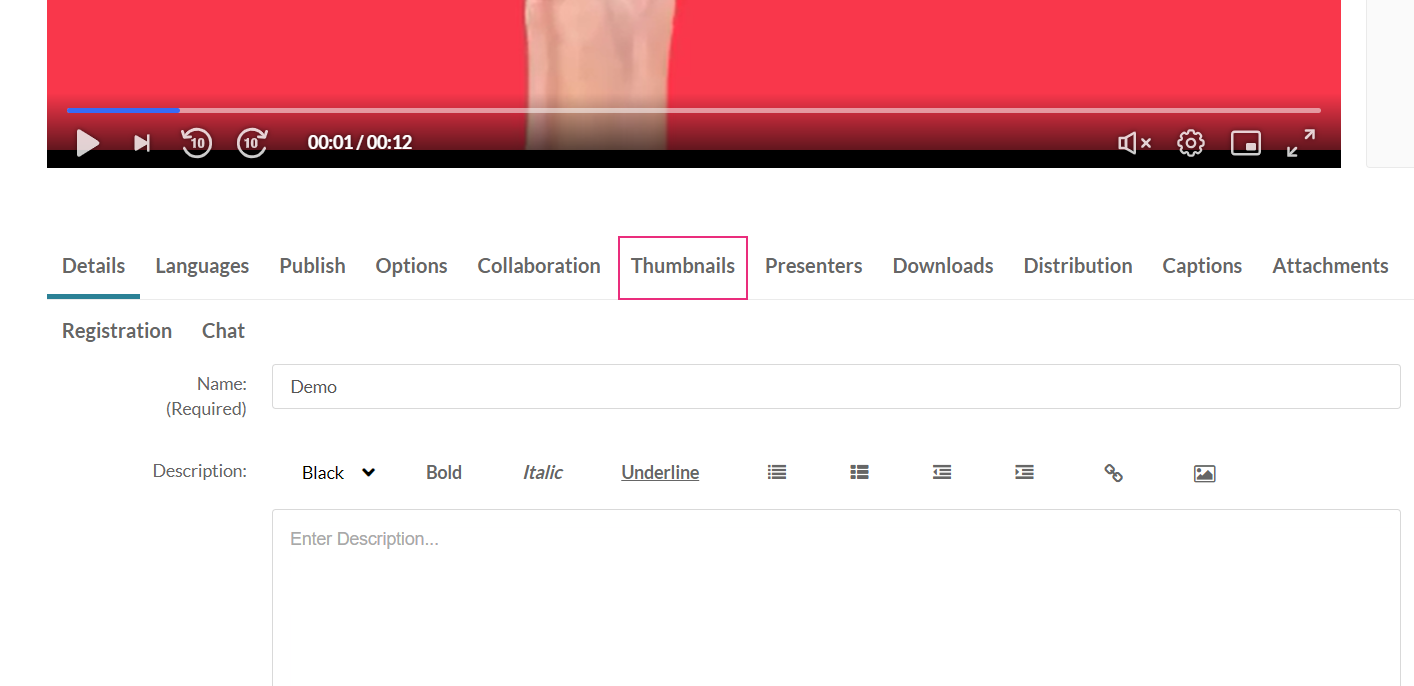
The thumbnail settings display.
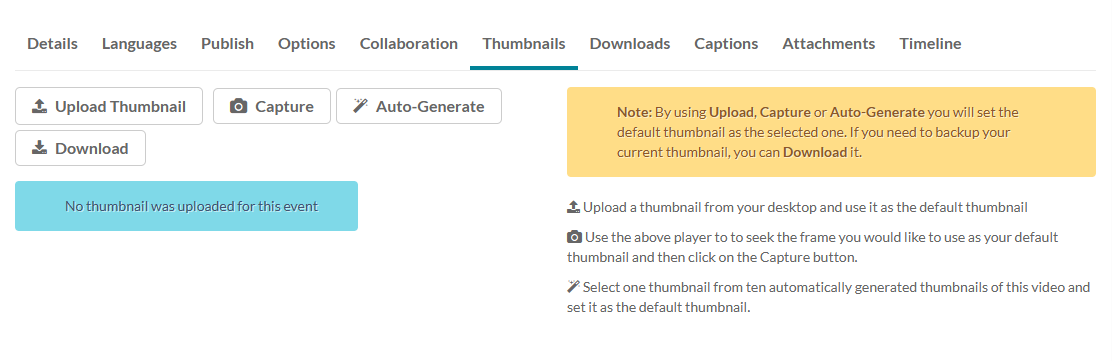
- Access the edit media page.
- Click on the Thumbnails tab.
Set and manage thumbnails
There are four options for setting and managing a thumbnail:
- Upload Thumbnail - Upload a thumbnail from your computer and use it as the default thumbnail.
- Capture - Use the player to select the frame you want to use as your default thumbnail and then click on the Capture button.
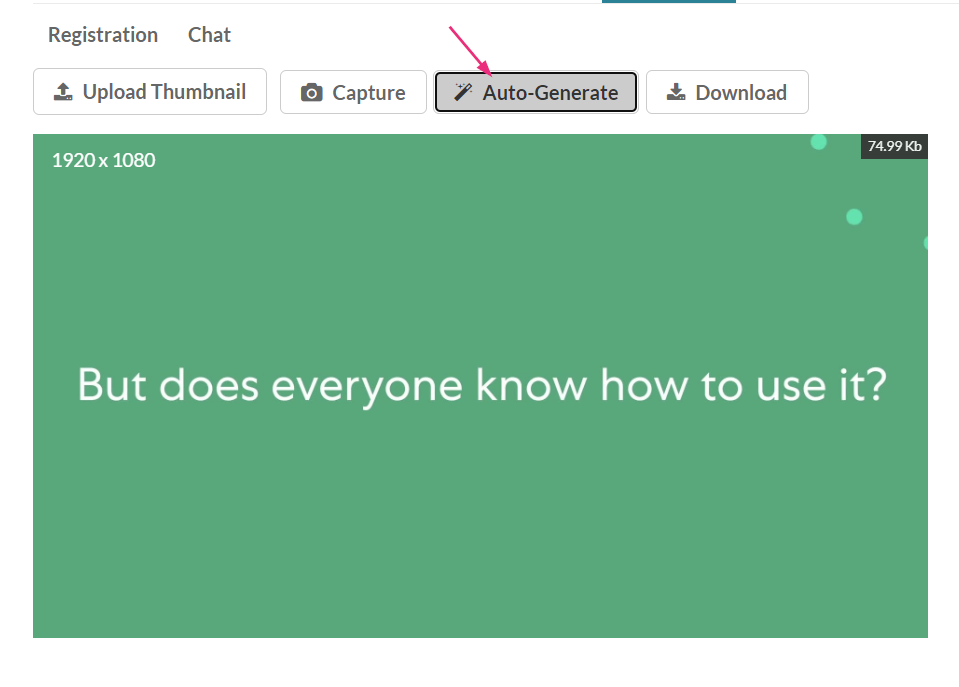
- Auto-Generate - Select one thumbnail from ten automatically generated thumbnails of the selected video and set it as the default thumbnail.
- Download - Download a thumbnail to back up your current thumbnail.
Upload a custom thumbnail
The new thumbnail displays with a success message: Thumbnail saved successfully.
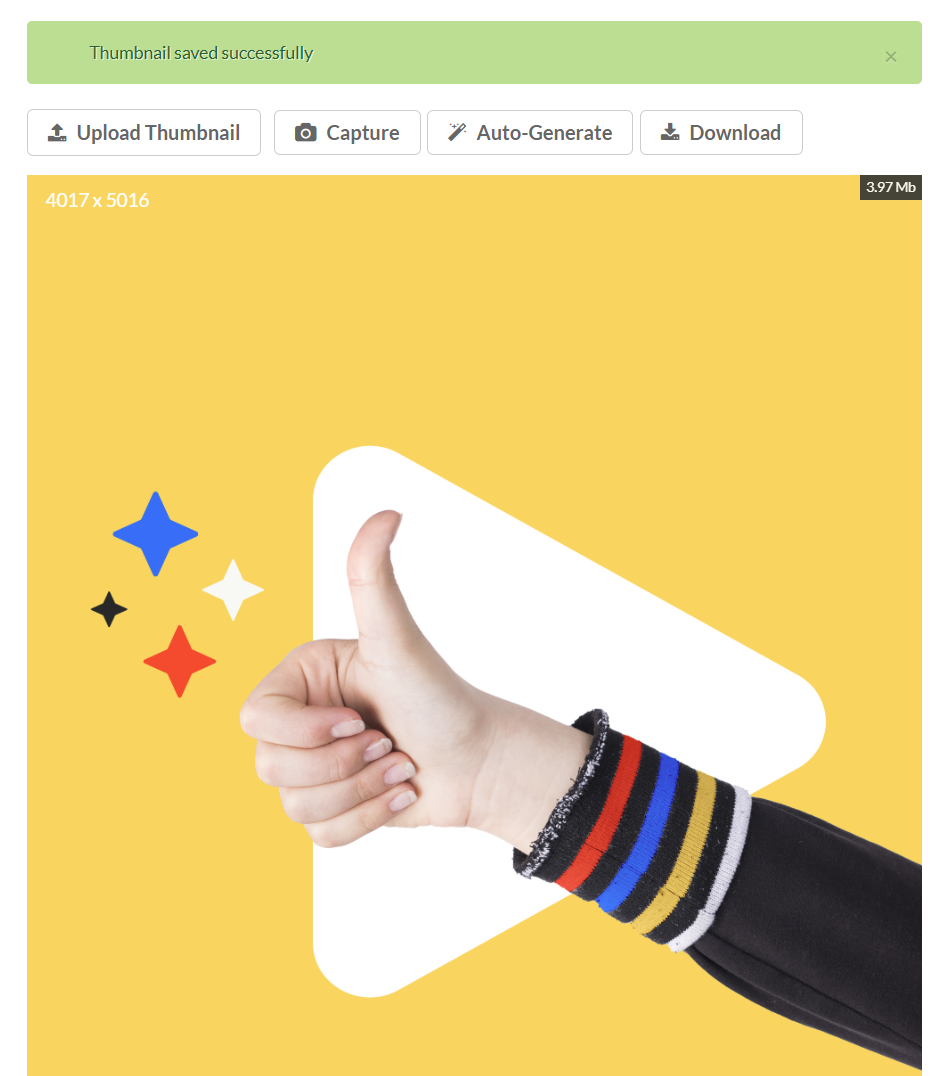
- Click Upload Thumbnail.
- Select a file from your computer and click Open.
Capture a frame from the content
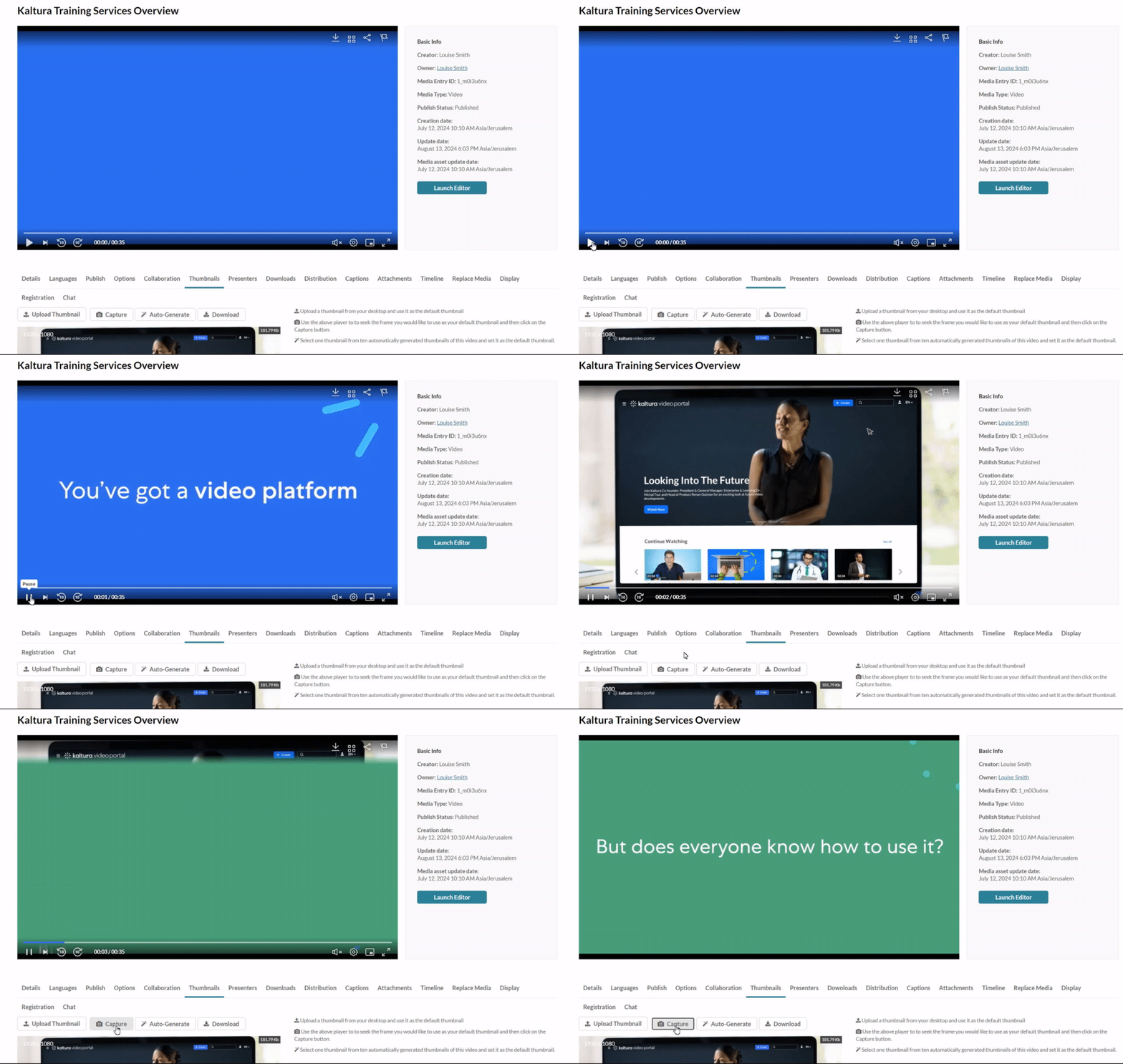
The captured frame is saved automatically and displays as the thumbnail.
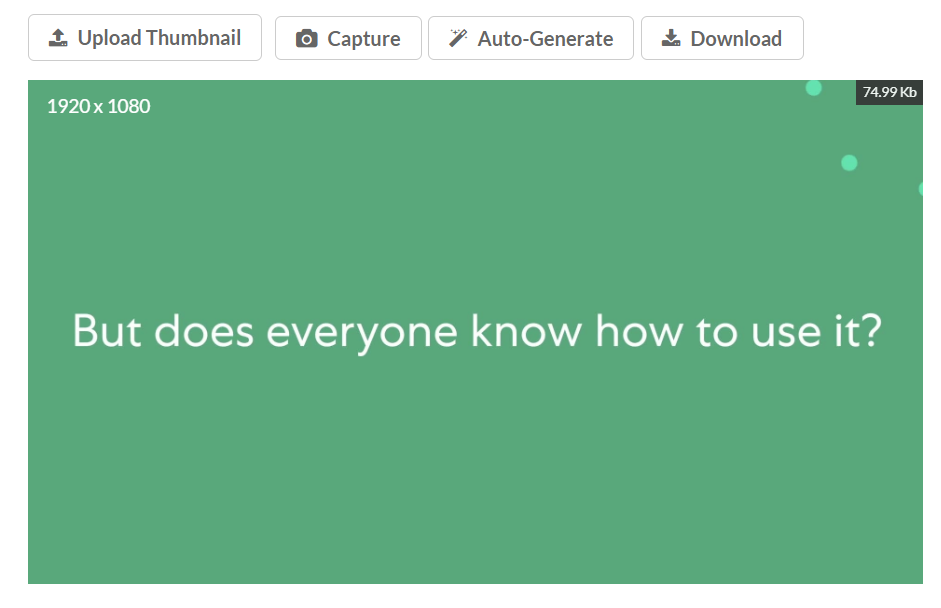
- Click the play button on the player.
- Click Capture at the frame that you want to use as a thumbnail.
Select an automatically generated thumbnail
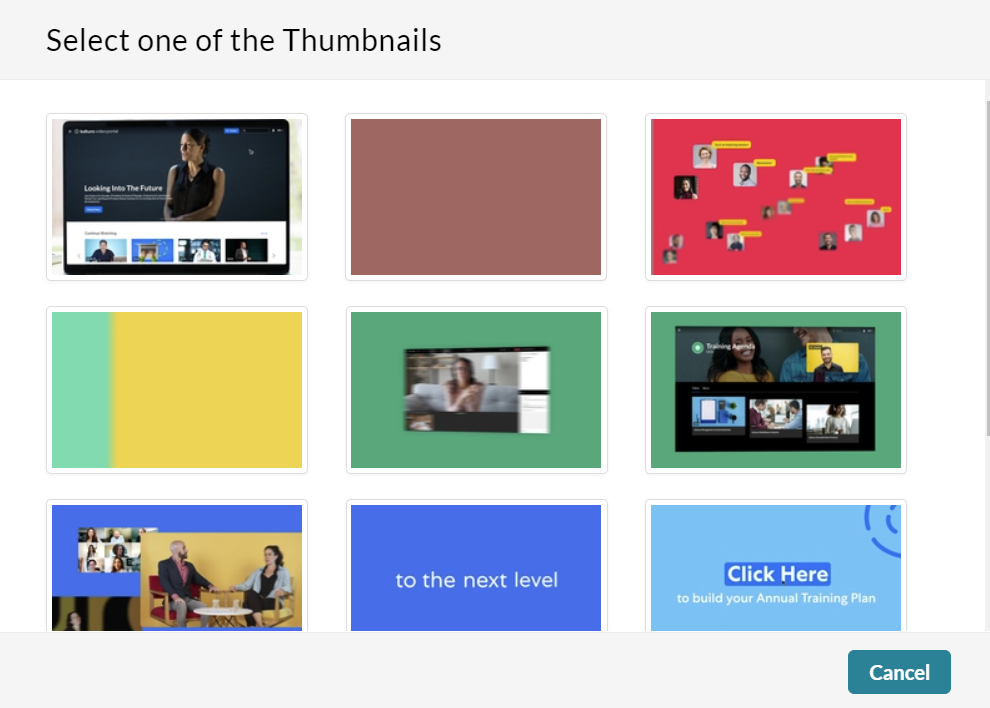
A window with a selection of automatically generated thumbnails displays.
The new thumbnail displays.
- Click Auto-Generate.
- Select a thumbnail.
Download a thumbnail
Click Download.
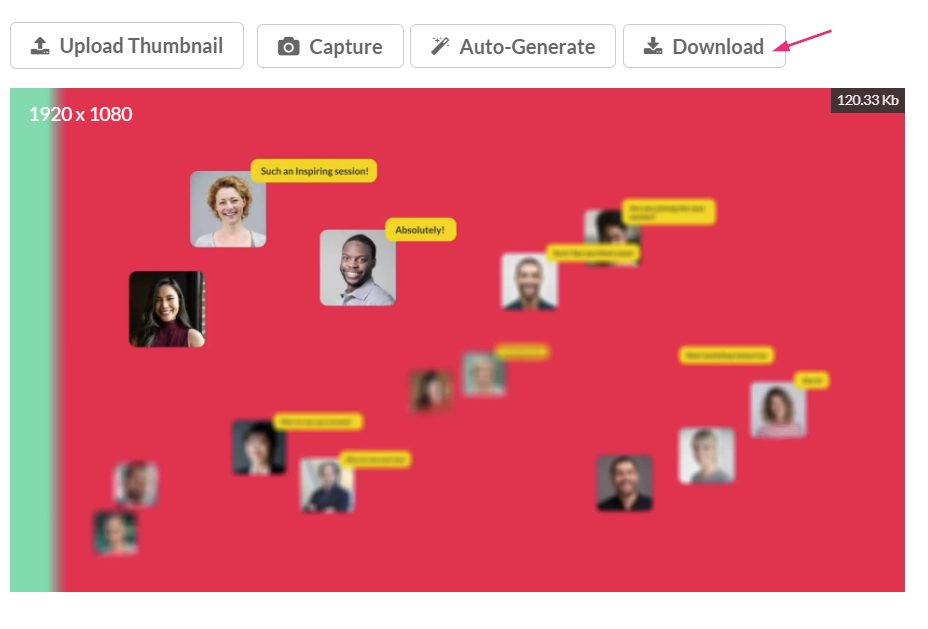
The image downloads.