Body
About
When you upload media, it’s private by default and accessible only through My Media. From there, you can either grab the embed code for private media or choose to publish it, making it public in your Media Gallery.
Publishing media allows it to be publicly accessible to users. You can publish media:
- in any Media Galleries you are allowed to publish to.
- only after file conversion is complete and the media has passed moderation (if required).
The content in My Media is consistent across all Kaltura applications, and can be published and shared based on your permissions. If you can't publish media, contact your administrator for access.
The instructions below are for non-Theming users. If you have Theming enabled, please refer to our article 'Publish media in Canvas - Theming'.
Publish one item

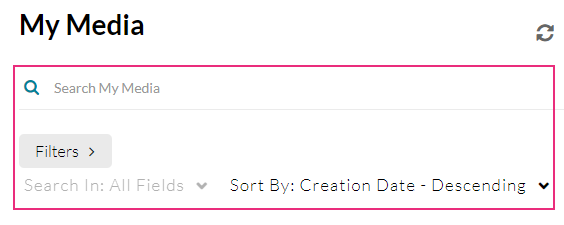
You can search for media using the search and filters function:
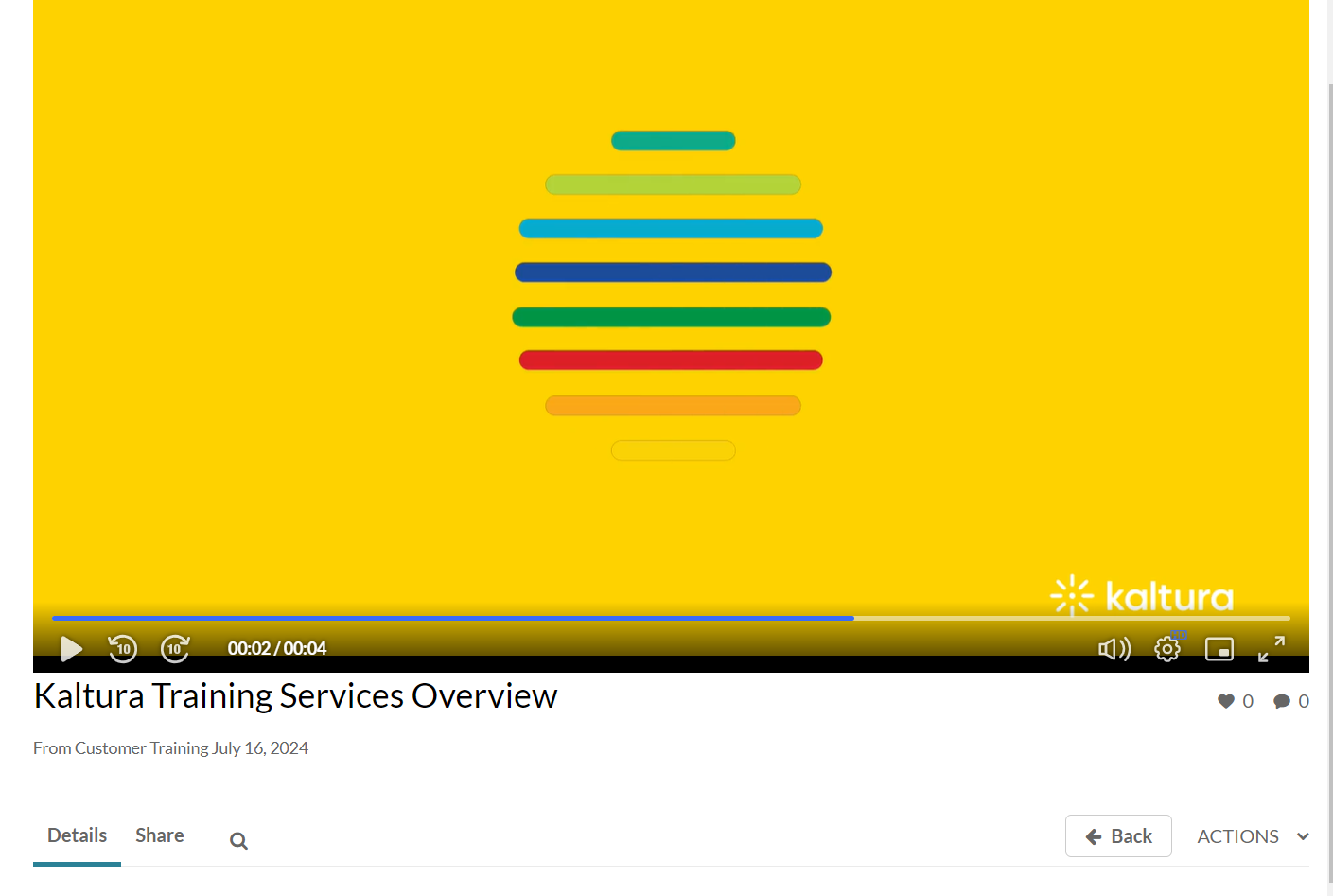
The media page displays.
The Publishing Status section displays.

Note for Canvas users: When publishing media, the first 200 active courses appear in the course selector. If your course doesn’t appear, open the course itself, go to its Media Gallery, and publish the media from there.
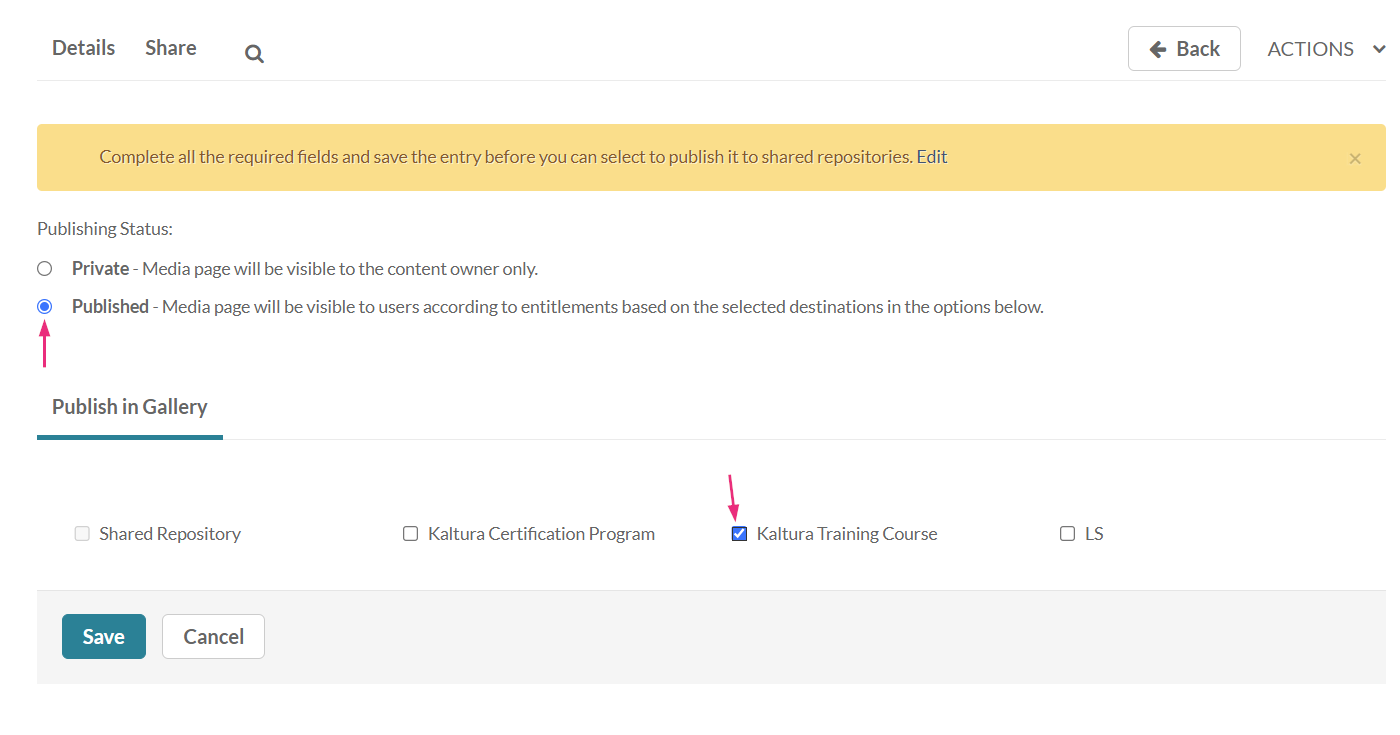
If you want to publish to a Shared Repository, you must complete all the required fields and save the entry first. See the Edit button in the pop-up above Publishing Status. To learn more about adding content to Shared Repositories, check out our article Shared Repository in video portal.
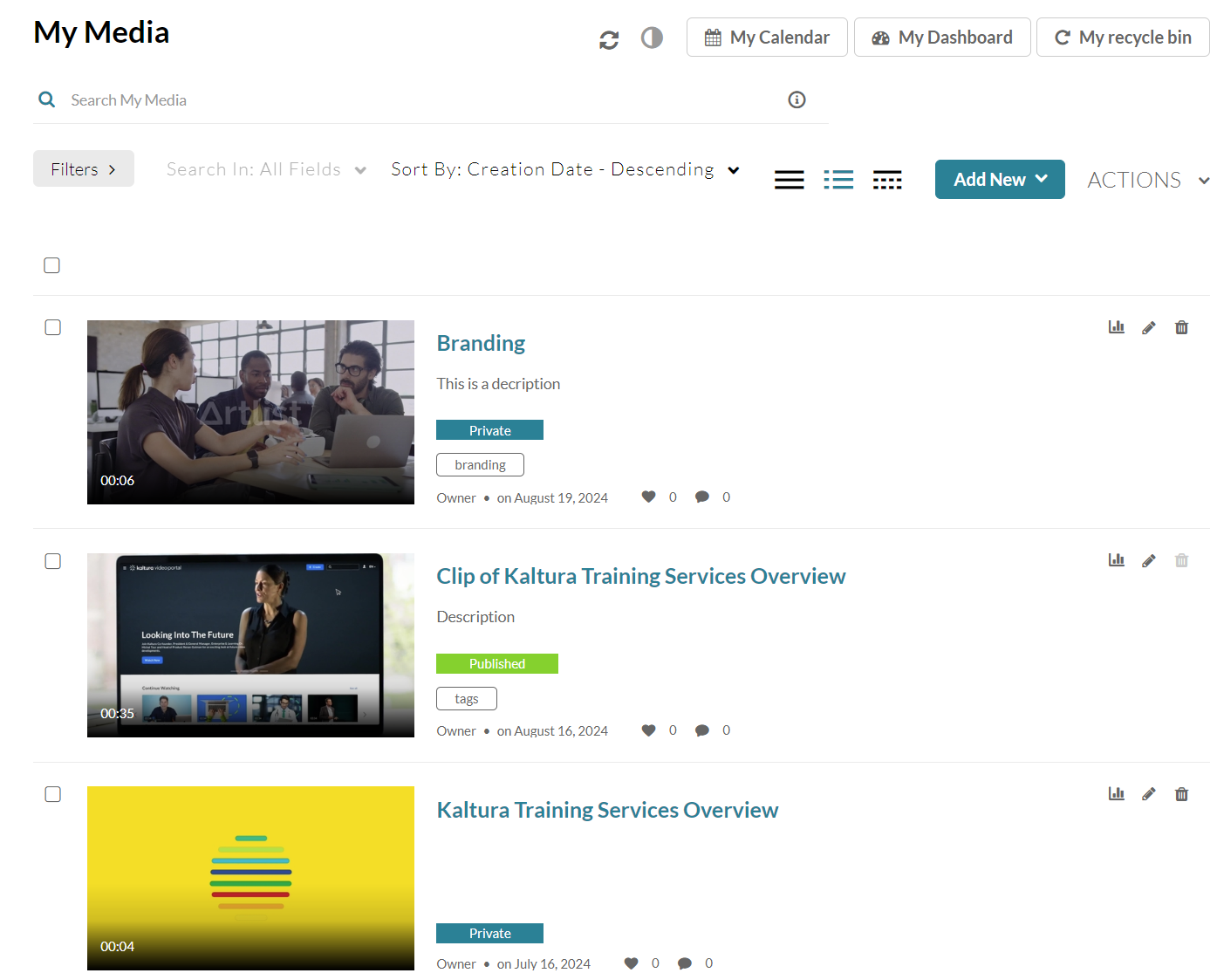
- Access your My Media page.
- Click the thumbnail or title of the media you want to publish.
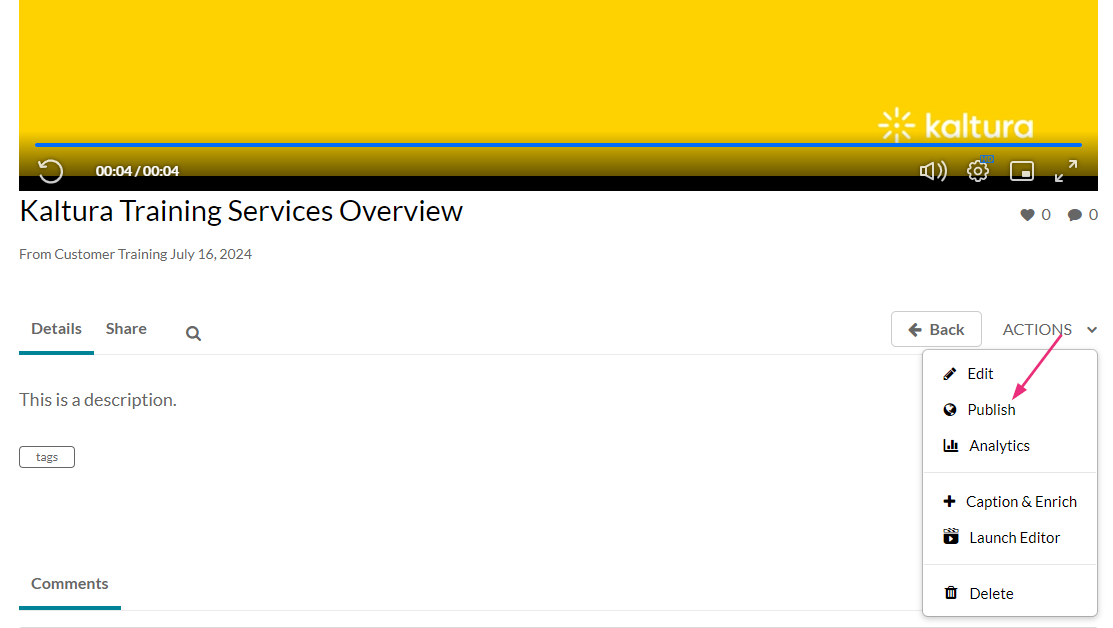
- Click the ACTIONS menu and select Publish.
- Click the button next to Published.
- Select the galleries / courses you want to publish the media to.
- Click Save.
- A success message displays: Media successfully published.
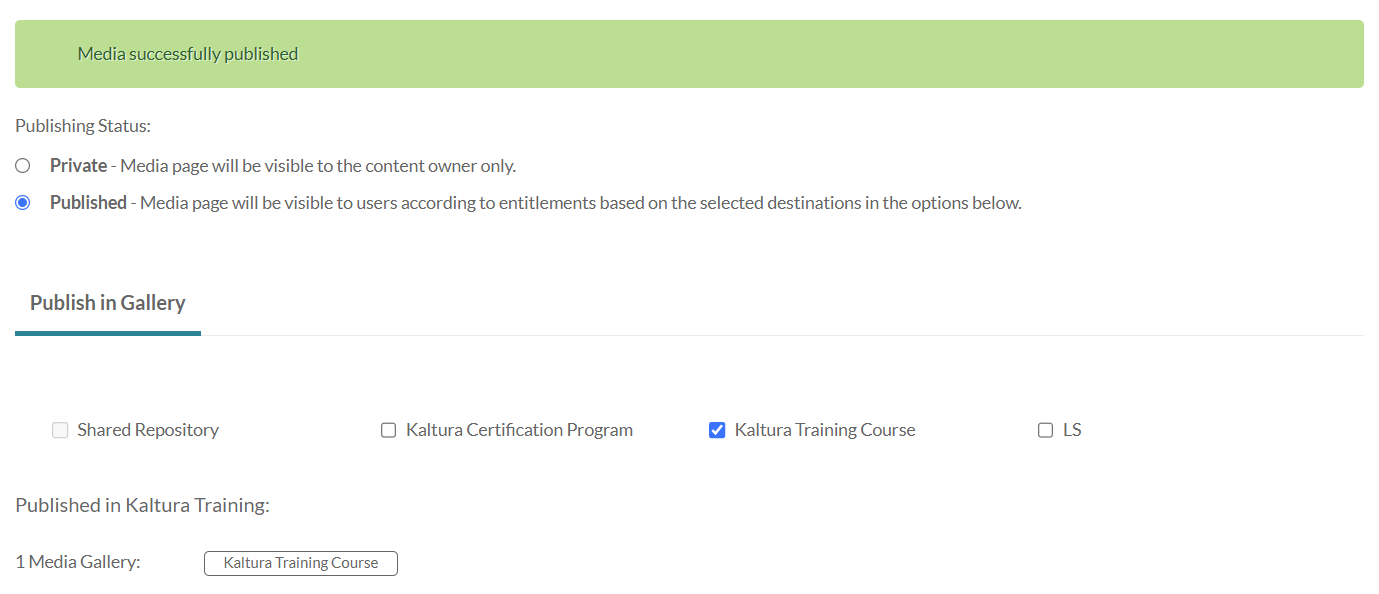
The media will be visible to individuals according to entitlements on published destinations.
OR

The edit page displays.
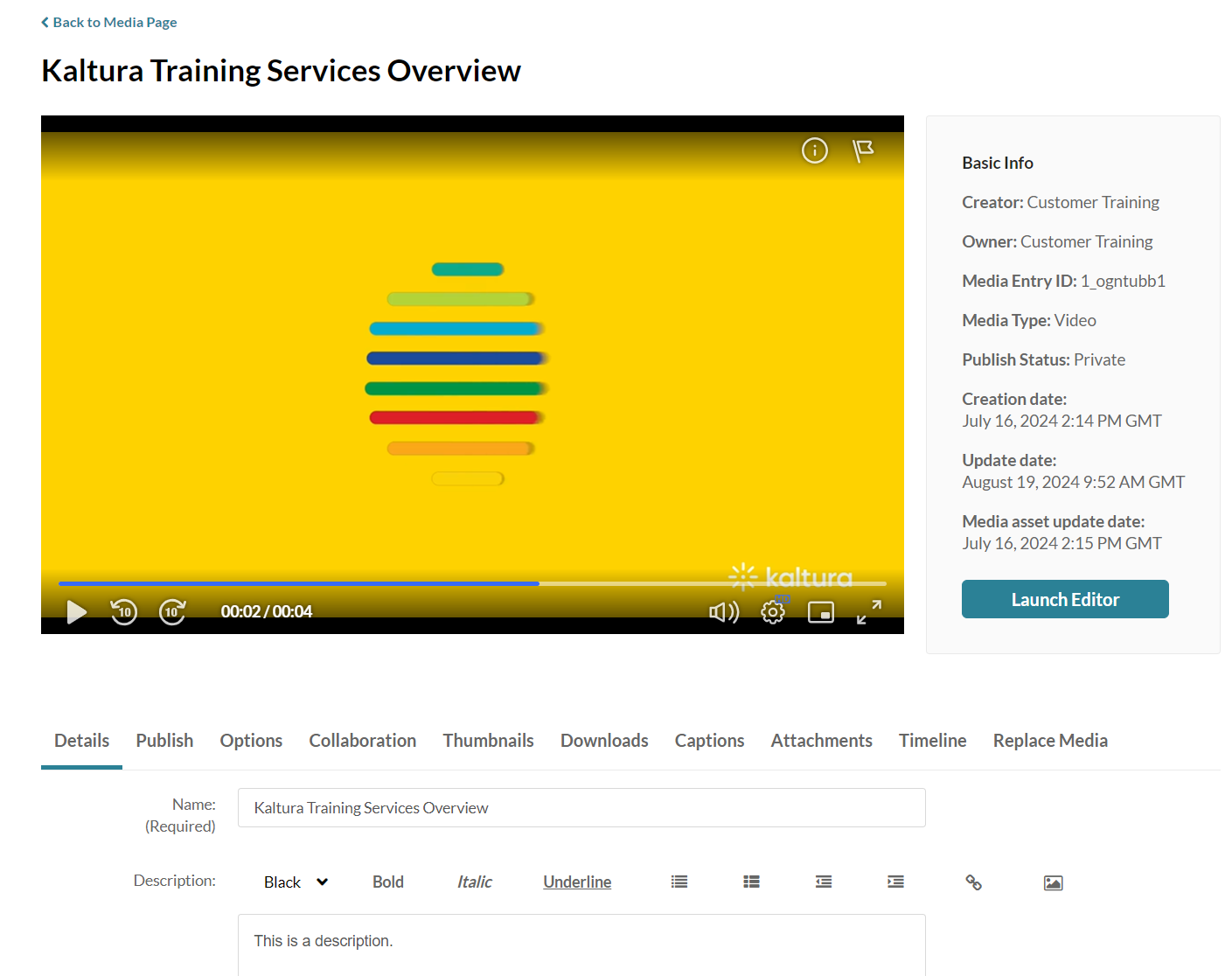
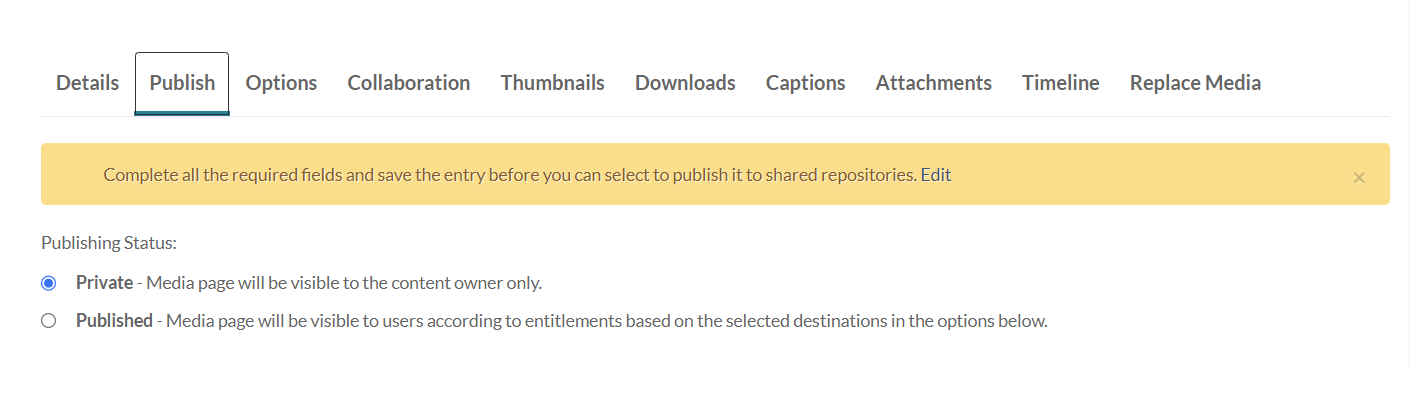
- Click the pencil icon to the right of the media.
- Click the Publish tab.
- Follow steps 4-6 above.
Publish multiple items
The Publishing Status section displays.
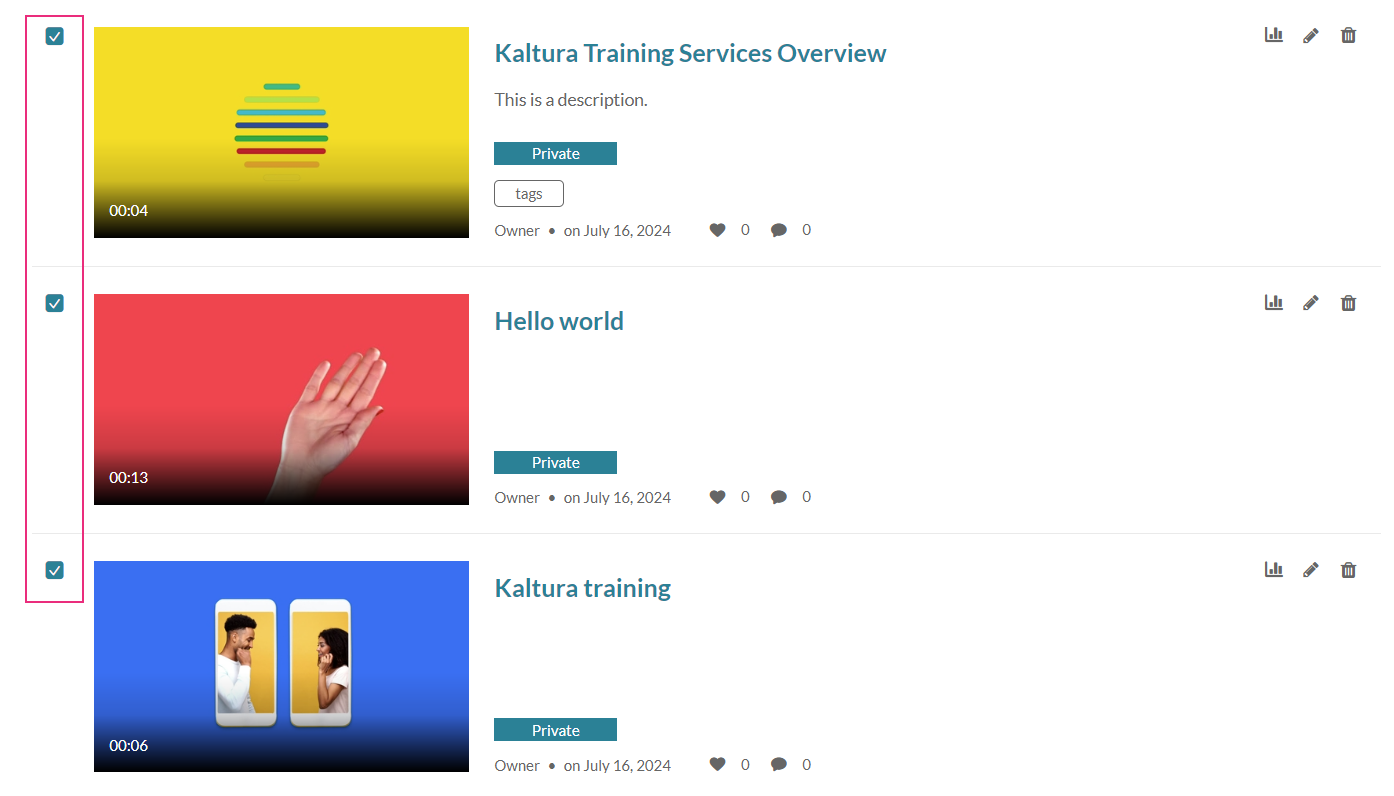
- Check the boxes to the left of the desired items.
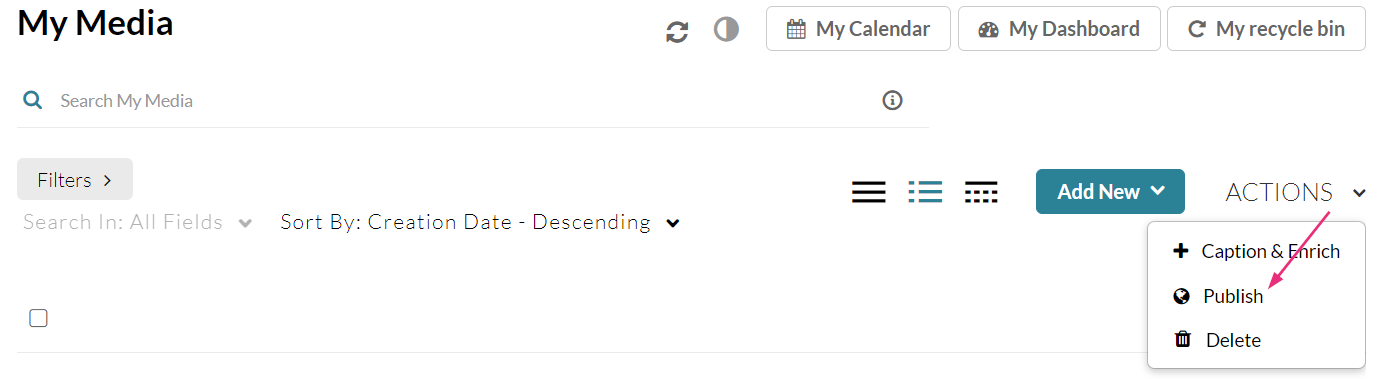
- Scroll to the top of the page, click the ACTIONS menu and select Publish.
- Follow steps 4-6 above.
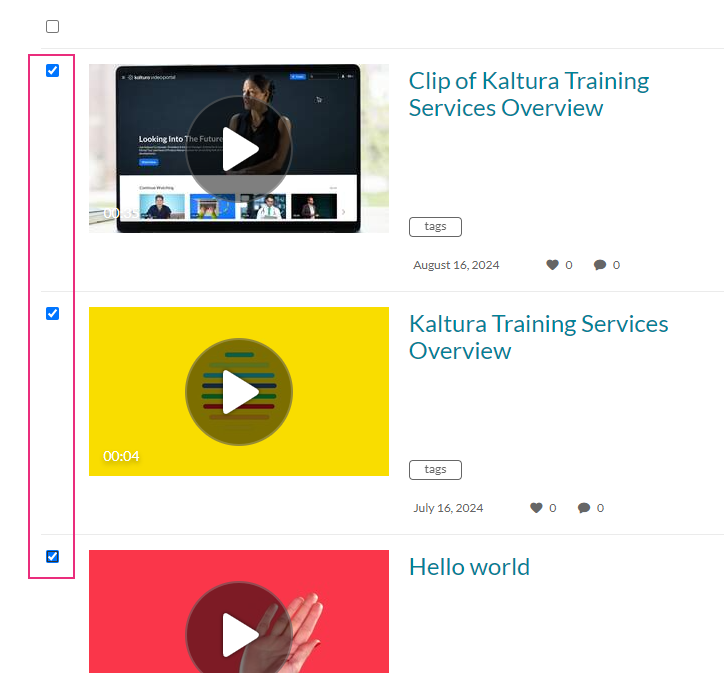
You can also search for media using the search and filters function:
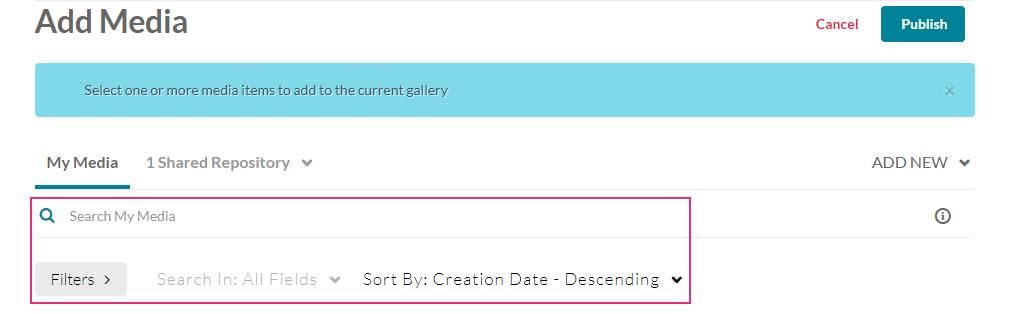
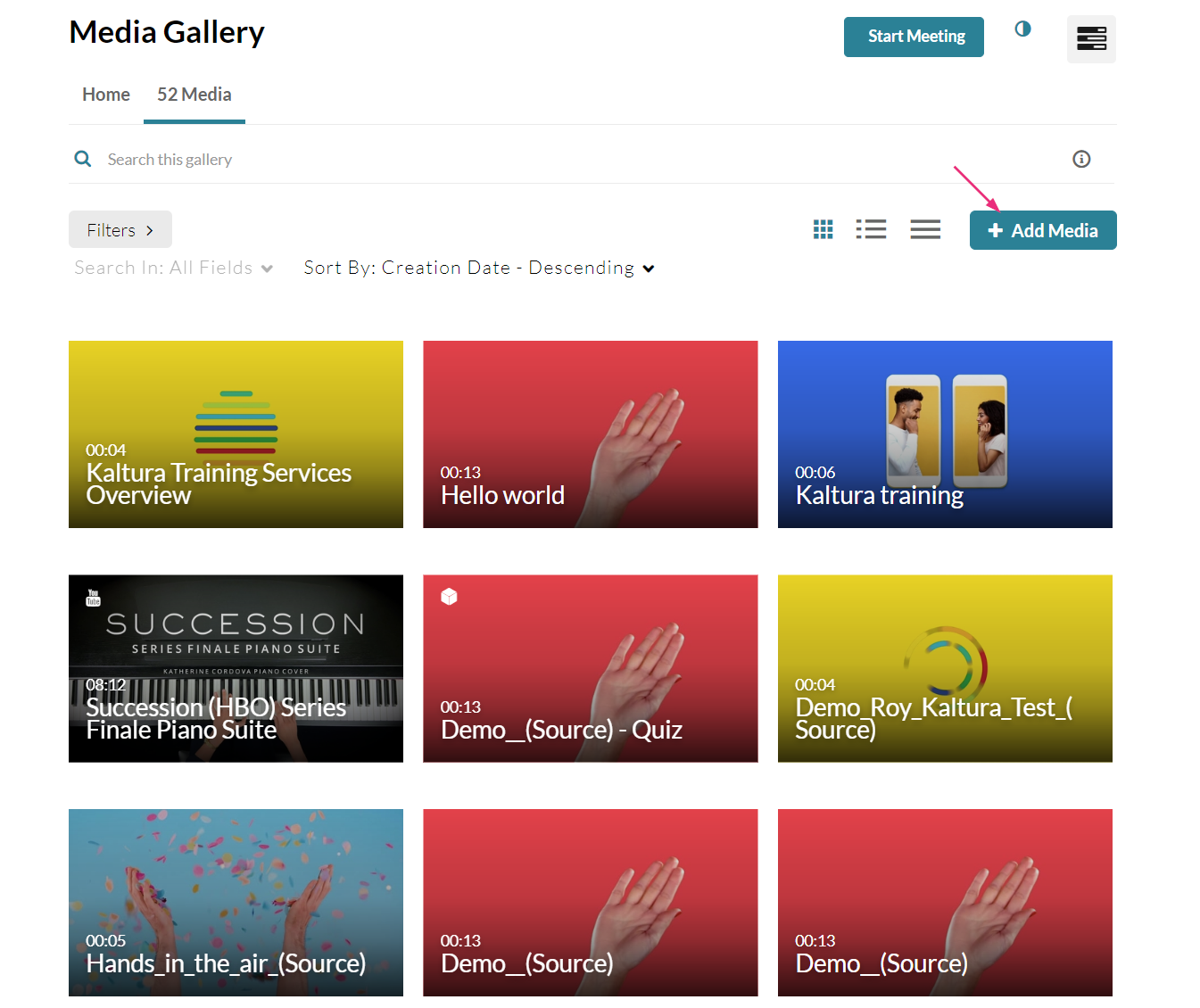
- Access the Media Gallery.
- Under the Media tab, click +Add Media.
The Add Media page displays.
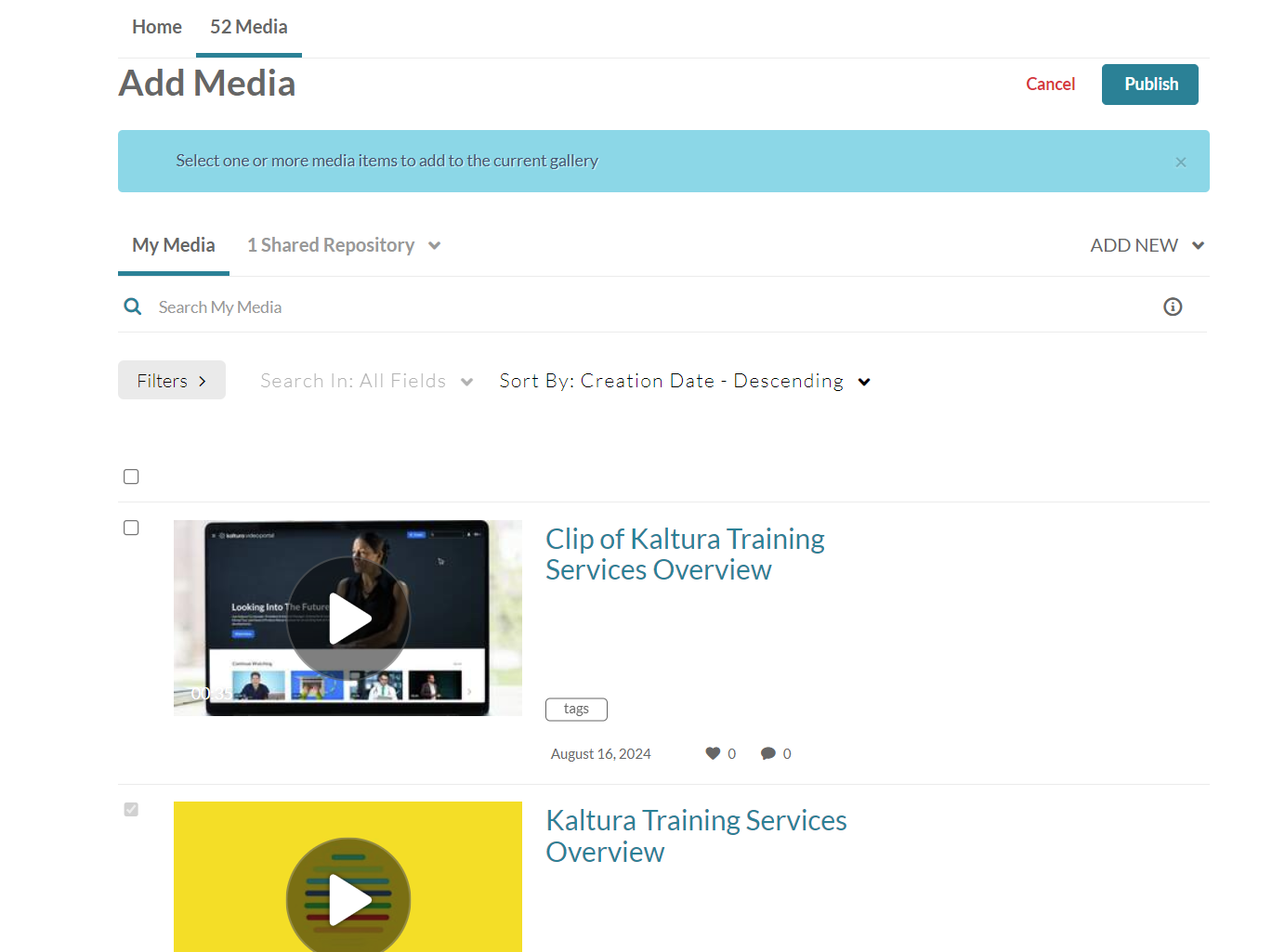
- Check the box(es) next to the media item(s) you want to publish.
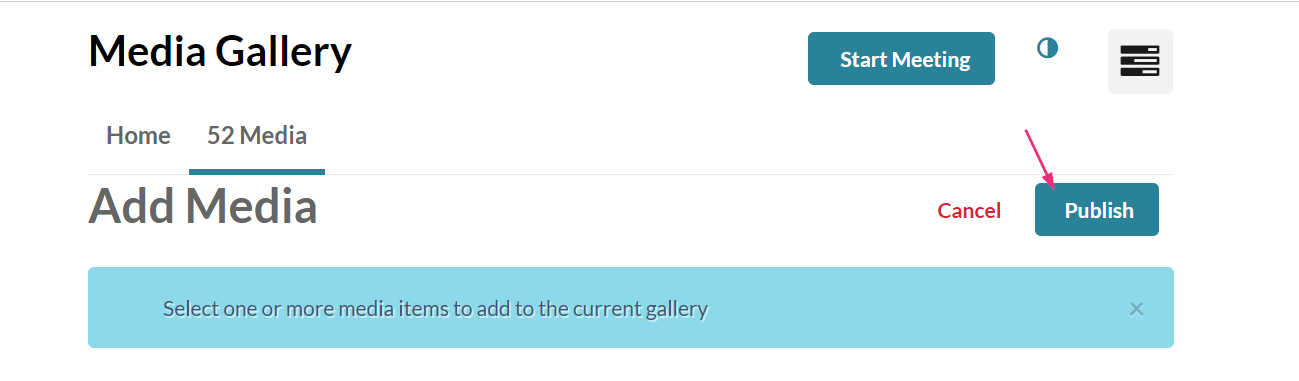
- Scroll to the top of the page and click Publish.
- A success message displays: All media was successfully published.