Body
 |
Important: You may be required to complete certain quizzes within a single Brightspace login session. When this setting is enabled by your instructor, you must finish the quiz in the same browser session where you started it. For example, if you begin a quiz on your laptop, you won’t be able to continue it on another device such as a smartphone or tablet.
On the Quiz List page, a key icon  indicates that a quiz is session restricted. indicates that a quiz is session restricted.
This restriction applies only to the quiz itself. You can still have multiple active Brightspace sessions for other tasks.
|
Access quizzes using the New Content Experience (Lessons)
Quizzes can be used as a benchmark to track your learning progress. Your instructor may provide you with several assessments for you to access and complete throughout the duration of your course.
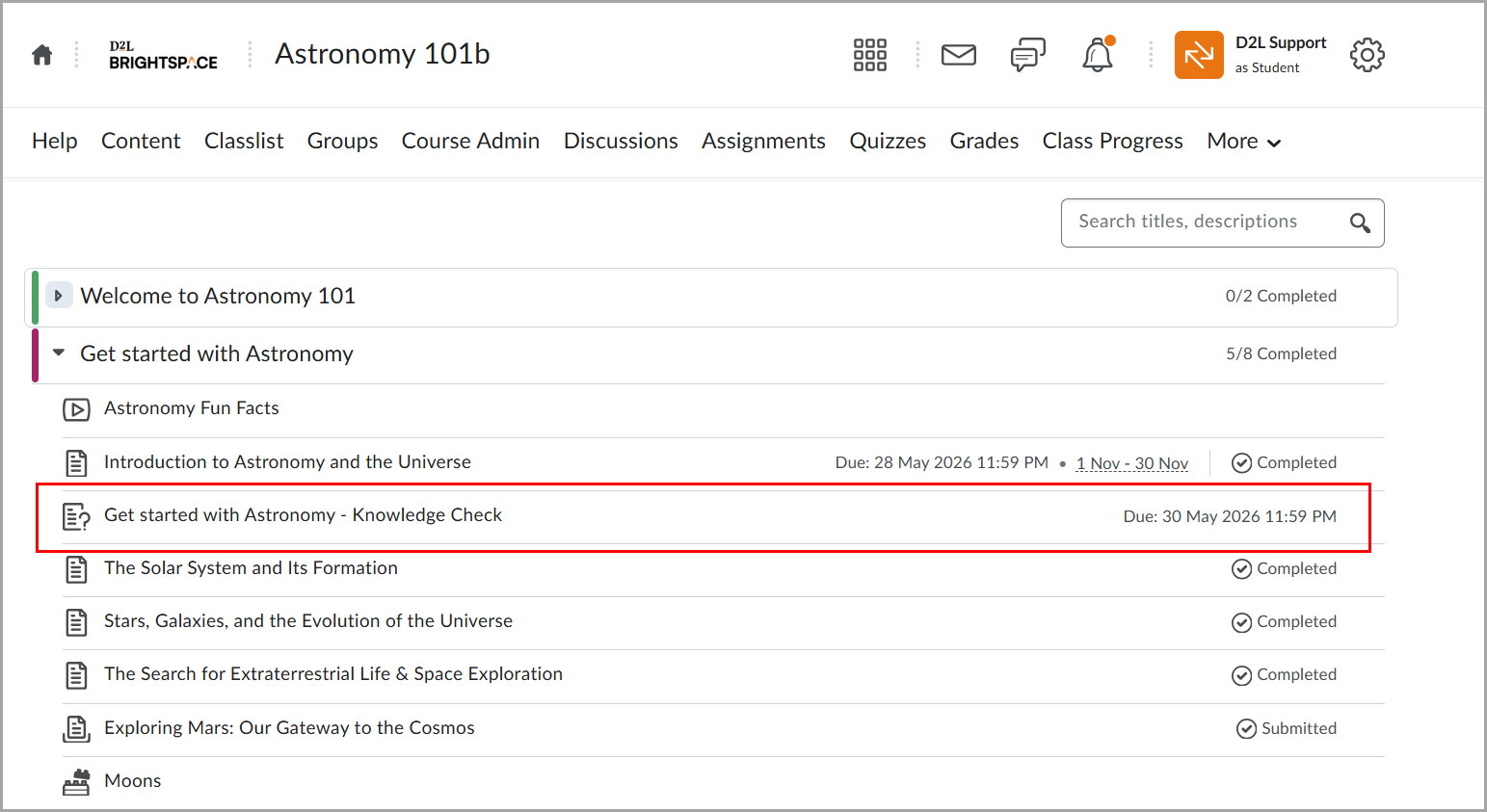
To access quizzes using the New Content Experience
- On your course homepage, navigate to Content.
- Navigate to the module where the quiz is located.
- Click on the name of the quiz that you want to take.
Access quizzes from the Quizzes tool
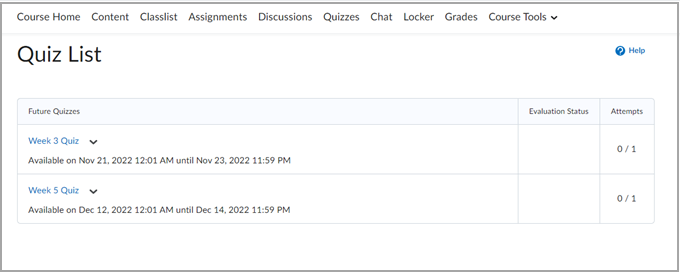
Use the Quizzes tool to review a list of quizzes available to you.
To access quizzes from the Quizzes tool
- Navigate to the Quizzes tool on the navbar.
- See a list of available quizzes in the Quiz List.
- Click on the quiz that you want to take.
Visual Tour: Quiz Details page
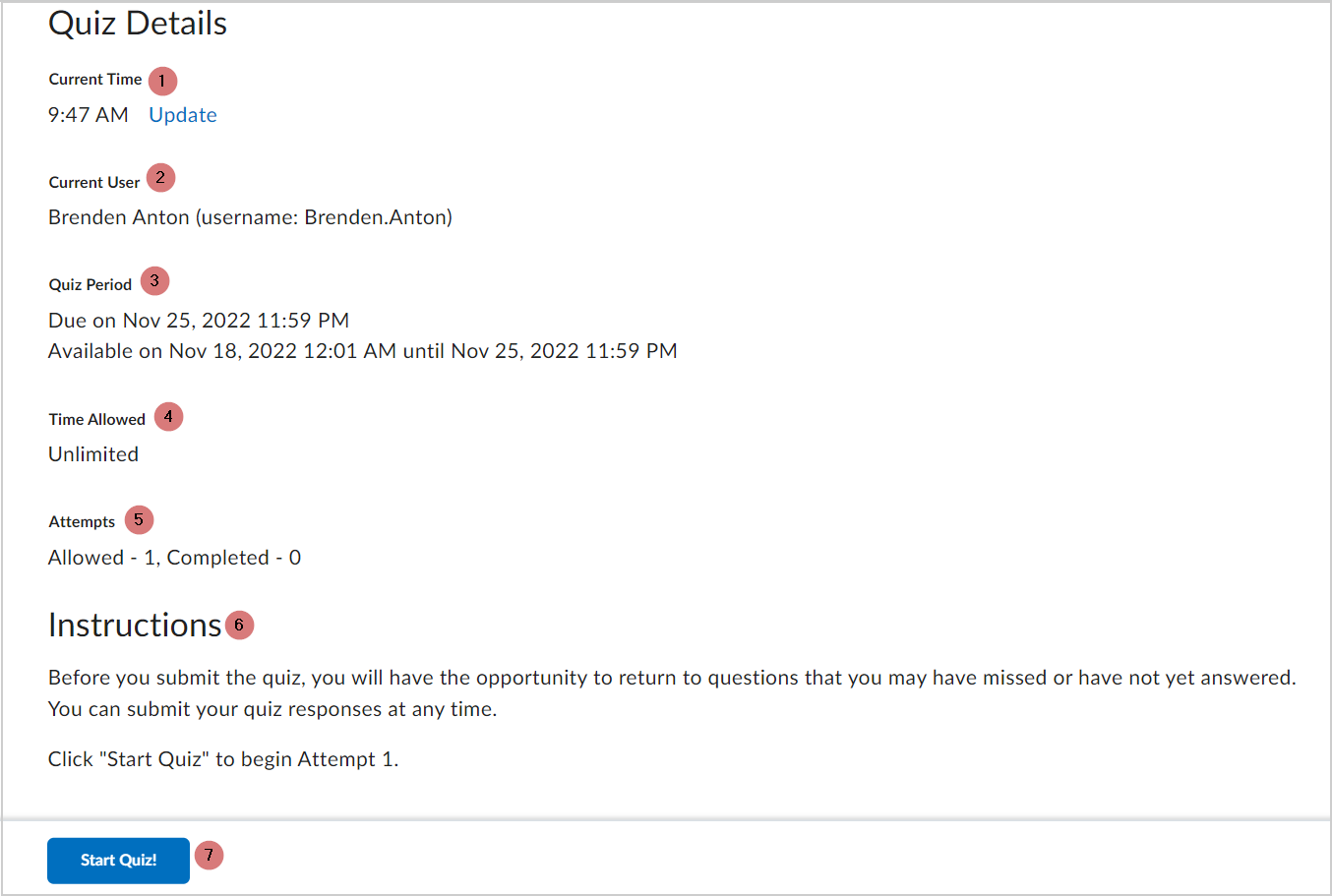
- Current Time: Shows the current time where you are.
- Current User: Displays your name and Brightspace username.
- Quiz Period: The start date and end date for the quiz.
- Time Allowed: The time available to complete the quiz.
- Attempts: The amount of times you are allowed to take the quiz.
- Instructions: Explains how the quiz works.
- Start Quiz!: Click this when you are ready to begin your quiz.
Notes:
- Your institution may require you to use Respondus LockDown Browser® to take quizzes. You can click the Respondus LockDown Browser link in the Quiz Requirements section to download and install it for free. You can then launch your quiz. If you have installed the Respondus LockDown Browser already, the Start Quiz page will open automatically within it.
- Your instructor may set a password to access your quiz. If you do not know your password or the password provided is not working, contact your instructor.
- The Start Quiz! button may not be visible in the following scenarios:
- The quiz hasn’t started yet.
- The quiz has already been completed.
- All allowed attempts have been used.
- The quiz has ended.
Asynchronous and synchronous quizzes
Brightspace currently provides the following types of quizzes:
- Asynchronous quizzes: you can launch asynchronous quizzes at any time within specified availability dates by clicking the Start Quiz! button.
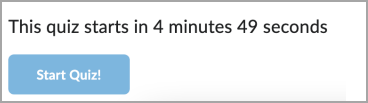
- Synchronous quizzes: if your instructor sets up a synchronous quiz, the quiz timer starts at the Start Date and ends when the time limit has lapsed, regardless of any action taken by the learner. For example, if you click Start Quiz! 15 minutes after the start date on a 1-hour quiz, you only have 45 minutes left to complete it. To indicate when a quiz becomes available, you can use a countdown timer on the Quiz Information and Start Quiz pages. The Start Quiz! button becomes available when the start date and time is reached.
Quiz List View
Review your quiz feedback and results directly from the Quiz List view in the Quizzes tool.
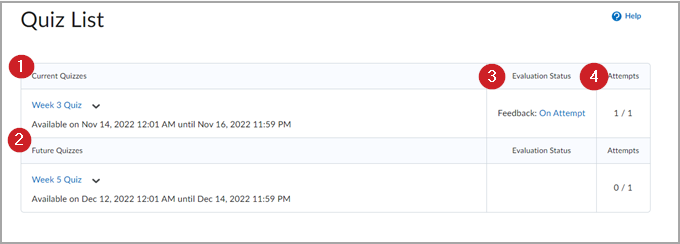
- Current Quizzes: Lists current quizzes that are available to take according to the availability dates and times that are set by your instructor.
- Future Quizzes: Lists any upcoming quizzes that your instructor created for you to complete in the future.
- Evaluation Status: Indicates if you can access your completed quiz results and feedback. Clicking On Attempt will bring you to the quiz’s submission view so that you can review how you did on your assessment.
 |
Note: If there is no submission view available, or if you have a written response question that was not graded and displays the message "This question has not been graded", reach out to your instructor for further assistance. |
- Attempts: Shows the number of attempts you have made for a quiz and the number of total attempts available for you to take.
Take a quiz
Watch this video to learn how to take a quiz. Review the written steps below.
During taking your quiz, the following options are available:
|
Note: Some questions might be worth 0 points, for example, if they are used to gather feedback or provide ungraded practice. When you submit a quiz that consists entirely of zero-point questions, the section containing the Attempt Score and Overall Grade is not displayed. |
|
Important: You can only view your quiz responses if the instructor has enabled this option in the quiz settings.
|
Take a quiz using the New Content Experience
You can access and complete quizzes from modules in the Content tool. If your quiz includes written response questions, your evaluator can include a rubric for those questions. You can view the rubric for the question within the quiz. After the quiz is complete and graded, you can review the rubric in the graded quiz for any feedback the instructor provides during the evaluation.
To take a quiz from the New Content Experience
- Navigate to Content.
- Click the module where your quiz lives and then click on your quiz.
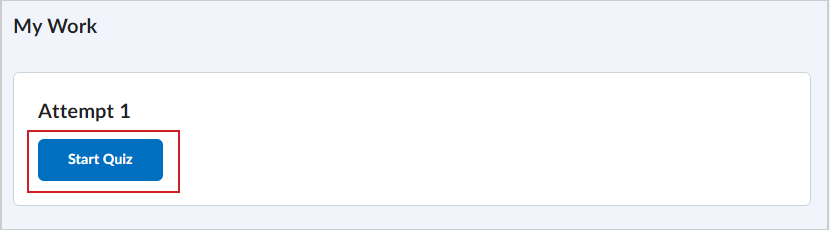
- In your My Work section, click Start Quiz.
- On the Quiz Summary page, click Start Quiz!.
- After completing your quiz, click Submit Quiz. To confirm your submission, click Submit Quiz again.
- Click Done.
You have completed a quiz using the New Content Experience. To review your quiz and results, navigate back to Content and click on your quiz module.
Take a quiz with point deduction enabled
Your instructor may have point deduction enabled for a quiz. This is intended to discourage you from guessing on quiz questions by deducting a percentage of the point value for a quiz question if you answer incorrectly. For example, if a quiz question is graded out of 1 point, your instructor may set that question to deduct 25% or 0.25 points from that quiz question if you answer incorrectly. If you are about to start a quiz with point deduction enabled, the quiz Summary page provides instructions to notify you.
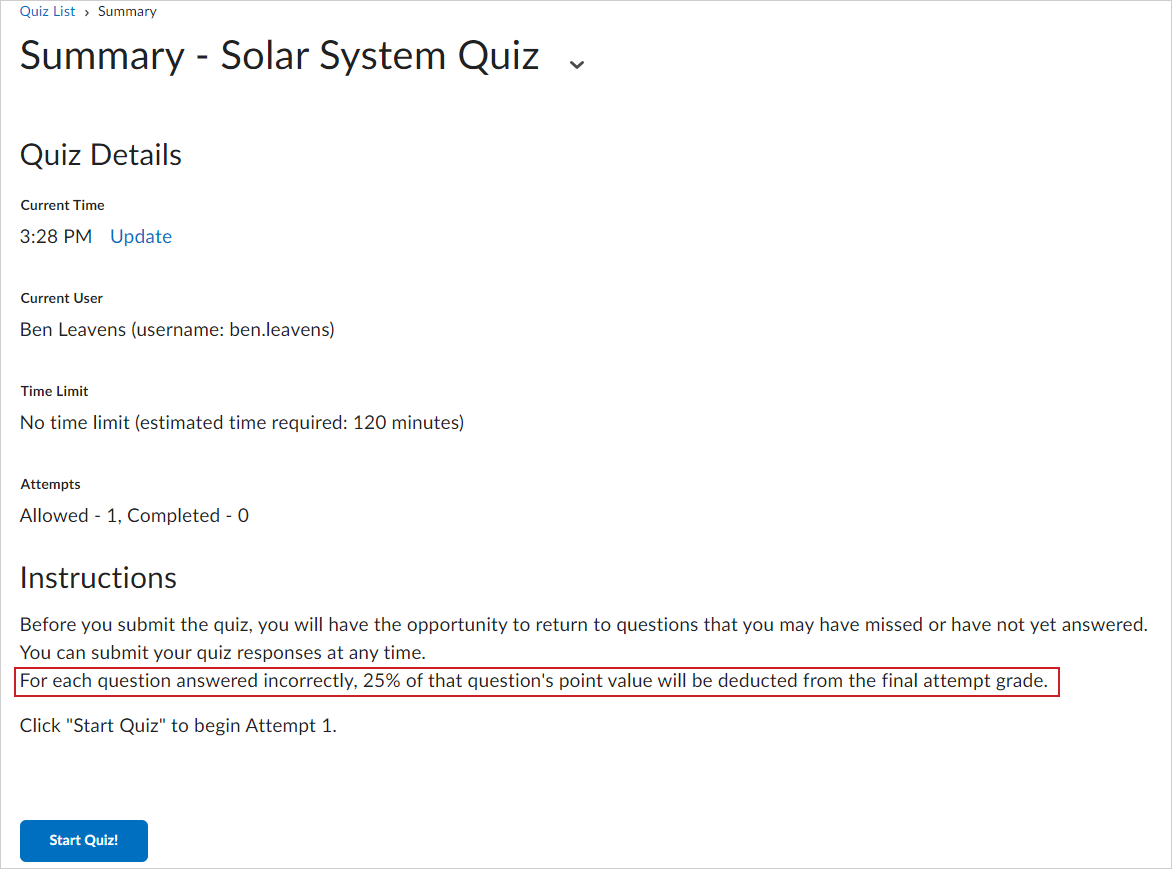
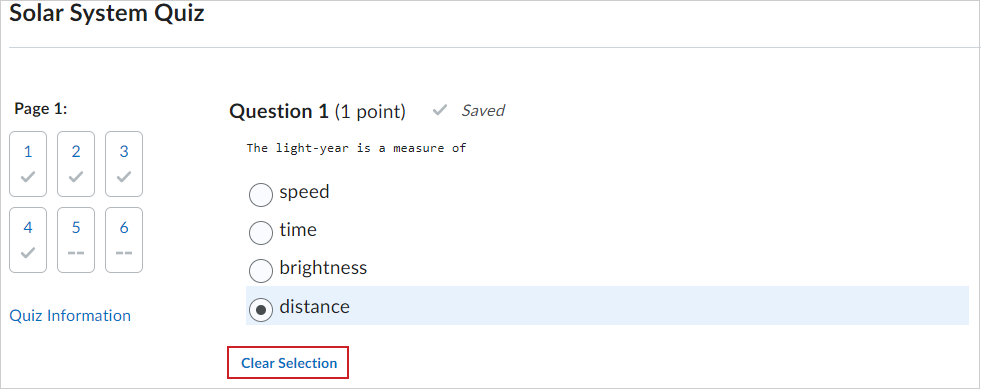
Once you select Start Quiz, and begin answering questions, you can select Clear Selection to clear any multiple-choice or true or false questions you have answered, but are unsure about. Clearing your answer ensures that you are given a grade of 0 for the question when you submit, instead of being deducted a percent value for a possible incorrect answer.
Take a quiz with D2L Lumi Study Support
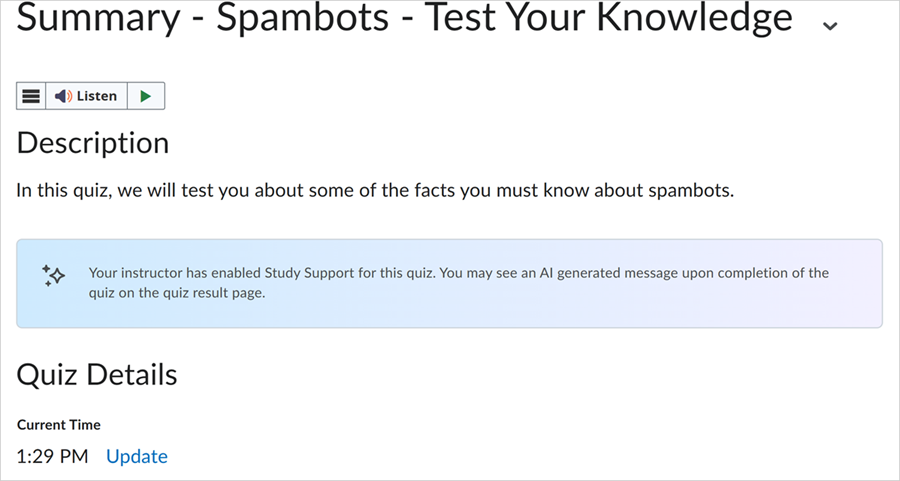
Your instructor can set your quiz to use D2L Lumi to automatically generate content recommendations and overall feedback based on your quiz attempt results. This provides you with instant feedback and study materials to help you refine your knowledge based on your quiz results. If you are about to start a quiz with Study Support enabled, the quiz Summary page provides instructions to notify you that Study Support is enabled.
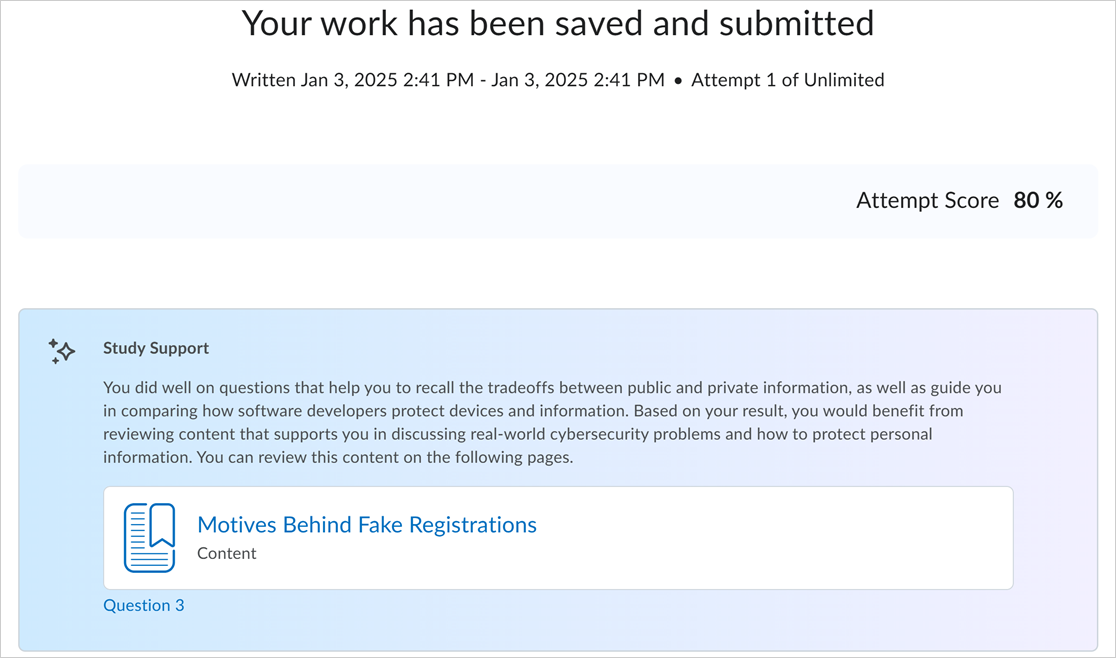
Once you have completed your quiz attempt, the quiz results page displays a short summary of what you did well, and where you would benefit from further review. Study Support also provides you with direct links to recommended course content to review.
Retake a quiz
 |
Tip: If your instructor sets up the option to reopen a quiz attempt, you can resume your most recent attempt without retaking a quiz. |
You can retake a quiz at any time by following the steps described on this page. However, the ability to access a quiz depends on how your instructor has set up the quiz. Your instructor may have applied conditions to the quiz that disables your ability to take the quiz again.
You may not be able to access and retake the quiz if:
- The quiz has passed an allowable time limit.
- The quiz has passed a due date, or has an availability date range that has passed.
- You have exceeded the limit on the number of allowable quiz attempts.
If you want to retake a quiz that is no longer available, you must contact your instructor to have them make the quiz available to you again.