Body
Use Transcript view to play a video with scrolling captions and to download a transcript for offline reading or accessibility review. You can download a Transcript (.txt) or a Captions (.vtt) file; .vtt includes time codes with the transcript text.
 |
Important: You can only view or download a transcript if the video has captions (added or auto-generated). If captions are not available, the View transcript option does not appear in the Media player.
Note: Auto-generated captions may contain errors. For accessibility compliance, review and correct captions before sharing downloads.
|
To view and download a transcript
-
1. From your course homepage, go to any place the Media player appears (for example, a module in Content), and open the video.
- On the video screen, click Settings (gear icon) then click View transcript.
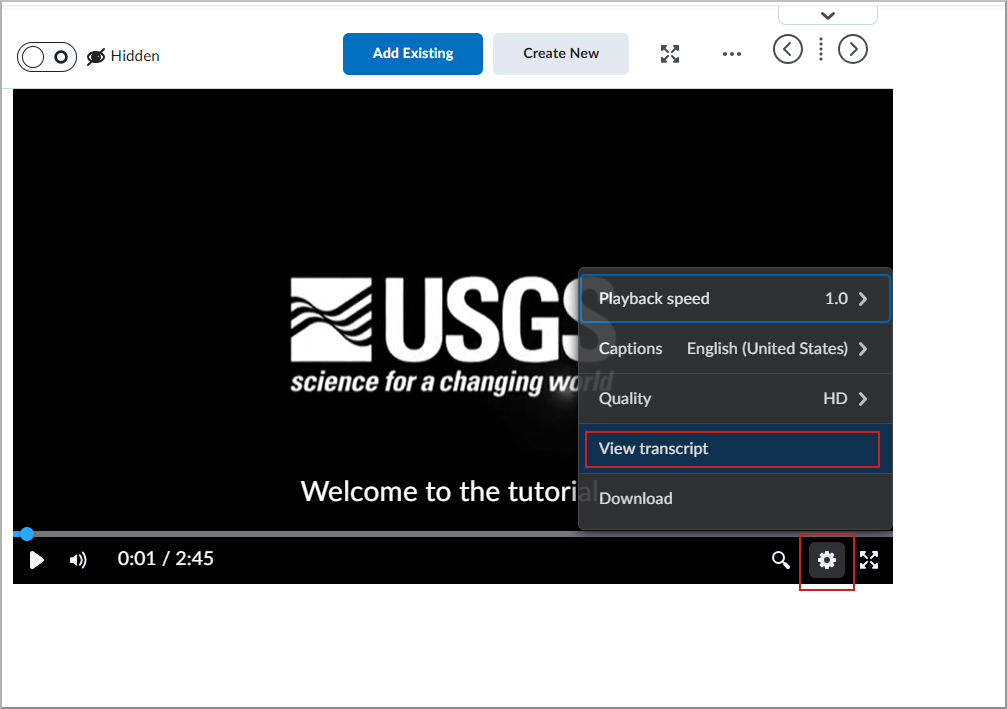
- The transcript appears with the playable video in the upper-left corner. Click Download, then select one of the options:

You have downloaded a transcript or caption from your video.
 |
Tip: For better accessibility:
Verify accuracy: Edit auto-generated captions to reflect spoken content, punctuation, and speaker changes.
Keep it readable: Use short sentences and clear punctuation so screen readers parse the transcript effectively.
Provide both files when possible: .txt supports quick reading; .vtt supports syncing and editing.
|