Body
The Class Progress tool tracks your progress in a course by measuring the completion of different progress indicators. You can use the Class Progress tool to keep track of your course-specific assignments and feedback.
Progress reports are available for the following progress indicators: Summary, Grades, Standards, Objectives, Content, Discussions, Assignments, Quizzes, Checklists, Surveys, Login History, and System Access History.
Note: Based on your organization's settings, the Standards tab may have a different label like Learning Outcomes. In addition, some of the tabs may not display.
To view your course progress in the Class Progress tool
- Navigate to your course.
- Click Class Progress. This may be in the navbar, the More drop-down menu, or the Course Tools menu.
Visual Tour: Class Progress
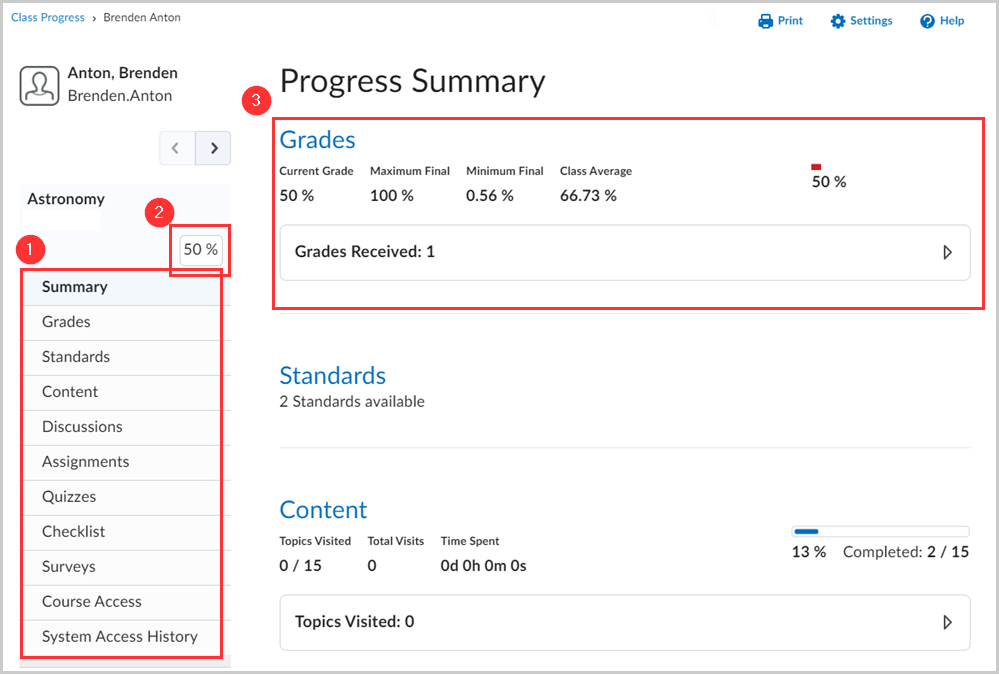
Figure: Overview of the Class Progress tool.
Note: Depending on your organization, the following tabs may or may not be available for you to access.
- Click a menu item to review the following items:
- Grades: Displays all your graded items in the course with feedback.
- Content: Shows all the content available for the course. This tab also shows your Topics Visited, Total Visits, Time Spent, and Completed Topics. Each module has a progress bar that displays your completion level. You can expand each module to see which topics you have and haven't completed.
- Discussions: Displays all discussions for the course and your Read Posts, Threads Created, and Replies Posted.
- Assignments: Displays all your assignments. You can view details of your submissions and your instructor’s feedback on each assignment you’ve submitted.
- Quizzes: Displays all your available quizzes for the course. You can see your attempts and attempt feedback on this tab.
- Checklist: Displays all the activity checklists in the course. This allows you to view Completed Checklists and Completed Checklist Items.
- Survey: Displays all surveys created within Brightspace.
- Note: If the survey was created using a different platform, it will not be displayed here.
- System Access History: Displays your # System Accesses (Last 30 Days) and Last Accessed System day for the course.
- Course Access/Login History: Displays your # System Accesses (Last 30 Days) and Last Accessed System day for the course.
Note: Your can configure the Class Progress tool to display one or all of your System Access History, Course Access, and Login History.
- View the current Calculated Final Grade of all graded items in the course.
- Click the Expand icon to view details of your progress within each category. Alternatively, click on the tabs for each category below the Summary tab.
Video: Class Progress Overview