Body
You can create a content topic using a file directly from Manage Files. The Link icon displays beside files in use as topics in the Content tool.
 |
Note: Content HTML file editing, including via Manage Files and Course Builder, has a character limit of 2 million characters. |
To create a Content topic in Manage Files
- On the Manage Files page, select the check boxes beside the files you want to designate as topics.
- Click the Add Content Topics icon.

Figure: Click Add Content Topics to open the Add Multiple Topics page.
- From the drop-down list, choose a Parent Module for the topics.
- Enter Topic Titles. If you rename a file that is a topic in your course, it automatically updates the file reference in the Manage Content area.
- Click Add.
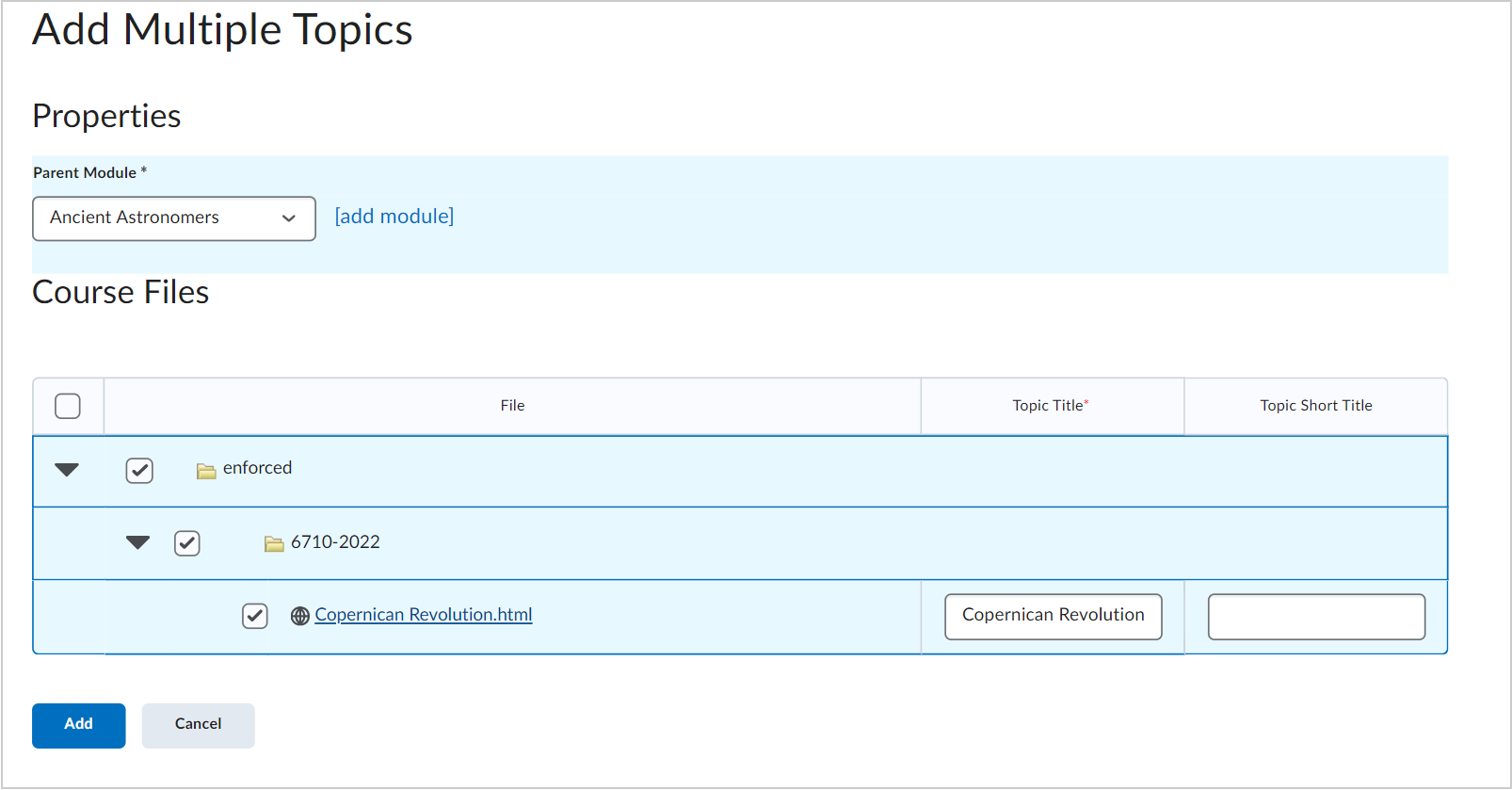
Figure: The Add Multiple Topics page displays the Parent Module drop-down list. Click Add.
 |
Warning: Use caution when moving files and folders if they are referenced in the Content area. Moving a file that is currently in use as a topic might result in a broken link. |
Video: Create a Content topic in Manage Files
Video: Create a file with Insert Stuff