Body
Instructors can exclude a student’s lowest score from grade calculations in two main ways:
- Manually, using exemptions
- Automatically, by configuring a grade category to drop the lowest item
Manually exempt a grade item
Use Bulk edit exemptions to manually exclude a grade item for an individual learner.
To exempt a learner from a grade:
- On your course homepage, navigate to Grades.
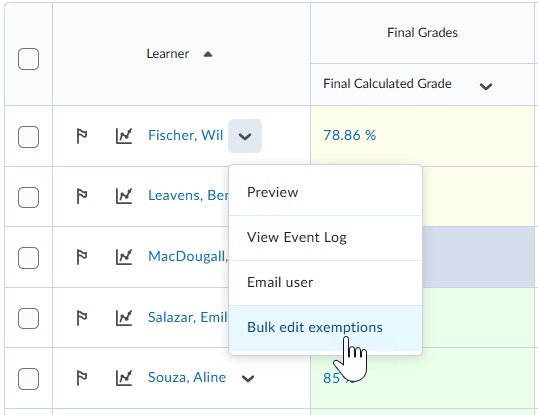
- Click the Actions drop-down menu beside a learner's name and click Bulk edit exemptions.
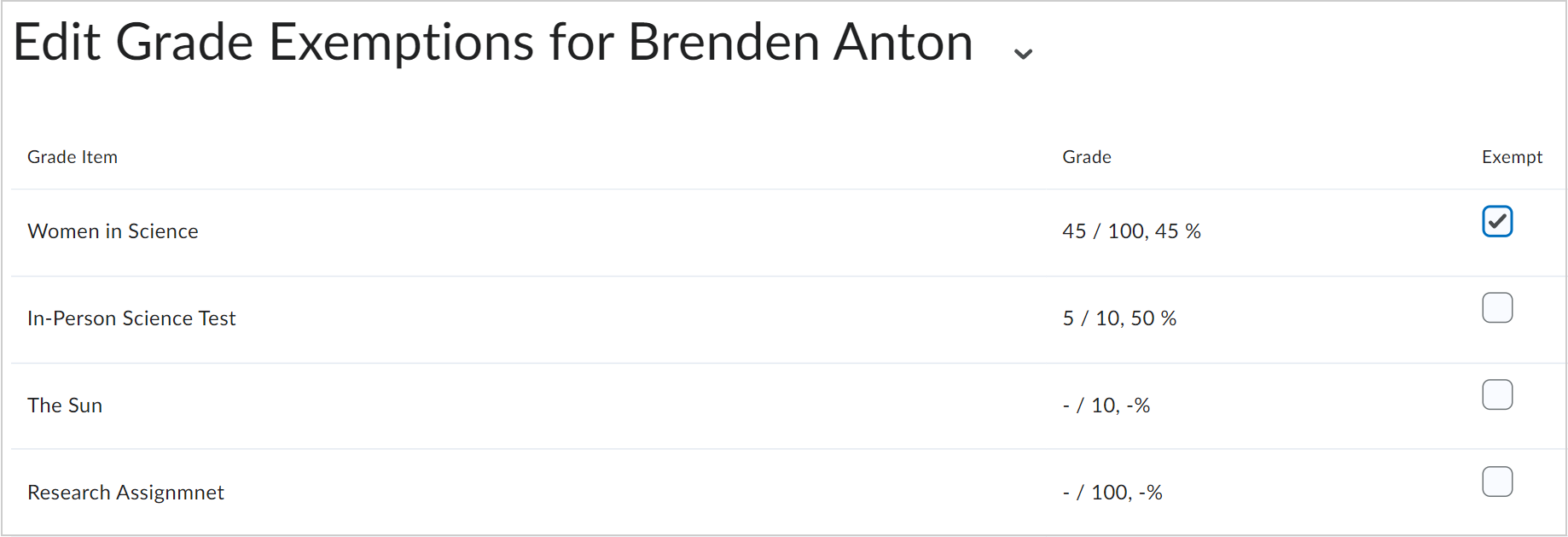
- On the Edit Grade Exemptions page, under the Exempt column, select the checkbox for each grade item you want to drop.
Note: You can exempt or drop more than one grade item.
- Click Save and Close.
The exempted assessment displays as Exempt in the learner’s grade column and is excluded from their final grade calculation.

Automatically drop the lowest grade using a category
You can configure a grade category to automatically drop the lowest grade item for each learner.
To automatically drop the lowest grade:
- On your course homepage, navigate to Grades.
- Select the Manage Grades tab.
- Do one of the following:
- To create a new grade category: Click Newand select Category.
- To edit an existing category: Click the Actions (arrow) menu and select Edit.
- In the category settings, scroll to the Distribution section.
- Select Distribute points across all items.
- In Number of lowest non-bonus items to drop for each user, enter 1 (or more, if desired).
- Click Save and Close.
The system automatically excludes the lowest scoring item(s) from each learner’s grade calculation for the category and the final grade.
 |
Important: The Drop lowest option is only available when:
- The category distributes points equally (not manually assigned weights).
- When using Points, if the point value is set at the Category level, all items within the category will share the same maximum point value.
|
Requirements & Limitations for Automatic Dropping
To use the automatic drop feature, the following conditions must be met:
- All non-bonus items in the category must have the same maximum point value.
- The category must distribute points or weight equally
- Items must be non-bonus.
- You cannot drop the lowest item across categories (only within a single category).
If you're using a Formula grading system:
- Exclude the item from the formula in a custom formula setup.
Interaction with grade calculations
Final vs Interim Grade Calculation
- The Final Calculated Grade reflects all configured dropping rules (manual and automatic).
- The Calculation > Grade item to include option, used for interim or on-demand calculations, may still include dropped items in the calculation.
This may result in interim grades not matching the Final Calculated Grade, which can cause confusion for instructors and learners.
 |
Note: This behavior is governed by the d2l.Tools.Grades.CalcGradeItem.CalculationMethod configuration variable.
- When set to Milestone Calculation (default), dropped grades are included in interim or on-demand calculations.
- When set to Final Grade Calculation, dropped grades are excluded consistently.
Contact your Brightspace administrator to confirm which setting your organization uses.
|