Body
 |
Note: To delete a grade item or category, you require the Manage Grades permission. Contact your administrator if this permission is not assigned to your role. |
- From your course navbar, click Grades.
- On the Manage Grades page, click the More Actions button, and select Delete.
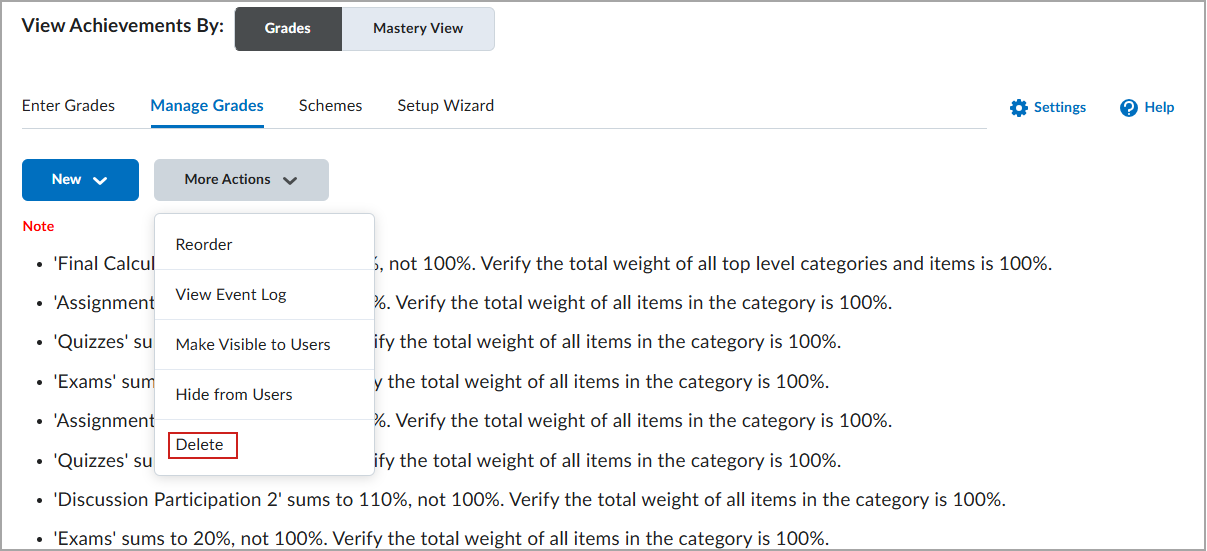
- Select the check box for each grade item or category want to delete.
- Click Delete.
|
Note: Important rules when deleting:
|
Learn how to remove grade items with associations in your grade book.
Restore a deleted grade item
To restore a grade item requires the Manage Grades permission. Contact your administrator if this permission is not assigned to your role.
- Navigate to Grades.
- On the Manage Grades page, click More Actions > View Event Log.
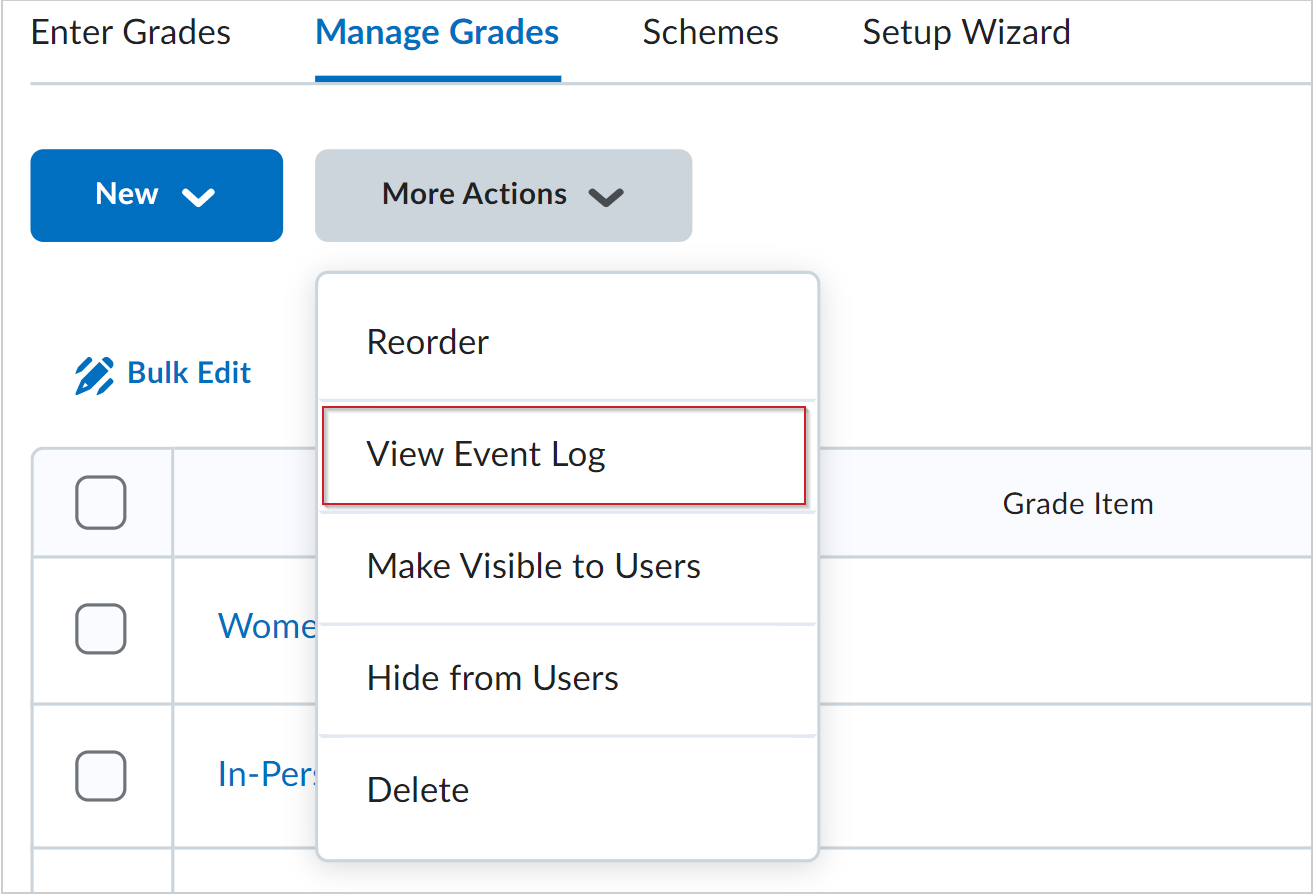
Figure: Click View Event Log from the More Actions menu.
- Beside the appropriate grade item, select Restore.
|
Note: Formula and Calculated grade items cannot be restored.
You need the Manage Grades permission to restore grade items. Contact your administrator if you do not have this permission.
|