Set up a quicklink to a discussion topic or forum within an existing Content topic

Body

You can add a quicklink that links learnersdirectly to a discussion topic or discussion forum.

Set up a quicklink to a discussion topic in the New Content experience

You can add a quicklink to a discussion topic in the New Content Experience (Lessons).

To add a quicklink to a discussion topic

  1. Navigate to Content.
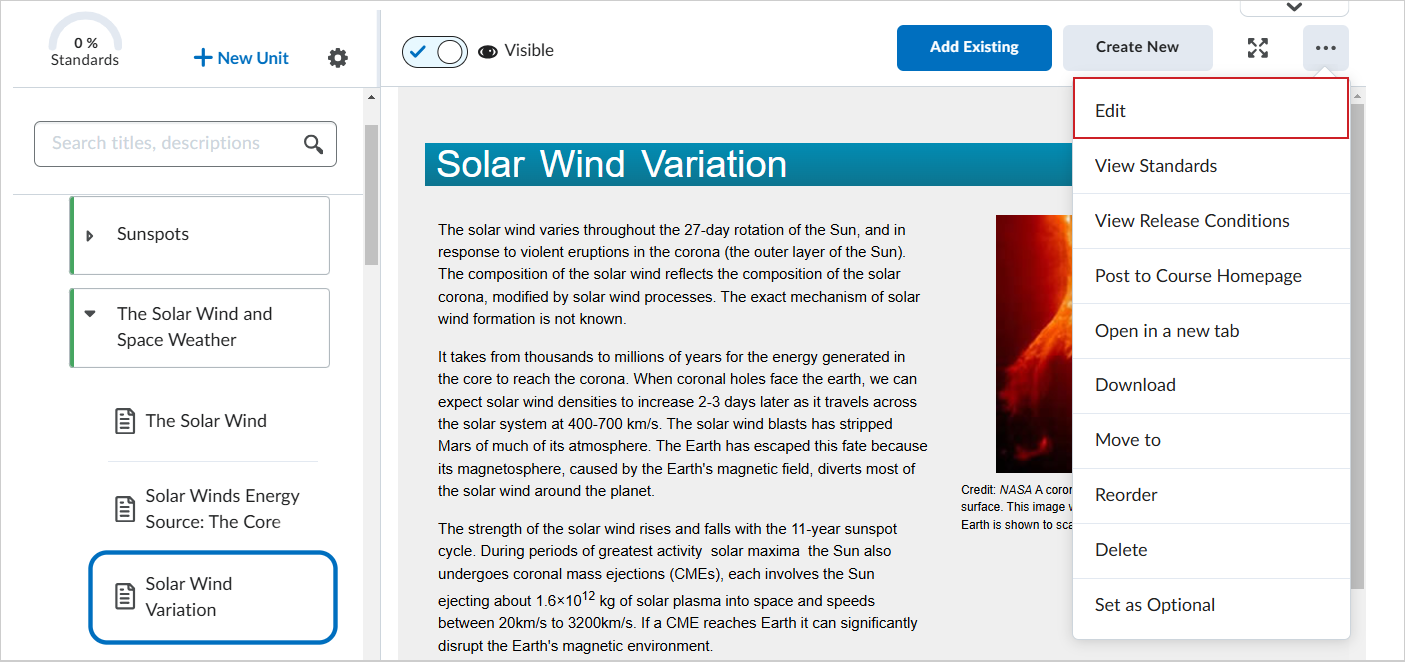
  2. In the module where you want to add a quicklink to a discussion topic, click the Options (...) menu and click EditThe Options menu showing the Edit option
    Figure: Click Options (...) for a module and select Edit.
  1. On the Edit Topic page, in Brightspace Editor, click Insert Quicklink.
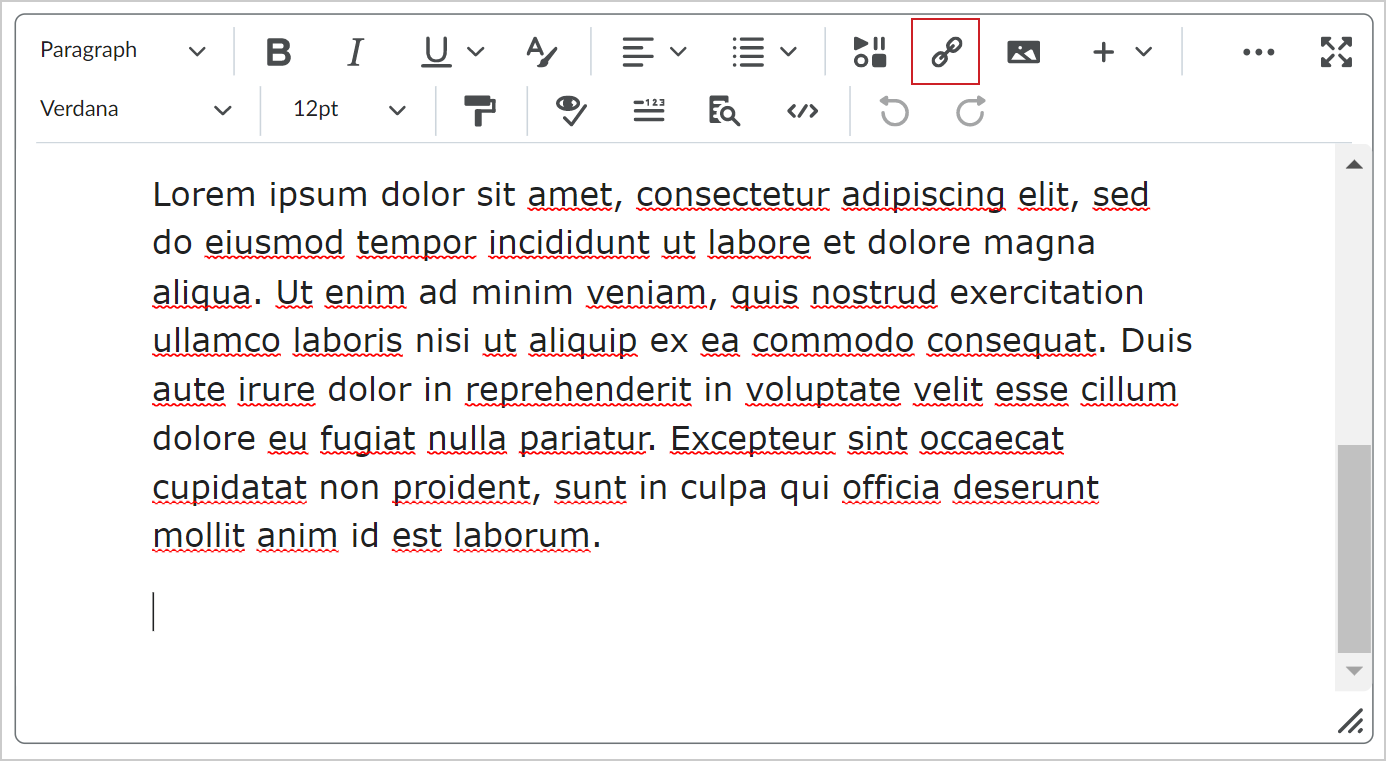

The Insert Quicklink icon in Brightspace Editor.

Figure: Click the Insert Quicklink icon in Brightspace Editor.

  1. In the Insert Quicklink dialog, click Discussions.
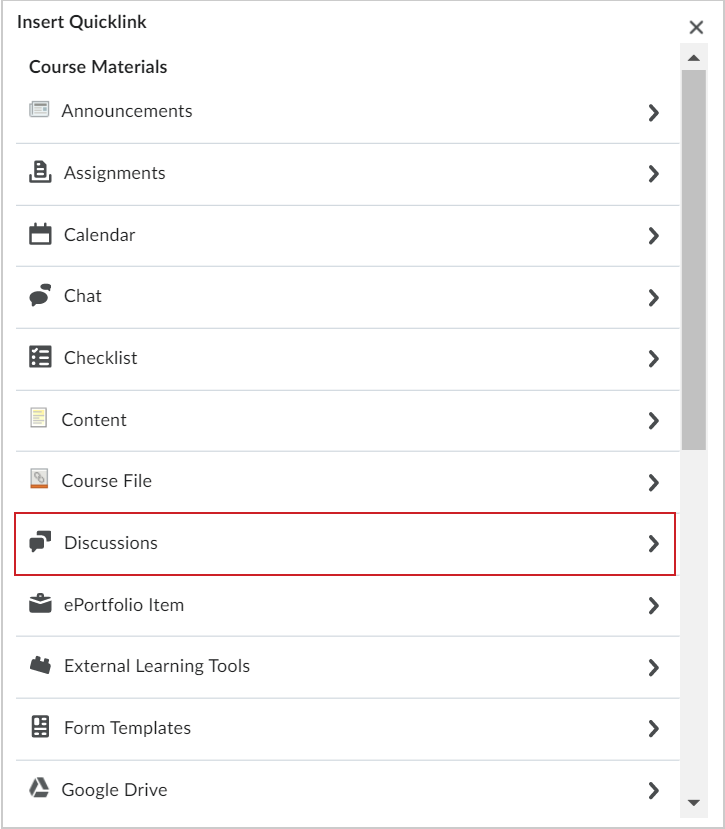

The Insert Quicklink dialog showing the Discussions option.

Figure: Select Discussionsfrom the Insert Quicklink dialog.

  1. Click the forum where your discussion topic exists.
  2. Select your discussion topic.

A quicklink is created in your Content module that links to your discussion topic.

Set up quicklink to a discussion topic in the Classic Content experience

You can add a quicklink to a discussion topic in the Classic Content experience.

To add a quicklink to a discussion topic

  1. From the course home page, click Content.
  2. Click the content module or sub-module for the topic you want to create a quicklink in.
  3. From the context menu of the topic you want to add a quicklink to, click Edit HTML.
  4. In the Content editor, enter the text you want to hyperlink to, highlight the text, and then click the Quicklink icon.
  5. In the Course Materials dialog box, click Discussions.
    • To add a discussion forum, click the Insert icon for the forum.
    • To add a discussion topic, click directly on the topic.

Set up a quicklink to a discussion topic or forum as Content topic in the New Content Experience (Lessons)

You can set up a quicklink to a discussion topic of forum as a Content topic under a parent module or sub-module in the New Content Experience (Lessons).

To set up a quicklink as a Content topic

  1. Navigate to Content.
  2. In the parent module or sub-module where you want to add the quicklink, click Add Existing.
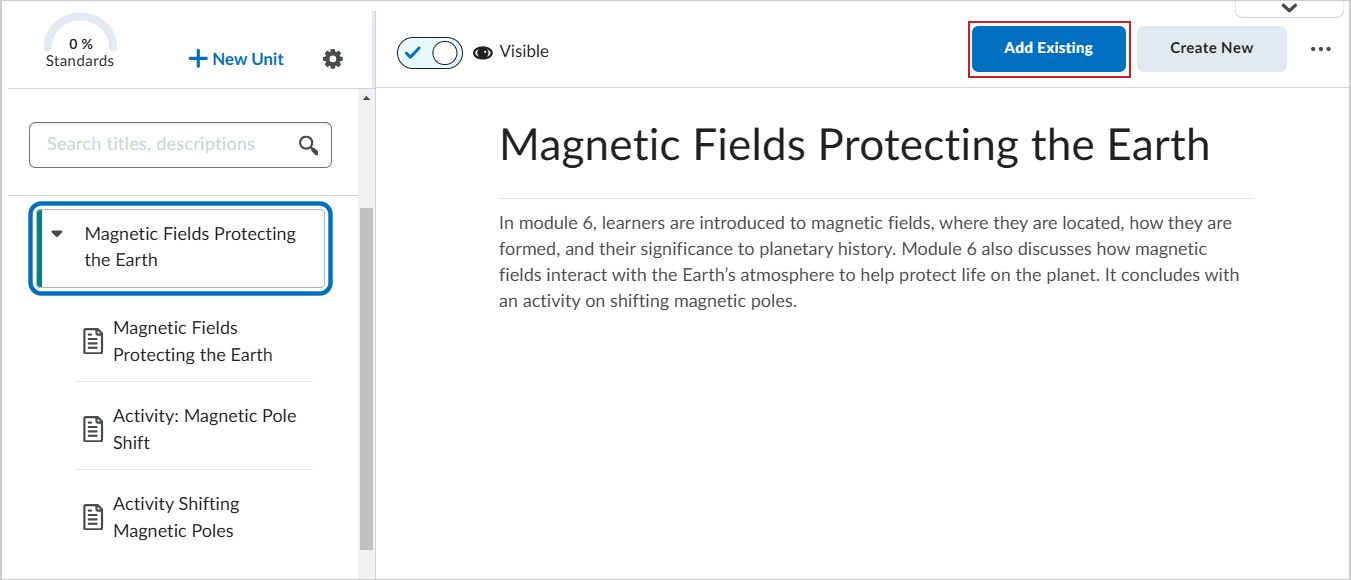
    The Add Existing button in Content
    Figure: Click Add Existing in Content.
  1. On the What would you like to add? page, click Discussion.
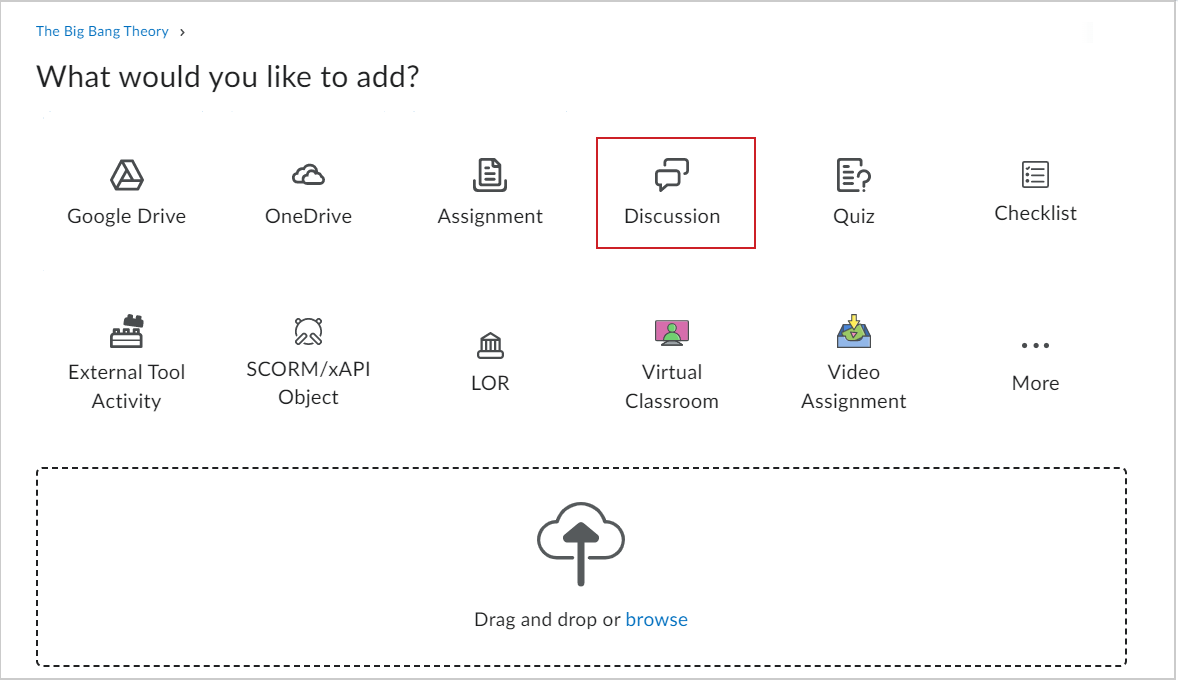

The What would you like to add? page showing the Discussion option.

Figure: The What would you like to add? page showing the Discussion option.

  1. In the Insert a Discussion dialog, click the forum you want to add.
  2. Click the topic you want to add.

You have added a discussion topic to your parent module or sub-module.

Set up a quicklink to a discussion topic or forum as a Content topic

You can set up a quicklink to a discussion topic or forum as a Content topic under a parent module or sub-module in Classic Content.

To set up a quicklink as a content topic

  1. From the course home page, click Content.
  2. In the module or sub-module you want to add the quicklink, click Existing Activities and then Discussions.
  3. Click the discussion forum that you want to add a quicklink to:
    • To add a discussion forum, click the Insert icon for the forum.
    • To add a discussion topic, click the topic.

Details

Details

Article ID: 171567
Created
Wed 3/18/26 4:52 PM
Modified
Wed 3/18/26 4:52 PM