Body
When D2L Lumi Pro for Brightspace is enabled in a course, you can use Lumi Outcomes to suggest learning outcome alignments for your assignments, pages and discussions.
The suggested outcomes are based on:
- Assignments: the available course-level outcomes and the instructions of the assignment
- Discussions: the available course-level outcomes and the description of the discussion topic
- Pages: the available course-level outcomes and the content of the page
- Quizzes: the available course-level outcomes and the content of the quiz questions.
Watch this video to learn how to generate learning outcome Alignments suggestions for Assignments, Discussions, Pages and Quizzes with Lumi Outcomes. Review the written steps below.
To generate learning outcome alignment suggestions for Assignments
- From the navbar, click Assignments.
- Do one of the following:
- Click New Assignment.
- Click the down arrow beside an existing assignment and select Edit Assignment from the Actions menu.
-
Click Outcomes.

 |
Note: The name of the Learning Outcomes tool and some menu items and links therein depend on the language term defined by your organization. Based on that setting, the Outcomes link might be labeled Standards, Competencies, Expectations, Objectives, or Learning Outcomes. |
-
In the Browse Learning Outcomes dialog, click Suggest Outcome Alignments.

-
Do one of the following:
|
Note: Generating suggestions for outcome alignments is equivalent to one generation of AI consumption; clicking Suggest More during the workflow does not trigger additional generations. Refer to About Consumption Dashboard for details about generations and consumption. |
Click Save.
Click Save and Close.
To generate learning outcome alignment suggestions for Pages
- From the Course page, click Content from the navbar.
- Do one of the following:
- Click Create New.
- Click an existing page and select Edit Page from the Options menu.
- Click Outcomes.

|
Note: The name of the Learning Outcomes tool and some menu items and links therein depend on the language term defined by your organization. Based on that setting, the Outcomes link might be labeled Standards, Competencies, Expectations, Objectives, or Learning Outcomes. |
In the Browse Learning Outcomes dialog, click Suggest Outcome Alignments.

- Do one of the following:
Click Save.
Click Save and Close.
To generate learning outcome alignment suggestions for Discussions
-
From the Course page, click Discussions from the navbar.
- Do one of the following:
- Click New.
- Click the down arrow beside an existing discussion topic and select Edit Topic from the Action menu.
- Click Outcomes.

|
Note: Generating suggestions for outcome alignments is equivalent to one generation of AI consumption; clicking Suggest More during the workflow does not trigger additional generations. Refer to About Consumption Dashboard for details about generations and consumption. |
In the Browse Learning Outcomes dialog, click Suggest Outcome Alignments.
- Do one of the following:
Click Save.
Click Save and Close.
To generate learning outcome alignment suggestions for Quiz questions
- In your course navbar, select Quizzes.
Do one of the following:
- Select New Quiz, or
- Open an existing quiz you want to align.
- In the Questions section, select a question you want to align.
- Click the More Actions arrow and select Align to Outcomes.
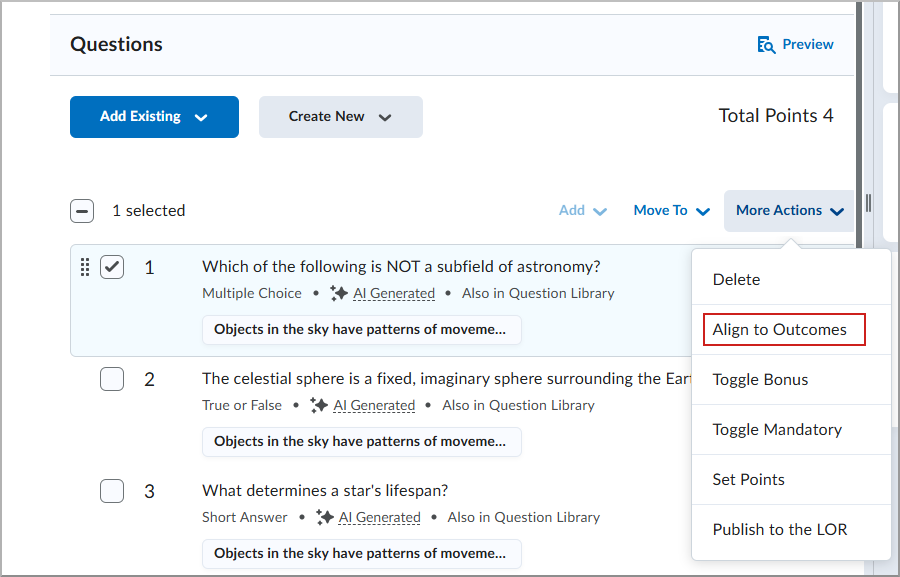
- On the Updated Shared Questions dialog, click Continue.
Do one of the following:
- Select one or more of the three suggested standards.
- Click Suggest More to generate additional suggestions.
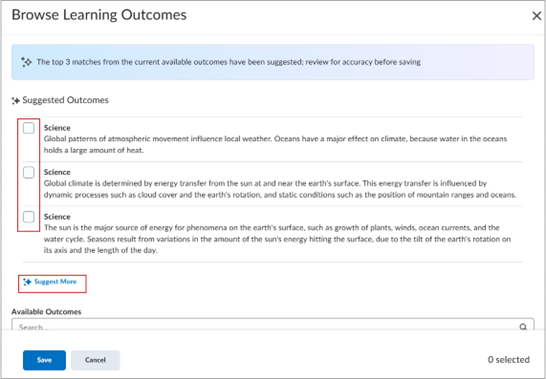
- Click Save.
- To finish, select another question to align or select Save and Close to return to Manage Quizzes.
Your quiz questions are saved with aligned outcomes.