Body
Integrating a D2L Lumi Tutor assistant into Brightspace provides an AI-powered experience that helps learners and instructors get personalized, context-aware answers. The assistant draws from institution-specific knowledge and tools to deliver instant support. With Learning Tools Interoperability (LTI®) and OAuth 2. 0 integration, the assistant can securely retrieve course-specific data to tailor its responses.
Add a D2L Lumi Tutor course assistant
Before beginning the integration, ensure the following:
- You have Admin access to both D2L Lumi Chat admin portal and Brightspace.
- You're logged into D2L Lumi Chat admin portal and your Brightspace admin console.
Use a course as general knowledge
Designating a course as general knowledge makes its content accessible across all AI assistants in Brightspace regardless of which specific course a user is interacting with. This is especially useful when institutions use courses as repositories for information that should be available institution-wide.
Use this feature to ensure course-based knowledge repositories are accessible across all AI assistant interactions. It supports consistent, centralized access to institutional guidance.
Common use cases
- Policy repositories: Handbooks, academic policies, institutional procedures
- Resource libraries: Writing guides, study materials, reference documents
- FAQ collections: Centralized responses to common questions across departments
- Institutional information: Campus services, tech support, onboarding materials
Examples
- A Student Resources course containing citation guides and academic integrity policies
- An IT Help course with technology tutorials and troubleshooting guides
- A New Student Orientation course with general onboarding information
Designate a course as general knowledge
- Log in to your D2L Lumi Chat admin portal.
- Select the Assistants tab to view a list of all AI Assistants currently available.
- Click Edit on the Assistant that you want to use a course as general knowledge.
- Select the Knowledge tab and click Courses.
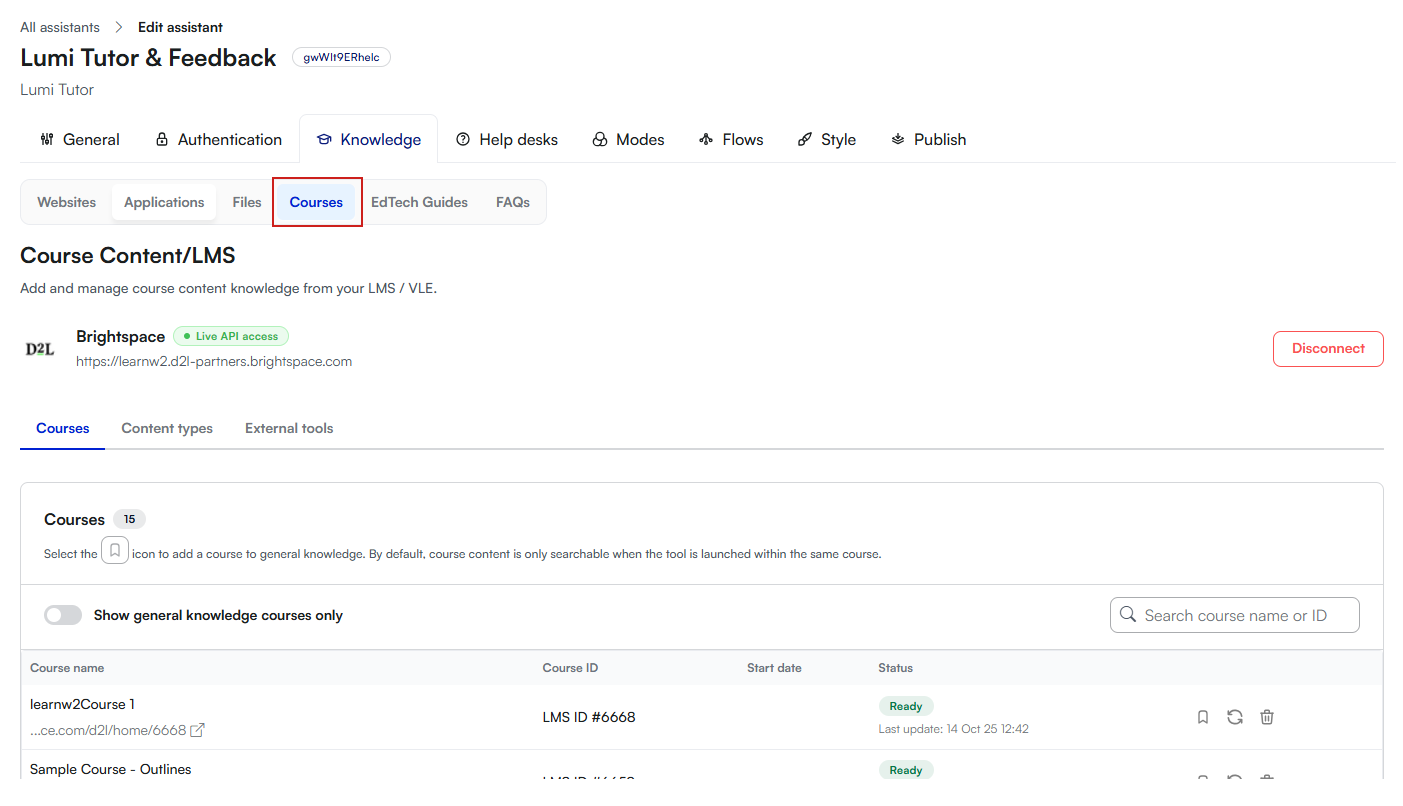
- Locate the course you want to designate as general knowledge.
- Click the bookmark next to the course name.
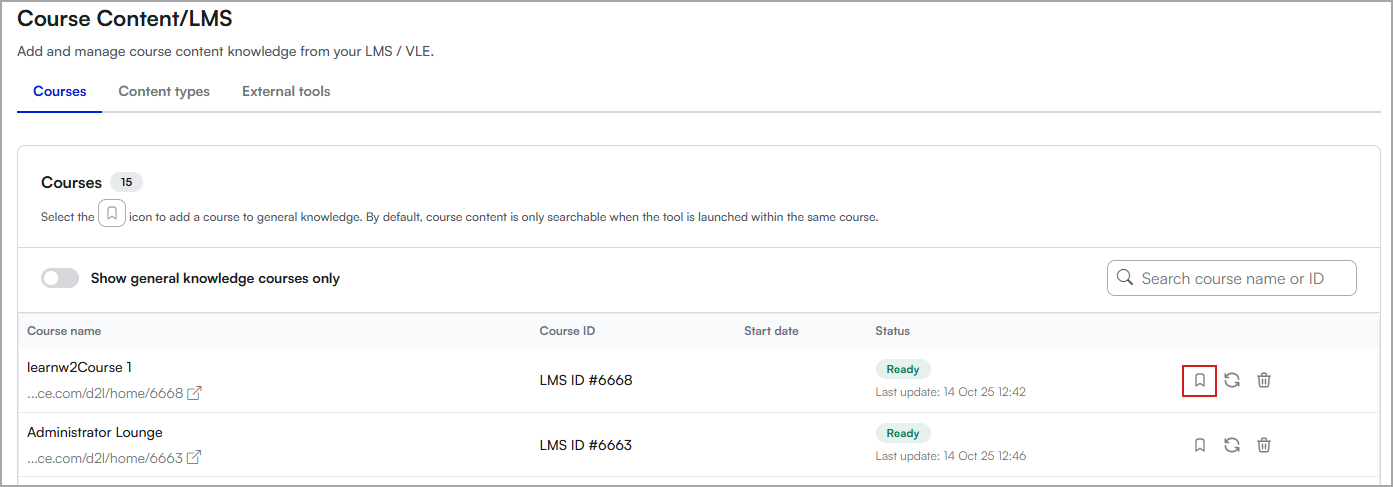
The course is now marked for general knowledge and displays a filled bookmark icon.
Visual indicators
- Empty bookmark icon: Course is not marked as general knowledge.
- Filled bookmark icon: Course is general knowledge. Tooltip reads Add to general knowledge.
Remove a course from general knowledge
- Log in to your D2L Lumi Chat admin portal.
- Select the Assistants tab to view a list of all AI assistants currently available.
- Click Edit on the Assistant that you want to remove a course as general knowledge.
- Select the Knowledge tab and click Courses.
- Locate the course you want to remove from general knowledge.
- Click the filled bookmark next to the course name.
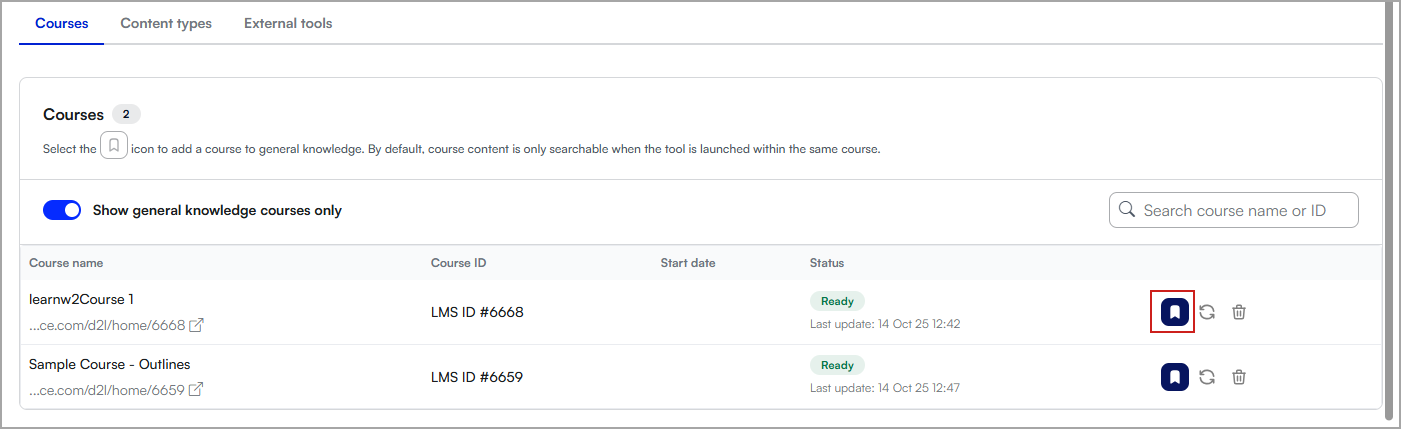
- The icon changes to empty, removing the general knowledge status.
Content will no longer appear outside the original course.
Content sharing and reuse implications
What happens when you mark a course as general knowledge?
- Cross-course access: Content becomes available to all users regardless of course enrollment.
- AI assistant access: All AI assistants can surface this content when responding to queries.
- Search priority: The content follows the same prioritization as other institution-specific sources.
Important considerations
- Student visibility: Students can access this content even if they are not enrolled in the original course.
- Sensitive content: Avoid marking courses that contain private or course-specific information.
- Access control: Content respects LMS permissions but may still appear in assistant responses.
Source prioritization
- Course-specific content (highest priority for students in the course)
- General knowledge course content (available across all courses)
- Uploaded institutional documents (PDFs, guides, handbooks)
- Website content (Institutional websites)
- Out-of-the-box knowledge (LMS or EdTech documentation)
Content sharing best practices
Content organization
- Only mark courses that apply broadly across departments or programs as general knowledge.
- Review course content regularly to ensure it remains current.
- Use clear, descriptive course names like Academic Support Resources.
Managing general knowledge courses
- Assign content ownership to designated administrators.
- Set an update cadence.
- Ensure information is accurate, up to date, and institutionally appropriate.
Troubleshooting common issues
My general knowledge course content isn't appearing in responses.
- Confirm that the bookmark icon is filled.
- Ensure course content is published and visible to students.
 |
Note: D2L Lumi syncs content weekly (on Sundays). |
Students are seeing content they shouldn’t.
- Check permissions for the marked course.
- Unmark the course if it includes sensitive or internal-use materials.
How do I view all general knowledge courses?
- Filter courses in the admin panel using the option: Show general knowledge courses only.
- Look for filled bookmark icons in the course list.