Body
A link in Content is likely broken if learners see Not Authorized after selecting a quicklink to a resource or tool.
 |
Note: If a learner selects a quicklink to an activity that is outside its availability dates, Brightspace shows “Unavailable Quicklink. The <activity type> is not available.” In this case, the quicklink is not broken. To grant access, change the activity’s availability dates. |
To fix broken links in Content
- On your course home page, click Content.
- Click on the module or sub-module that contains the topic with the broken link.
- Do one of the following:
- For Classic Content:
- If the topic itself is a quicklink:
- Open the topic’s context menu
- Select Edit link
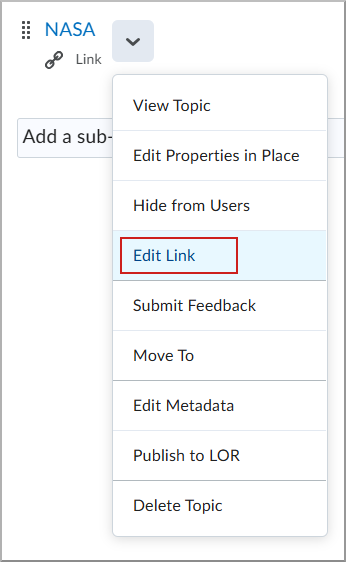
- Update the URL.
- Select Update.
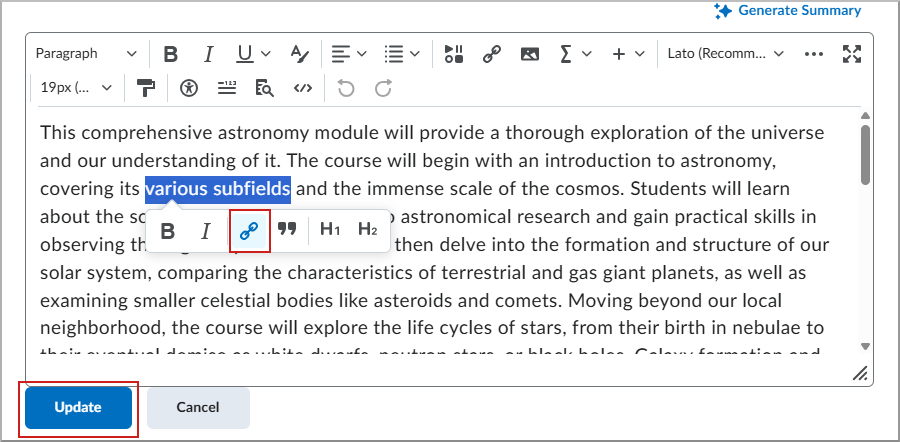
- If the quicklink is in the topic’s body text:
- Open the topic
- Highlight the link and select the Quicklink icon.
- Choose the destination (for example, Insert Quicklink for Quizzes, Discussions) or select URL for a web address.
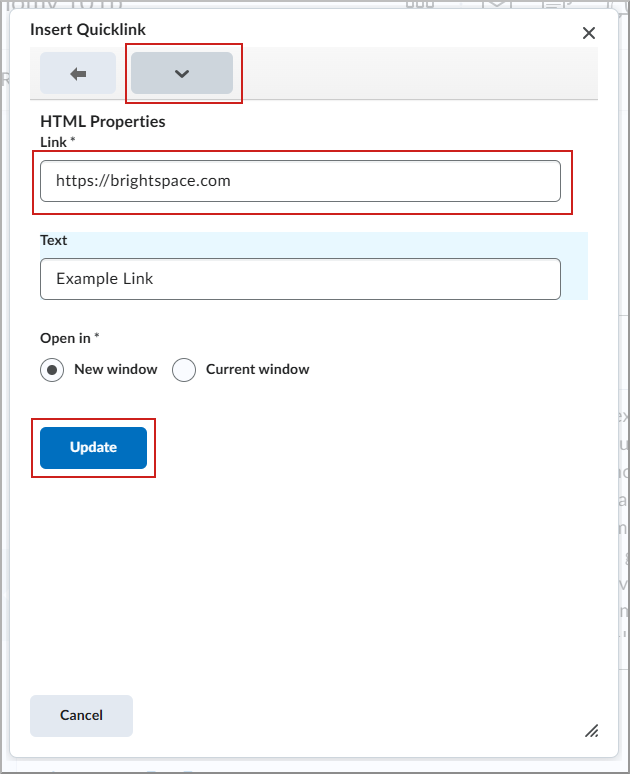
- Click Update.
- For New Content Experience
- If the topic itself is a quicklink:
- Open the topic’s context menu.
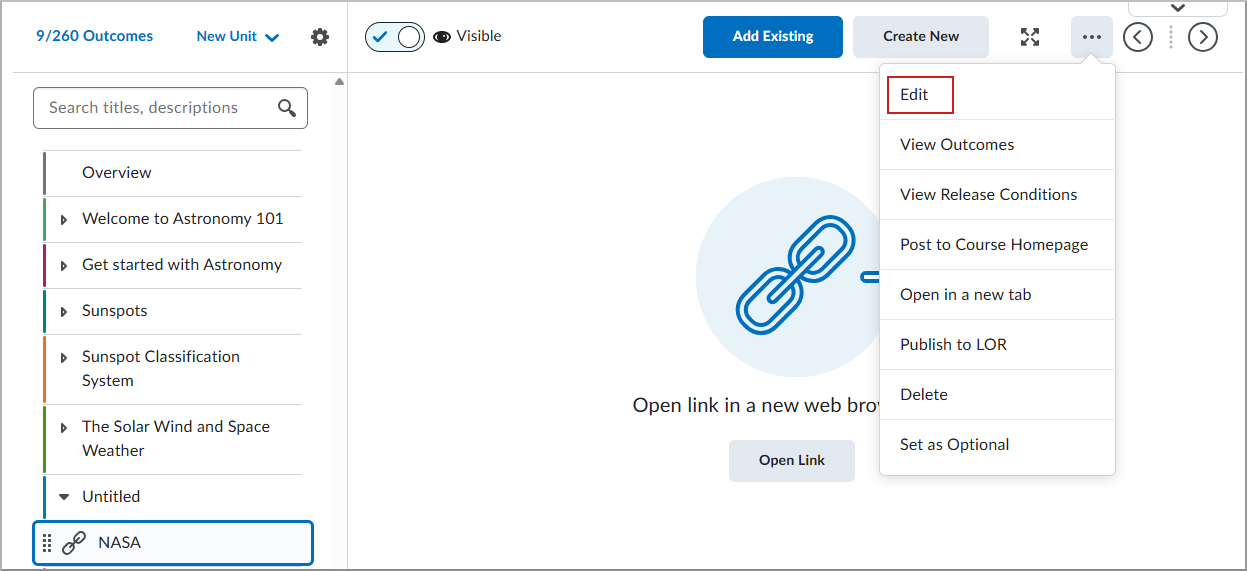
- Select Edit .
- Update the External Link.
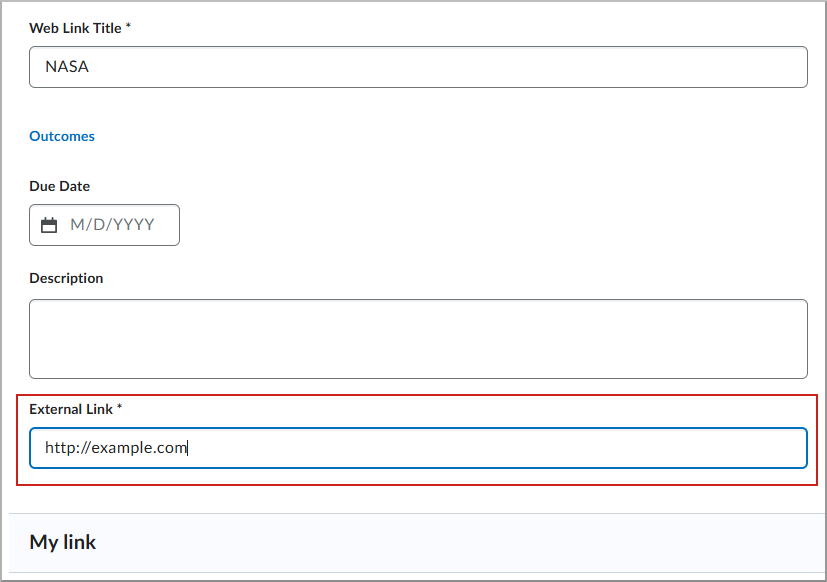
- Click Save and Close.
- If the quicklink is in the topic’s body text:
- Open the topic's context menu.
- Click Edit.
- Highlight the link and select the Quicklink icon.
- Update the URL.
- Click Apply.
- Click Save and Close.