Notify users about updated course content

Body

You can notify learners when updating or changing an HTML topic in Content. They receive an Update alert notification in their minibar; clicking the alert brings them to the updated topic.

Notify users of changed content in the New Content Experience

You can notify learners when content is changed or updated using the New Content Experience (Lessons).

To notify users of updated content

  1. Navigate to Content.
  2. Click on the module that contains the topic you want to edit.
  3. Click the Options (...) menu and select Edit.
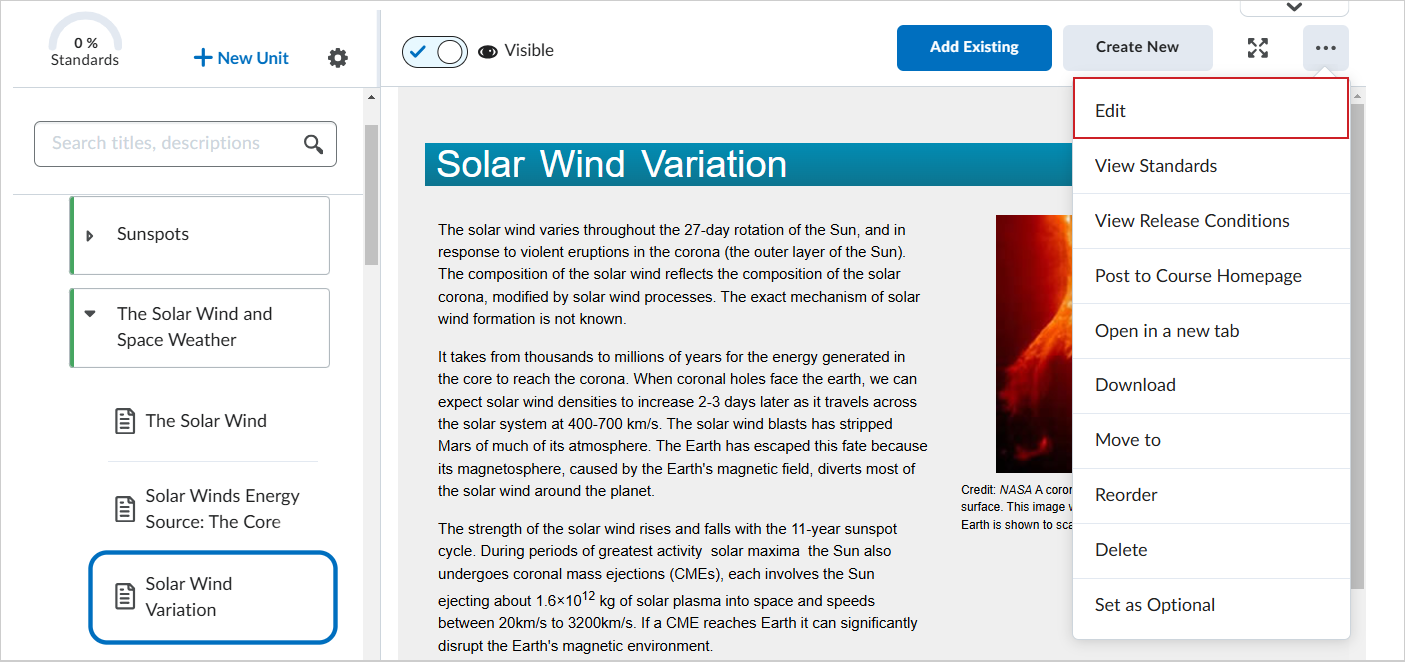
    The Options menu showing the Edit option
    Figure: Click Options (...) and select Edit.
  1. In the Edit Topic page, make your changes to your topic.
  2. Click Save and Close.
  3. In the changed topic, click the Options (...) menu and select Post to Course Homepage.
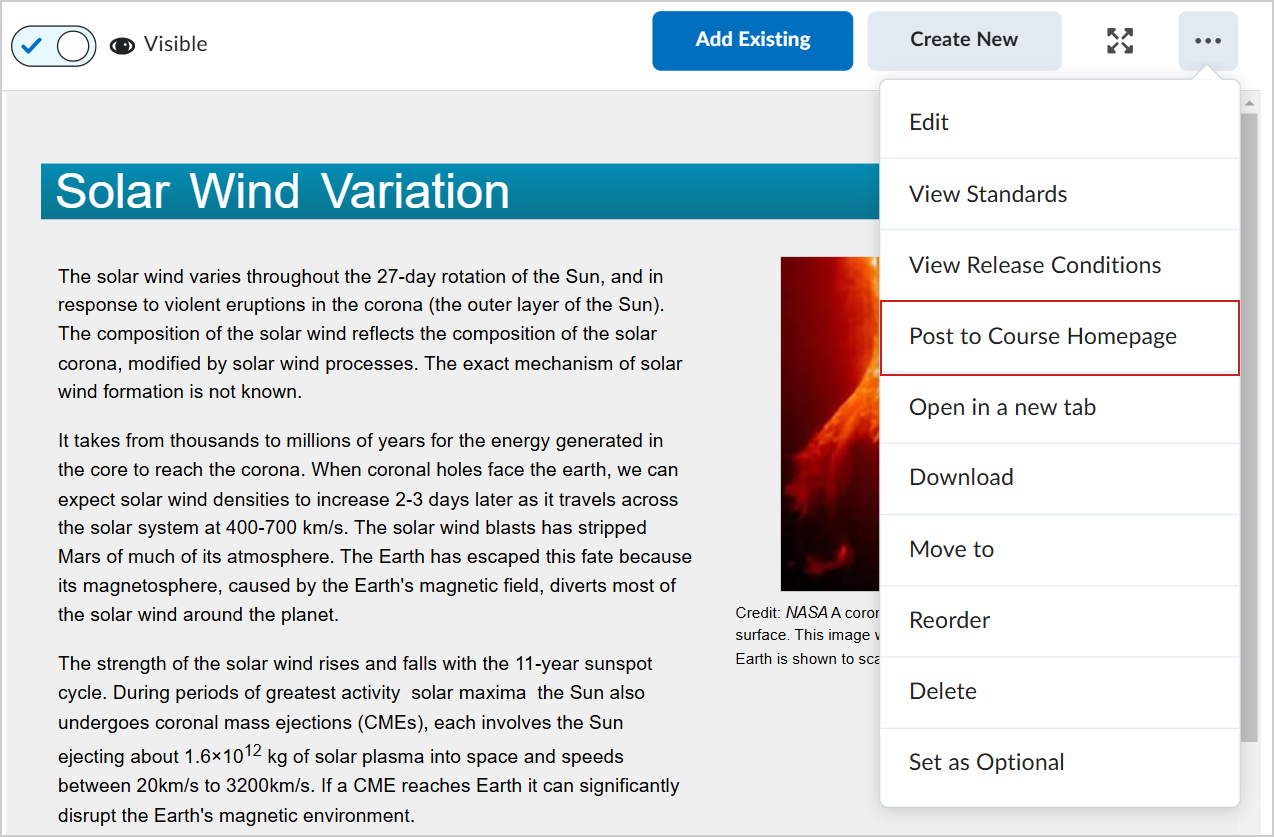
    The Options menu showing the Post to Course Homepage option
    Figure: Click Options (...) and select Post to Course Homepage.
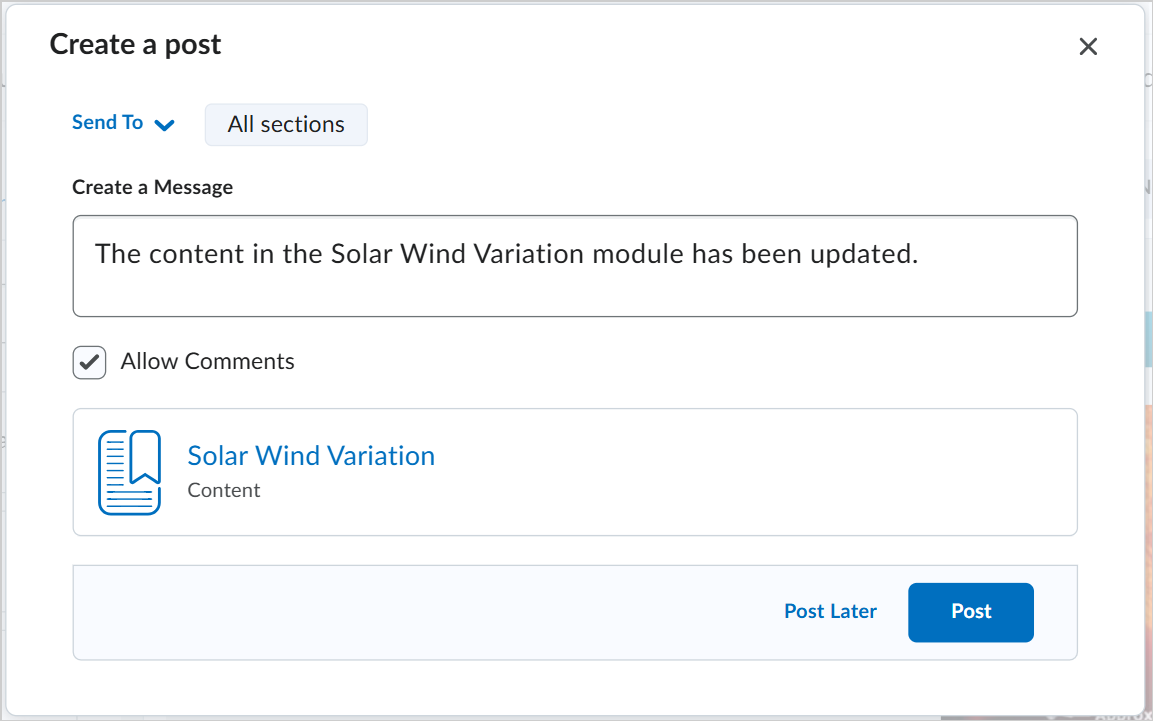
  1. In the Create a post dialog, enter a message that notifies learners of the changed content.
  2. Click Post.
    The Create a post dialog showing the Create a Message field, Allow Comments check box, and the module being updated.
    Figure: Use the Create a post dialog to post updates to content.

You have notified learners of your changed content topic.

Notify users of changed content in Classic Content

You can also use the Classic Content experience to notify learners of updates or changes to course content.

To notify users in Classic Content

  1. On the navbar, click Content.
  2. In the Table of Contents pane, click on the module that contains the HTML topic you want to update, then click on the topic.
  3. Do one of the following:
    • To edit the contents of the topic, from the context menu of the topic, click Edit HTML. Make your changes.
    • To replace the topic, from the context menu of the topic, click Change File. To upload a new file, click The upload iconUpload. Follow the prompts to add your new file.
  4. Select the Notify students that the content has changed check box.
  5. If you want to describe your update changes, enter a description in the Add a summary of the changes field.
  6. If you want learners to revisit the topic to complete the activity, select the Reset completion tracking check box.
  7. Click Update.

Details

Details

Article ID: 171428
Created
Fri 3/13/26 4:39 PM
Modified
Fri 3/13/26 4:39 PM