Body
The Graphical Equation Editor is a JavaScript-based application within the HTML Editor tool that enables users to add graphical, chemistry, MathML, and LaTeX equations to their content. The editor provides the necessary elements to construct equations quickly and easily. Each button in the editor toolbar opens a palette of related mathematical symbols. When equations are inserted into the HTML Editor, you can see the equations inline while editing your work. You can insert equations by typing them into the HTML Editor.
 |
Note: LaTeX is available in the new quizzing experience. Equations respect the settings you define in the Attributes page, including Text Orientation.
|
Before using the HTML Editor:
- Ensure that you have installed the latest version of your internet browser and that JavaScript is enabled.
- Disable any software or browser settings that block pop-up windows.
Video: Using the Equation Editor
Insert equations in the Brightspace Editor
The Graphical Equation Editor enables users to insert mathematical equations within the Brightspace Editor. It supports the input of MathML, LaTeX, graphical, and chemistry equations.
|
Note: LaTeX is available in the new quizzing experience.
|
|
Concept
|
Description
|
|
MathML equation
|
MathML is a standard adopted by the World Wide Web Consortium (W3C). It uses XML to describe mathematical notation by capturing both its structure and content. This enables MathML to support visual display and assistive technology access.
As a standard, Brightspace stores and displays all equations in the MathML format, regardless of the format you use to enter equations. Brightspace uses the MathJax JavaScript engine to display MathML equations.
|
|
LaTeX equation
|
LaTeX is a typesetting system based on TeX. It provides a text syntax for complex mathematical formulae. Brightspace stores equations entered in LaTeX format as MathML to ensure consistency and accessibility.
|
| Chemistry equation |
The Chemistry equation option offers specialized chemistry symbols for inorganic chemistry formulas. |
| Graphical equation |
The Graphical equation option offers 10 tabs of symbols, arrows, Greek letters and numbers, matrices, scripts and layouts, decorations, big operators, calculus, and context for creating math equations. |
Tabs in the Graphical Equation Editor
|
Icon
|
Name
|
Description
|
 |
Chemistry tab |
Add specialized chemistry symbols for inorganic chemistry equations
Note: This tab only appears when you select the Chemistry equation option
|
|

|
General tab
|
- Add a template for building equations.
- Add and edit text in the equation using the Cut, Copy, Paste, Undo, Color, and other text editing function
|
|

|
Symbols tab
|
Add mathematical symbols to equations
|
|

|
Arrows tab
|
Update or add arrows to equations
|
|

|
Greek and letters tab
|
Update or add uppercase and lowercase Greek characters to equations
|
|

|
Matrices tab
|
Update or add matrices to equations
|
|

|
Scripts and layout tab
|
Add scripts or layouts to build equations
|
|

|
Decorations tab
|
Add fences such as brackets and vertical bars around text fields
|
|

|
Big operators tab
|
Update or add big operators to equations
|
|

|
Calculus tab
|
Add a template for building Calculus equations
|
Create an equation using classic input mode
You can create and add equations from Brightspace Editor.
To create and add an equation
- Access the Brightspace Editor in the tool where you want to create an equation.
- From the Graphical equation drop-down list, do one of the following:
- To insert a graphical equation, click Graphical equation.
- To insert a chemistry equation, click Chemistry equation.
- To insert a MathML equation, click MathML equation.
- To insert a LaTeX equation, click LaTeX equation.
- In the Insert Equation window, enter your equation using keyboard characters and your cursor to select symbols from the tabs.
- Click Insert.
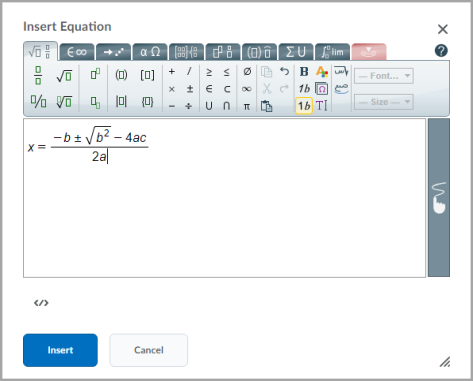
Figure: The Insert Equation dialog box.
The new equation is added.
Edit an equation
You can also edit existing equations from Brightspace Editor.
To edit an equation
- Navigate to the course item that contains the equation you want to edit.
- From the context menu of the course item, click Edit HTML.
- In Brightspace Editor, click on the box with the
 capital sigma sign.
- From the Graphical equation drop-down list, do one of the following:
- To edit the equation using the graphical equation format, click Graphical equation.
- To edit the equation using the chemistry equation format, click Chemistry equation.
- To edit the equation using the MathML equation format, click MathML equation.
- To edit the equation using the LaTeX equation format, click LaTeX equation.
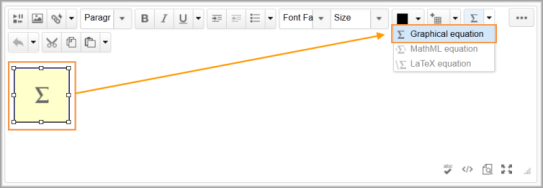
Figure: The Graphical equation drop-down list of Brightspace Editor.
- Make your changes.
- Click Insert > Update.
The equation is updated.