Body
Advanced Assessments allows instructors to assign multiple evaluators to a single assignment submission when creating or editing assignments, designate which evaluators can publish grades and feedback in the Assignments tool, and match evaluators to learners. Instructors can also choose from two multi-evaluator workflows:
-
One Shared Evaluation (co-marking) – Evaluators collaborate on a single shared evaluation that publishers release to learners.
-
Multiple Individual Evaluations – Evaluators complete separate evaluations, and publishers aggregate the results into a final evaluation before releasing it to learners.
To help you find the information you need quickly, use the links below to navigate directly to each step or topic:
Access Advanced Assessments
To enable Advanced Assessments:
- Create a new assignment or edit an existing assignment.
- In the Evaluation & Feedback section, click Select Evaluators. The Select Evaluators dialog displays all evaluators in the course with the Give Feedback permission.
 |
Note: The Evaluators area displays the number of evaluators in the course with the Give Feedback permission. The Select Evaluators dialog displays all evaluators in the course with the Give Feedback permission.
If an instructor does not select any evaluators and clicks Cancel, Advanced Assessments workflows are not enabled for the assignment. The instructor can continue creating the assignment as a standard assignment without Advanced Assessments features. In standard assignments without Advanced Assessments enabled, all users with the Give Feedback permission can evaluate the assignment.
|
- Select the evaluators for the assignment, and click Done.
|
Note: Selecting evaluators displays the following additional options in the Evaluation & Feedback section: Evaluators, Publishers, Allocate Evaluators to Learners, and Coordinate Multiple Evaluators. |
 |
Tip: In Quick Eval, evaluators only see learner submissions assigned to them. |
- To finish configuring the assignment, click Save or Save and Close. Advanced Assessments workflows are enabled after evaluators are selected and the assignment is saved.
Assign publishers
Publishers are users who can publish evaluations and make them visible to learners.
While creating or editing an assignment, in the Evaluation & Feedback section under Publishers, choose one of the following options:
-
All evaluators can publish any evaluations
-
Evaluators can only publish their evaluation: Only the evaluator assigned to evaluate a specific learner submission can publish the evaluation. Review the Advanced Evaluation dialog to identify which evaluator can publish evaluations for each learner submission.
-
Manually select publishers: Select one or more users with the Give Feedback permission to publish evaluations to learners.
Depending on the selected option, a Publish button appears on the evaluation screen for users who meet the selected criteria.
|
Note: In Quick Eval, publishers assigned to publish all learner submissions can view submissions for all learners. |
Allocate evaluators to learners
Click Manage Allocations to open the Default Allocation Method drop-down list and the Evaluator Allocations table.
Use the Default Allocation Method drop-down list to determine how learners are matched to evaluators. The system can randomly assign up to 3 evaluators to each learner. You can also manually map evaluators to learners using the Evaluator Allocations table by selecting or clearing the corresponding check boxes.
To clear all mappings in the table at once, click Clear Table Selections.
You can also assign evaluator mappings by group or section using the Sort Groups/Sections drop-down list. Select a group or section to display its learners, and then map those learners to evaluators. Refer to Manage allocations in group assignments for detailed steps.
Coordinate multiple evaluators
Two evaluation modes are available to help you quickly assign evaluators. Choose one of the following options:
-
One shared evaluation: All evaluators contribute to the same shared evaluation of a learner submission. This workflow is often referred to as co-marking and is best suited for instructors who collaboratively evaluate learner submissions.
-
Multiple individual evaluations: Each evaluator completes a separate evaluation of a learner submission. Before the evaluation is released to the learner, the publisher must aggregate the independent evaluations into a final evaluation. This workflow is often referred to as independent multi-marking.
Create and manage group assignments in Advanced Assessments
Group assignments allow learners to collaborate and submit work together. You can evaluate the group collectively in Advanced Assessments, providing shared feedback and grades.
Create Group Assignments with Advanced Assessments
Group assignments are enabled through the Groups tool in Course Admin.
- Create your groups and categories using the Groups tool: Course Admin > Groups. You can skip this step if your groups already exist.
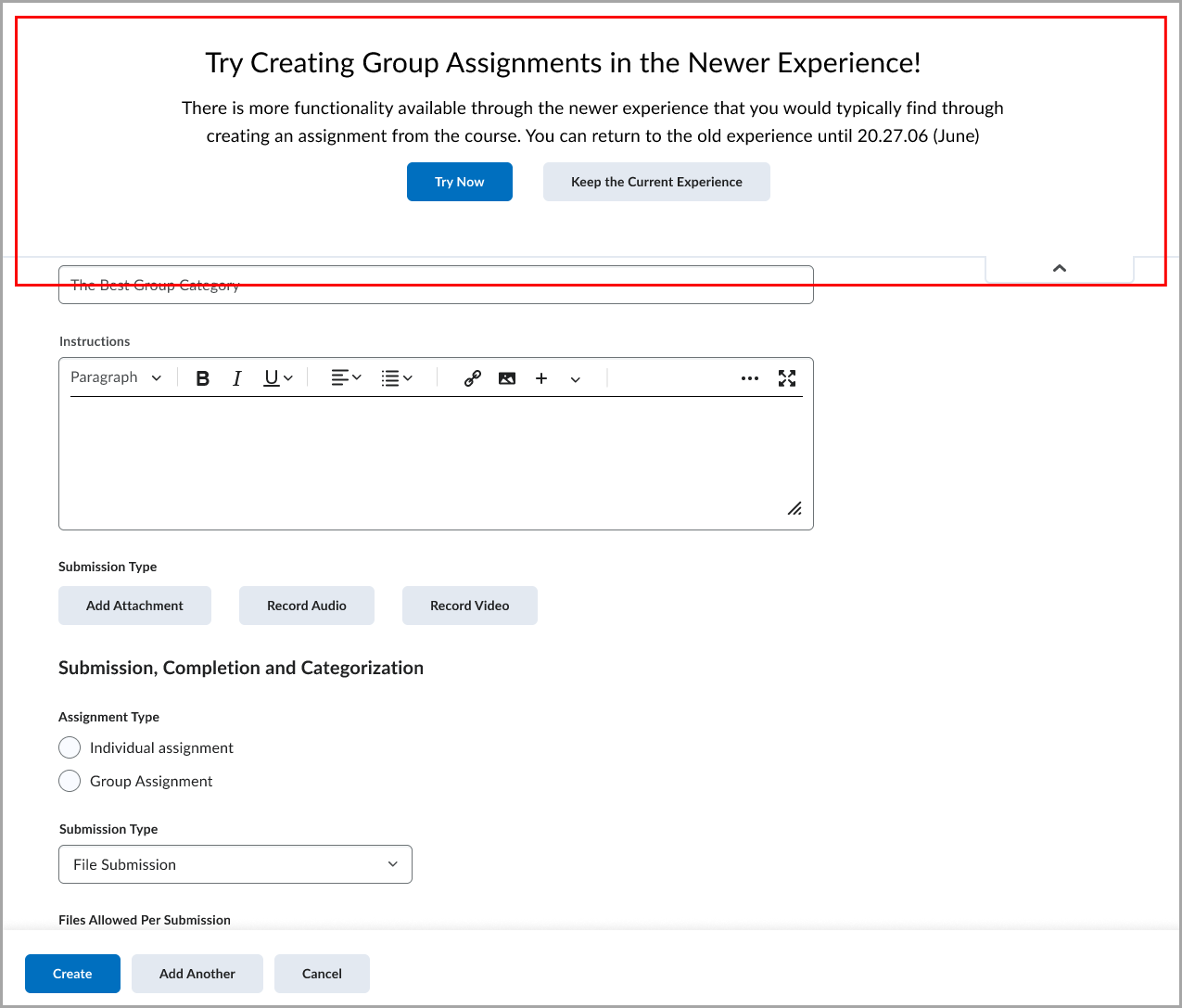
- Ensure that the d2l.Tools.Activities.AdvancedAssessmentsEnabled and d2l.Tools.Dropbox.GroupDropboxCreationRedirectOptIn configuration variables are enabled. On the legacy assignment creation page, click Try Now in the dropdown to use the new Group Assignment workflow in the new assignment creation experience.
 |
Important: Advanced Assessments does not support activity creation through the legacy Groups workflow. If you create an assignment using the legacy tool, Advanced Assessment options will not be available until you return to the Edit Assignment page from the Assignments or Content tool.
|
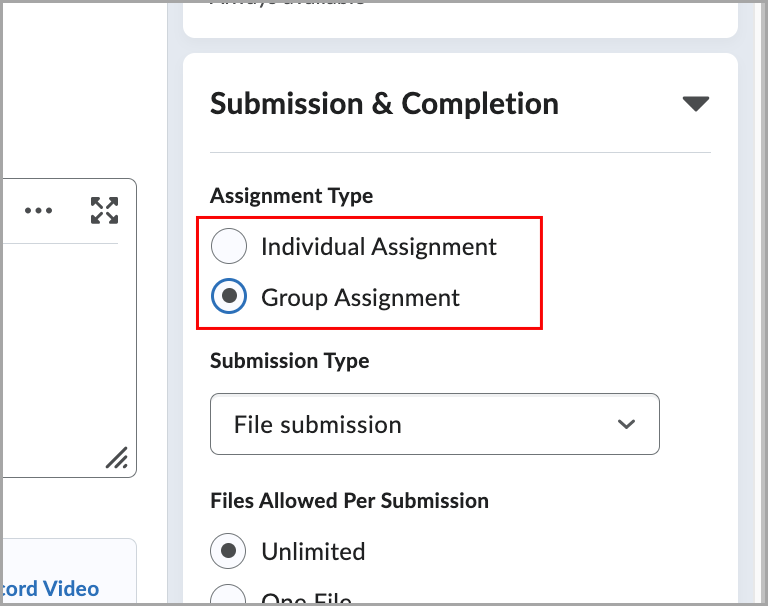
- When creating an assignment, select Group Assignment under the Submission & Completion section.
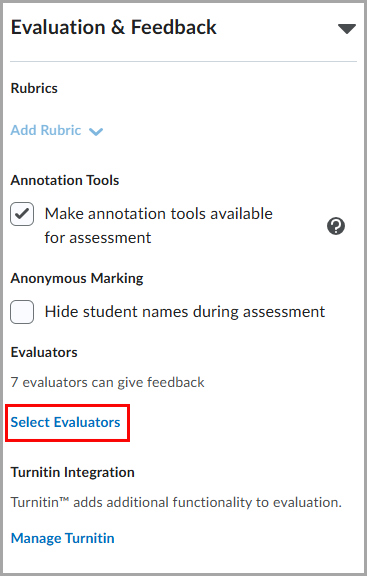
- Under Evaluators in the Evaluation & Feedback settings, click Select Evaluators to begin the Advanced Assessments workflows.
- To complete the setup of your group assignment in Advanced Assessments, continue through the workflow to:
- Configure evaluators
- Assign instructors to group allocations
- Select publishers
- Select One shared evaluation or Multi individual evaluations
- To finish configuring the assignment, click Save or Save and Close.
Manage allocations in group assignments
|
Important: The d2l.Tools.Groups.RestrictCrossSectionGroups configuration variable controls whether evaluator access to cross-section groups is restricted. When this configuration variable is enabled, only evaluators who are enrolled in the course and have access to all associated sections can view group assignments and evaluate cross-section groups. This restriction is not enforced. To avoid evaluation gaps and ensure continuity of grading workflows, any instructor enrolled in the course is permitted to evaluate any group, regardless of section enrollment. |
The Manage Allocations dialog allows you to review groups in the course and assign instructors to evaluate each group.
You can do the following:
When filtering by section, instructors enrolled in that section are visually identified by a tag under their name.
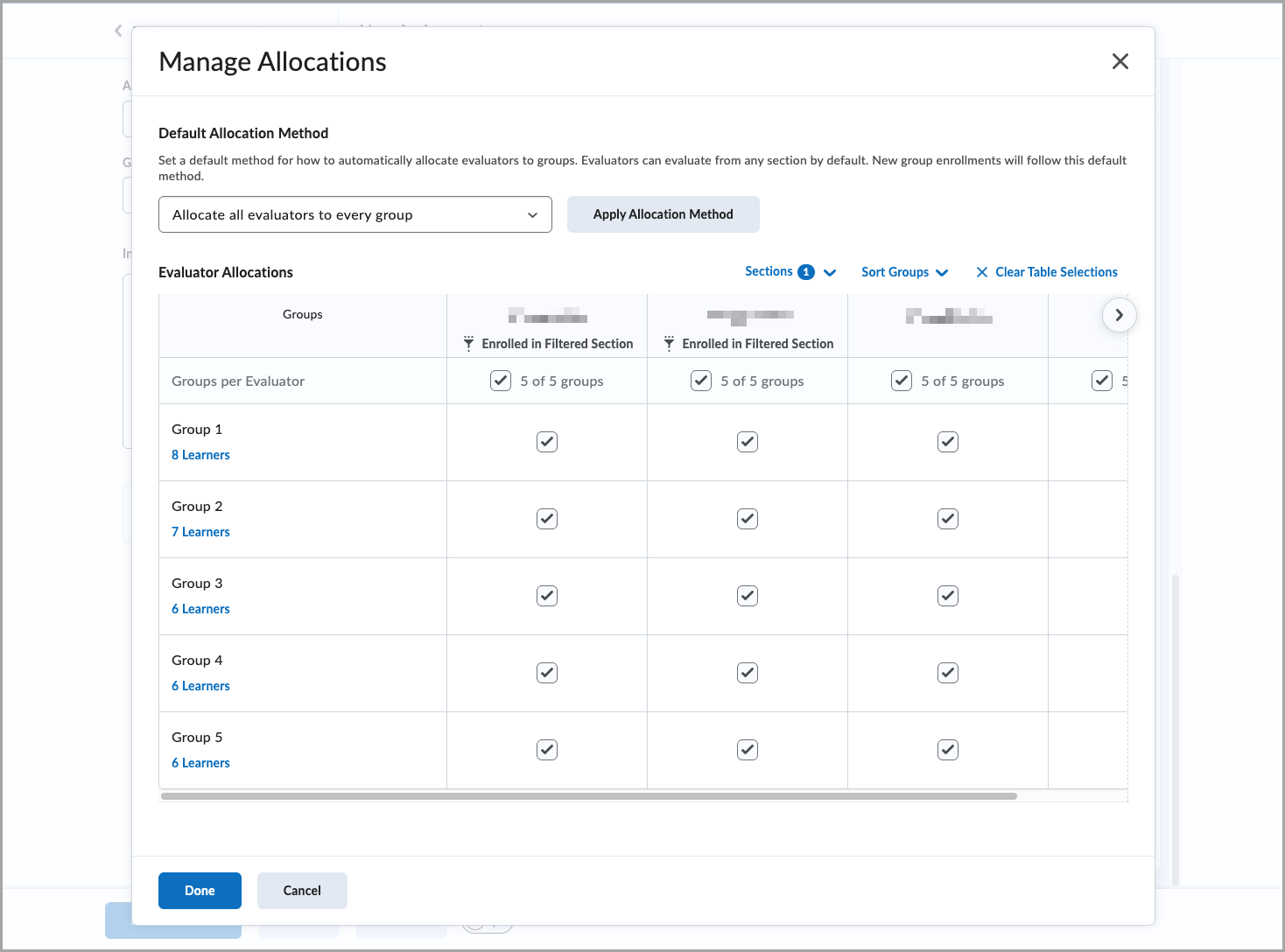
To ensure no group is left without an evaluator, all enrolled instructors can evaluate all groups by default.
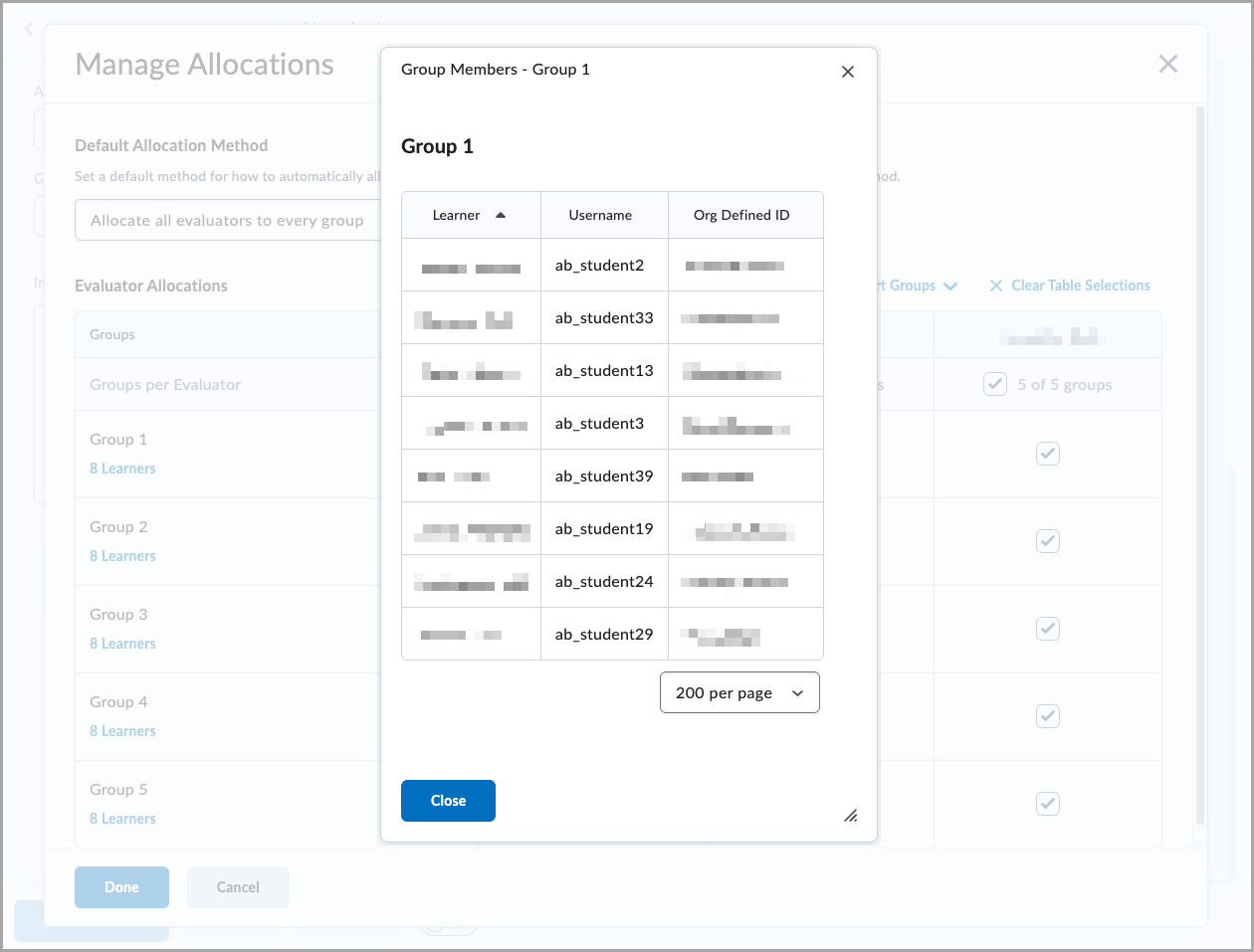
To review group membership, click the number of learners displayed for each group in the Manage Allocations dialog.
|
Note: Manual publisher selection does not require an instructor to be enrolled in all sections. |
Switch between Individual and Group Assignments
During the assignment creation process, if you switch between Individual and Group Assignment after interacting with the Manage Allocations dialog, a confirmation prompt appears. This prevents allocations from being accidentally overwritten.
|
Important: Switching between Individual and Group Assignments removes all previously adjusted Advanced Assessment settings.
Switching group categories removes only the allocation mappings in the Manage Allocations dialog; other Advanced Assessment settings are not affected.
Switching between individual and group assignment types is disabled after learner submissions are made.
|
FAQ
Are there any new permissions?
The Assignments > Give Feedback permission is used to populate both the evaluator list and publisher list, and is required to keep evaluators mapped and visible to reviewers after evaluations are completed.
Can this new capability be enabled for only specific courses?
No, this capability must be enabled for all org units.
Who can set up these advanced options for an assignment?
Anyone with the Assignments > Add/Edit Assignment Submission Folders permission can set up these new options.
What happens when a new learner enrolls in the course?
Brightspace maps new learners to evaluators based on the allocation option configured for the assignment. Existing learner-evaluator mappings are not overwritten.
Are cascading roles supported?
No. Users must be explicitly enrolled in the course.
What is the behavior when the course package is exported and imported?
Advanced Assessments options are not maintained when a course package is exported and imported.
Are there any enrollment requirements?
Instructors must be enrolled in the course and have an active enrollment to ensure evaluators remain mapped to evaluations after evaluations are completed.