Body
About replace strings
Replace strings, sometimes referred to as display configuration variables, are configuration variable names enclosed in curly brackets {} that are automatically replaced by the corresponding configuration variable values. For example, if you enter the text {OrgUnitID} into a field in a tool or widget settings you will see the Organization Unit ID (ou #) of the course when you view the tool or widget. Replace strings are used in all tools that use Brightspace Editor, which appears anywhere that you create content. However, evaluation rules for the replace strings vary depending on the tool.
Evaluation rules for Content topics
For topics created in Content, replace strings are evaluated only once when first entered. Thereafter, there is no record of a replacement string having been entered. For example, if you enter {OrgUnitID} into a Content topic in course 'A' and later copy that topic into course 'B', the ou # of course 'A' course will display in the topic in course 'B'.
Evaluation rules for all other tools
For all other tools a replace string is evaluated each time the document containing the replace string is viewed. For example, if you enter {OrgUnitID} into a Discussion topic in course 'A' and later copy that topic into course 'B', the ou # of course 'B' will display in the post in course 'B'.
- Not all replace strings apply to all tools as described below.
Replace strings are particularly useful within the following:
- Course Homepage Widgets
- Custom Navigation Bar Links
- Navigation Bars
- Mail Templates
- Grades when adding bulk feedback
- Language terms
Use replace strings with various widgets and tools
The available replace strings are:
|
Organization replace string
|
Description
|
For use in |
|
{OrgId}
|
ID number of the organization
|
All tools that use Brightspace Editor |
|
{OrgName}
|
Name of the organization
|
All tools that use Brightspace Editor, Metadata, Intelligent Agents |
| {CurrentDate} |
The date.
You can shift the date by typing:
({currentDate} + x) or ({currentDate} - x)
where x is a number of days |
Metadata |
| {CurrentTime} |
The time.
You can shift the time by typing:
({currentTime} + x) or ({currentTime} - x)
where x is a number of minutes
|
Metadata |
| {GMTime} |
Greenwich Mean Time |
Metadata |
|
Org Unit replace string
|
Description
|
For use in |
|
{OrgUnitId}
|
ID number of the organization unit
|
All tools that use Brightspace Editor |
|
{OrgUnitName}
|
Name of the organization unit
|
All tools that use Brightspace Editor, Metadata, Intelligent Agents |
|
{OrgUnitCode}
|
Code for the organization unit
|
All tools that use Brightspace Editor, Intelligent Agents |
|
{OrgUnitTypeId}
|
ID number of the type of the organization unit
|
All tools that use Brightspace Editor |
|
{OrgUnitPath}
|
Path to files for the organization unit
|
All tools that use Brightspace Editor |
| {OrgUnitType} |
The current org unit's type (e.g. course offering, department) |
Metadata |
| {LongTitle} |
Long title of the current module or topic |
Metadata |
| {ShortTitle} |
Short title of the current module or topic |
Metadata |
| {OrgUnitStartDate} |
Start date specified for the org unit |
Intelligent Agents, Email body text |
| OrgUnitEndDate} |
End date specified for the org unit |
Intelligent Agents, Email body text |
|
User replace string (Unavailable in Content topics)
|
Description
|
For use in |
|
{UserId}
|
ID number of the user. This value is used internally by the system
|
Tools that use Brightspace Editor |
|
{UserName}
|
Full name of the user or the username entered to log on
|
Tools that use Brightspace Editor |
|
{OrgDefinedId}
|
Organization ID. This is an identifier specified by the campus for the user
|
Tools that use Brightspace Editor |
|
{FirstName}
|
First name of the user
|
Metadata |
|
{LastName}
|
Last name of the user
|
Metadata |
|
{Email}
|
User's internal email address
|
Tools that use Brightspace Editor |
|
{ExternalEmail}
|
User's external email address
|
Tools that use Brightspace Editor |
|
{InternalEmail}
|
User's internal email address
|
Tools that use Brightspace Editor |
| {number} |
Mobile number of the SMS recipient |
Mobile Carrier Management |
| {InitiatingUser} |
User who performs the action that meets intelligent agent's criteria |
Intelligent Agents, Email address fields (To, cc, bcc) |
| {InitiatingUserAuditors} |
Auditors for the user who performs the action that meets intelligent agent's criteria |
Intelligent Agents, Email address fields (To, cc, bcc) |
| {InitiatingUserFirstName} |
First name of the initiating user |
Intelligent Agents, Email body text |
| {InitiatingUserLastName} |
Last name of the initiating user |
Intelligent Agents, Email body text |
| {InitiatingUserUserName} |
Username of the initiating user |
Intelligent Agents, Email body text |
| {InitiatingUserOrgDefinedId} |
Org Defined ID of the initiating user |
Intelligent Agents, Email body text |
| {InitiatingUserParents} |
The parents of the user who performs the actions necessary to satisfy the agent's criteria. |
Intelligent Agents, Email address field |
|
Role replace string (Unavailable in Content topics)
|
Description
|
For use in |
|
{RoleId}
|
Internal ID number for user's role
|
Tools that use Brightspace Editor |
|
{RoleCode}
|
Code for user's role
|
Tools that use Brightspace Editor |
|
{RoleName}
|
Name of user's role
|
Tools that use Brightspace Editor |
|
Mail Template replace string
|
Description
|
For use in |
|
{HelpDeskEmail}
|
Email address of the Help Desk
|
Mail Template Management |
|
{HelpDeskName}
|
Name for the Help Desk
|
Mail Template Management |
|
{LoginPath}
|
URL of the login path for this site
|
Mail Template Management, Intelligent Agents, Email body text |
|
{PasswordResetLink}
|
Link for users to reset their passwords
|
Mail Template Management |
| {PasswordResetExpiry} |
The expiration period for the password |
Mail Template Management |
| {Timestamp} |
The current date and time |
Mail Template Management |
Example: Use replace strings to display a user's name in the course banner
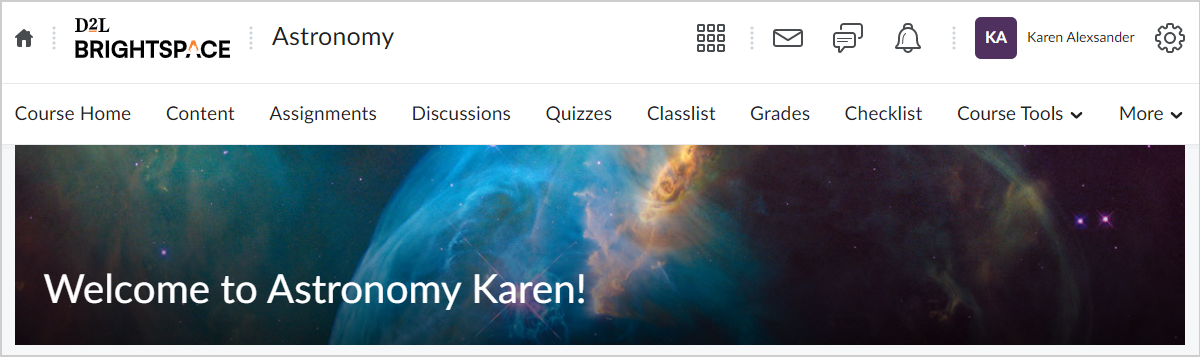
Although there are various replace strings available, as well as various tools that they can be applied in, here is one example. You can use replace strings to display your learner's name in your course banner.
To display your
learner's name your course banner
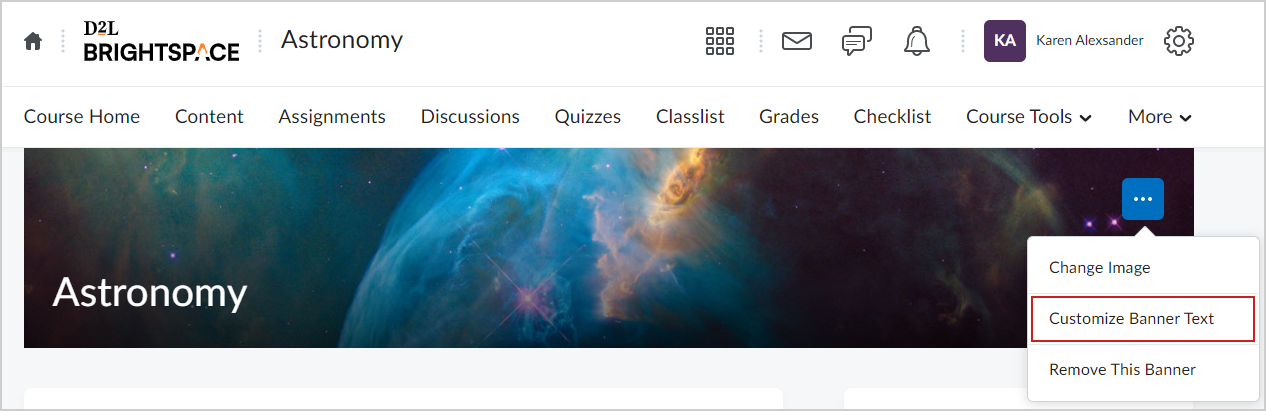
- From your course home page, locate the course banner.
- Click Banner Settings (...) and select Customize Banner T ext.
- From the Customize Banner Text dialog, select Custom.
- Enter the desired text and add the replace string {FirstName}.
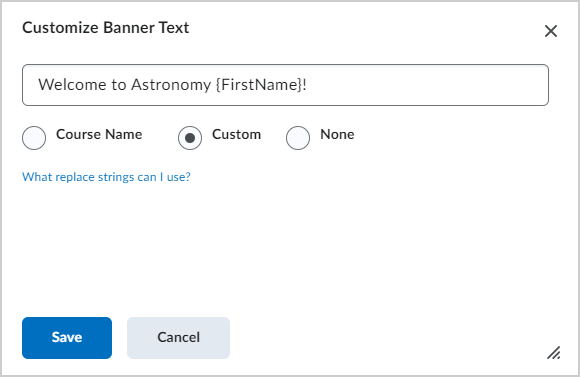
- Click Save.
Your home page banner updates and displays the name of your learner.